
1. Getting Started
Welcome to the documentation for Architectonic Structure Pro Theme! This documentation is designed to guide you through the installation, setup, customization, and usage of our theme. Whether you're a beginner or an experienced WordPress user, this documentation will help you make the most out of our theme.
Documentation Structure
This documentation is organized into several sections to help you navigate through different aspects of using our theme:
- Introduction: Get an overview of our theme, its features, and the documentation structure.
- Installation: Learn how to install and activate the theme on your WordPress website.
- Setup: Follow step-by-step instructions to set up your website using our theme, including configuring theme options, creating pages, and setting up widgets.
- Customization: Menu Items various customization options available in our theme, including theme customizer settings, page builder integration, and custom CSS.
- Support: Find resources and guidelines for getting support, including documentation, knowledge base, support forum, and contact information.
Feedback and Support
Your feedback is important to us! If you have any questions, suggestions, or issues related to our theme, please don't hesitate to reach out to our support team. We're here to help you make the most out of your WordPress website.
Architectonic Structure Pro – Premium WordPress Theme for Architecture & Delivery Services
Architectonic Structure Pro is a powerful and modern WordPress theme designed specifically for Architecture companies, logistics providers, parcel delivery services, and shipping businesses. It helps you create a professional, high-converting website to showcase your delivery services, manage bookings, and build trust with customers—without requiring any coding knowledge.
Whether you run a local Architecture service, international shipping company, or last-mile delivery business, Architectonic Structure Pro provides all the essential tools to present your services effectively and streamline customer interactions.
With a clean, modern, and service-focused design, the theme features a fully responsive layout that looks perfect on desktops, tablets, and mobile devices. It includes pre-built homepage layouts, service sections, pricing tables, and booking forms tailored for Architecture and logistics businesses.
You can easily display services such as same-day delivery, express shipping, parcel tracking, warehouse solutions, and bulk logistics. Highlight your service areas, delivery timelines, pricing plans, and customer testimonials to build credibility and increase conversions. Integrated contact and quote request forms make it simple for customers to book services or request estimates.
The theme is lightweight and speed-optimized, ensuring fast loading times and a smooth user experience. It is also compatible with popular plugins such as contact forms, live chat, shipment tracking tools, social media integrations, and CRM systems—helping you manage operations and stay connected with your customers. With multilingual support, easy customization, and reliable performance, Architectonic Structure Pro is the ideal solution for building a modern, efficient, and conversion-focused Architecture or logistics website.
- Beautiful Design: Architectonic Structure Pro features a purpose-driven design that puts your cause front and center. The clean and engaging layout ensures that Exploreors are immediately drawn to yInstagram Field, and services.
- Responsive and Mobile-Friendly: Architectonic Structure Pro is fully responsive and mobile-friendly, ensuring your website looks stunning and functions flawlessly on all devices, including smartphones, tablets, and desktops.
- Dedicated Support: With our dedicated support team, you're never alone on your website-building journey. We provide comprehensive documentation, tutorials, and timely support to help you overcome any challenges and make the most out of Architectonic Structure Pro.
- One-Click Demo Import: Get started quickly by importing our demo content with a single click. You can then customize and modify the content to suit your organization's needs.
2. Template Installation
Using the WordPress admin theme search feature is the simplest Shopby to deploy a free WordPress theme from the WordPress.org themes repository.
-
Click Dashboard >> Appearance >> Themes
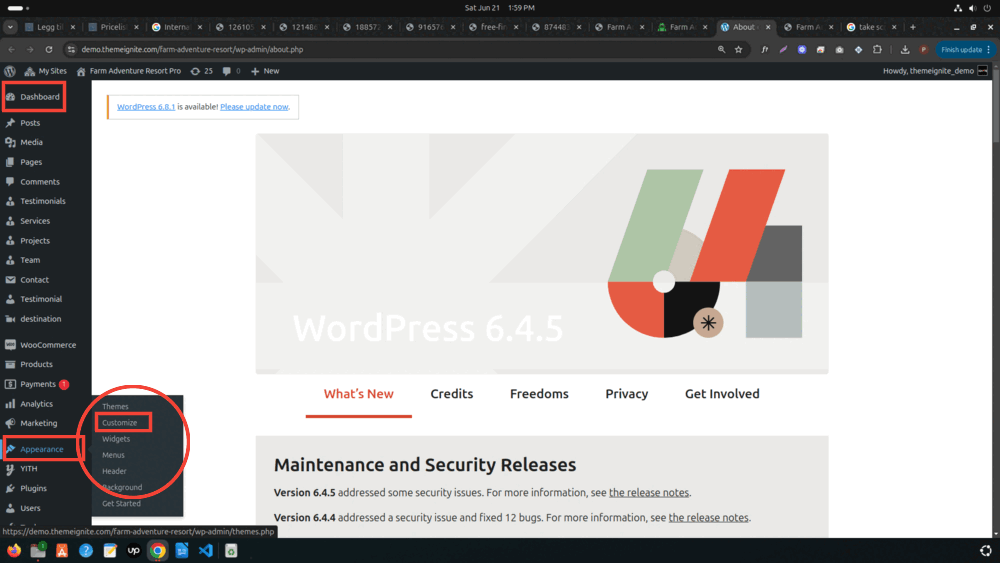
-
Once you're on the Themes page, click the Add New button at the top.
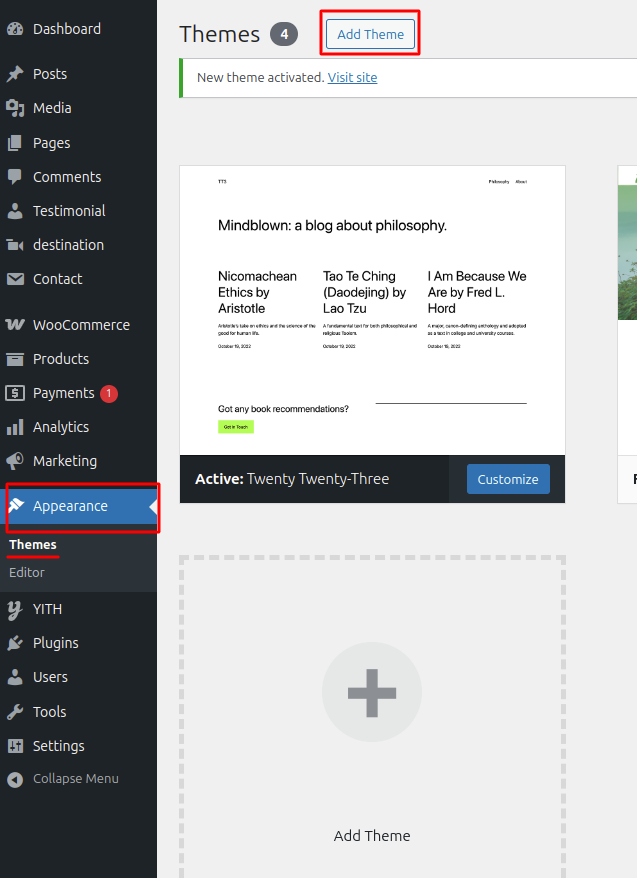
-
To upload a theme, click the button.
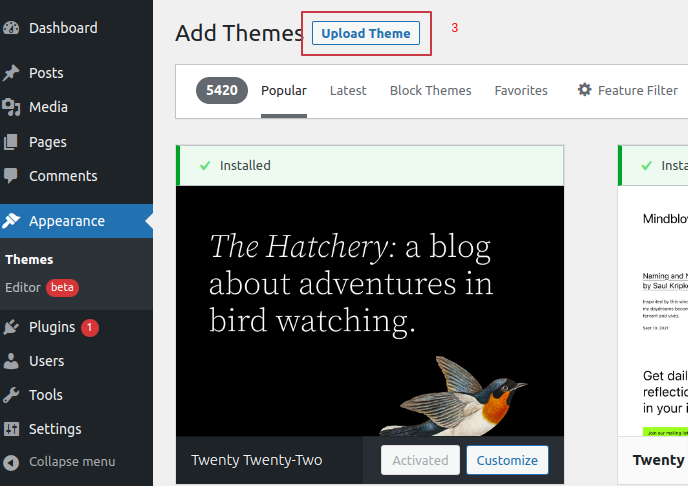
-
Click the Browse button to select your Architecture-wordpress-theme-pro.zip theme, then click Install Now to proceed.
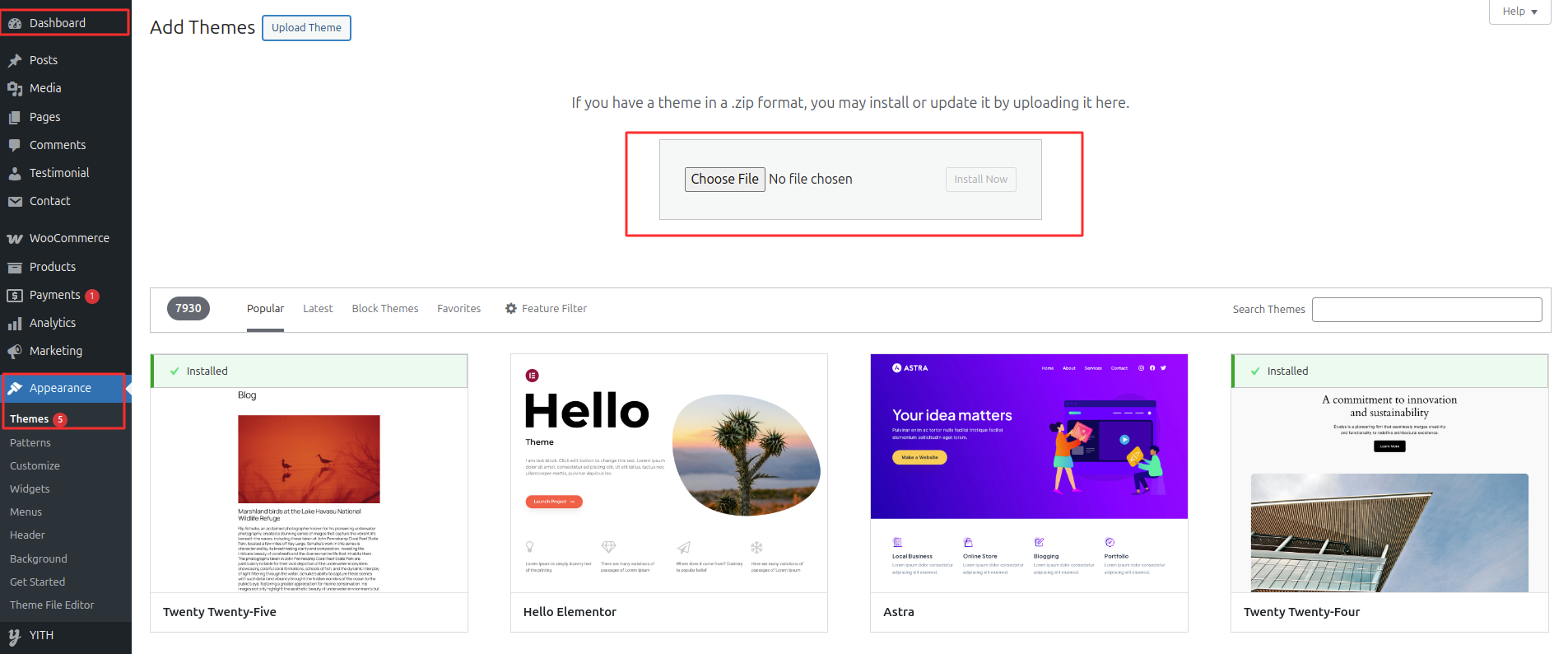
-
if you are not able to see the posttypes then youh have to manually active the "Farm Architectonic Structure Pro Posttypes" by going in to the plugins option

- Connect to your server via FTP after installing and configuring your FTP application. Navigate to the /wp-content/themes/ directory. Once there, upload your theme's folder.
- Remember to unzip the theme folder before uploading it via FTP. After the upload is complete, log in to your WordPress admin area and go to Appearance » Themes.
- The theme you uploaded should appear in the list. Hover over it and click the Activate button to successfully install and activate your WordPress theme.
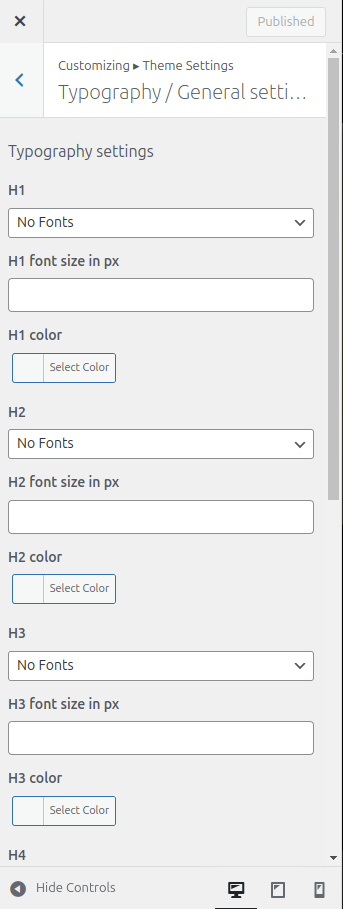
3. Color Font Setup
The method of changing the colour or font is quite simple. You can change the color and font of the headings (h1,h2,....,h6), paragraphs (p), and buttons (Button) with a single quick click.
Depending on the amount of options accessible in each area, there is an option to change the colour scheme for the headings, title/text, paragraphs, button text, and button background.
4. Theme Setup
Configure the home page template
Set up your home page by following these instructions.
-
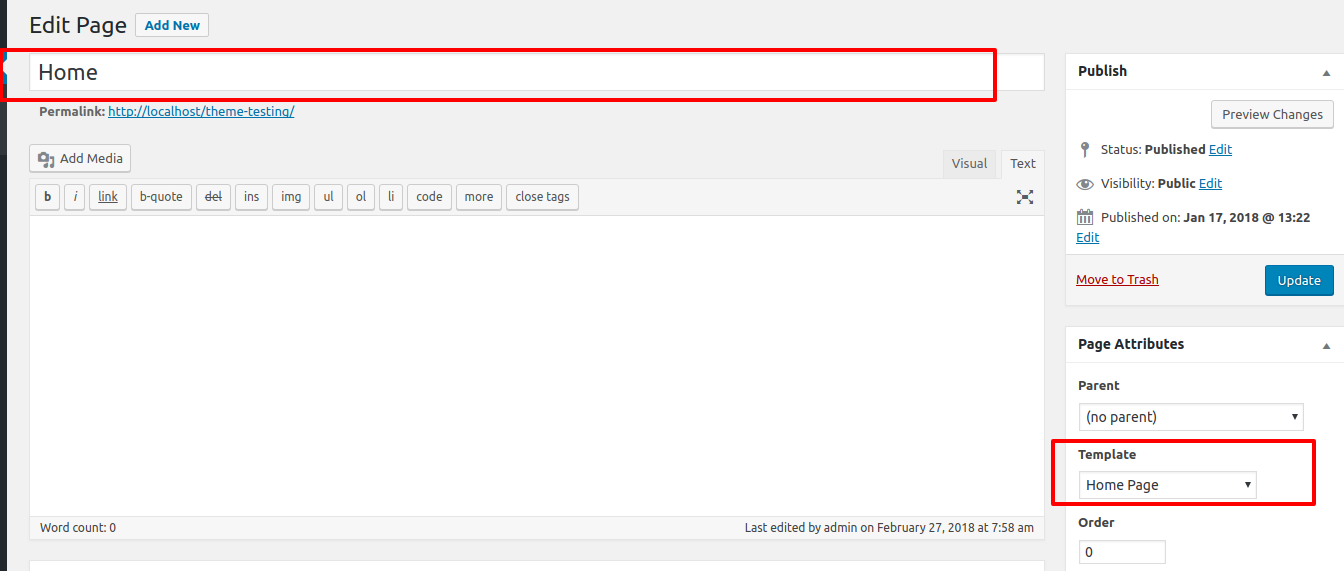
To set a template, create a page: choose "Dashboard" >> "Create a New Page"
You can label it anything you choose, such as "home." then pick the "home-page" template from the template menu.
-
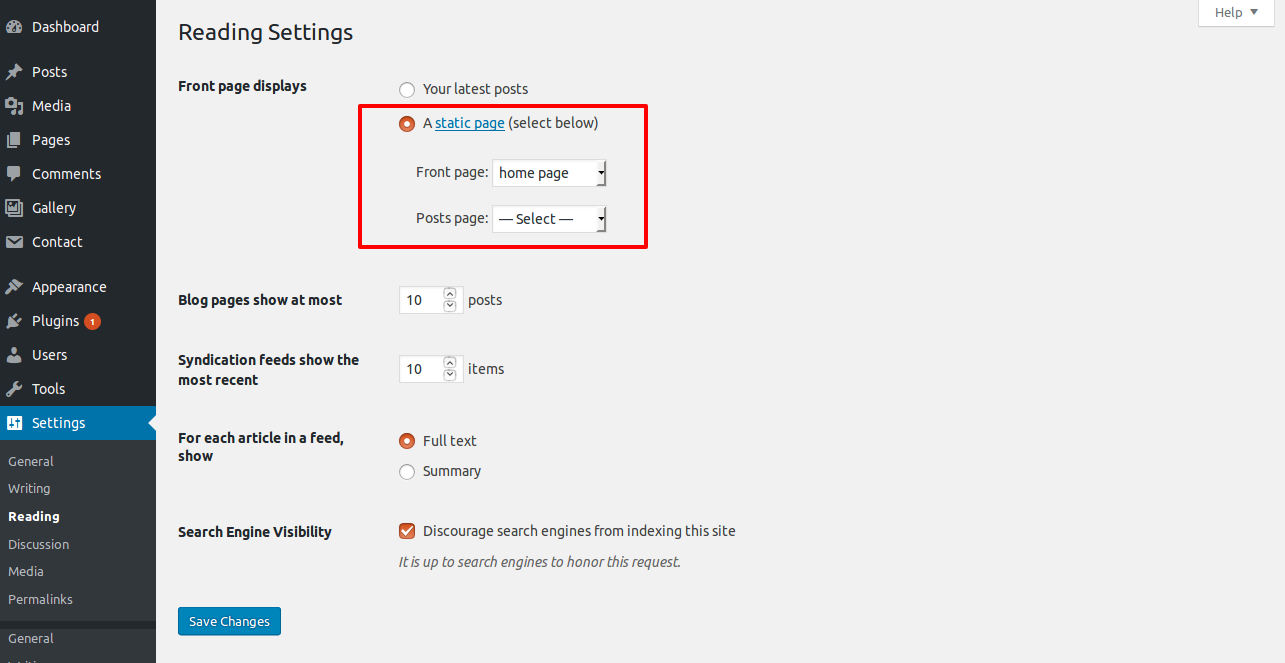
To set the home page: Go to Setting > Reading and select a static page for the Homepage under the Front Page Displays section.

-
Go to Appearance >> Customize >> Theme Settings >> Content Header to access the Header Section Settings.
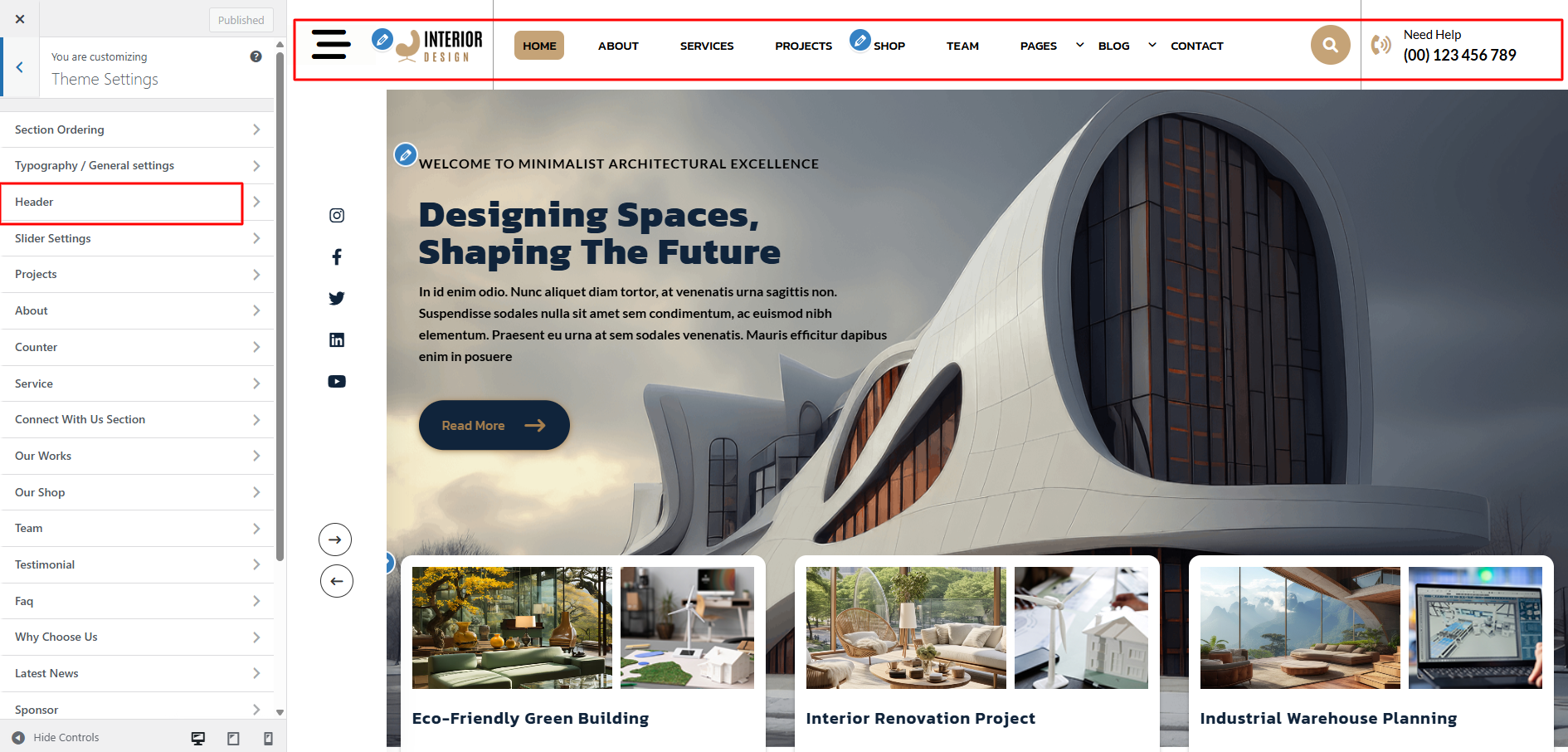
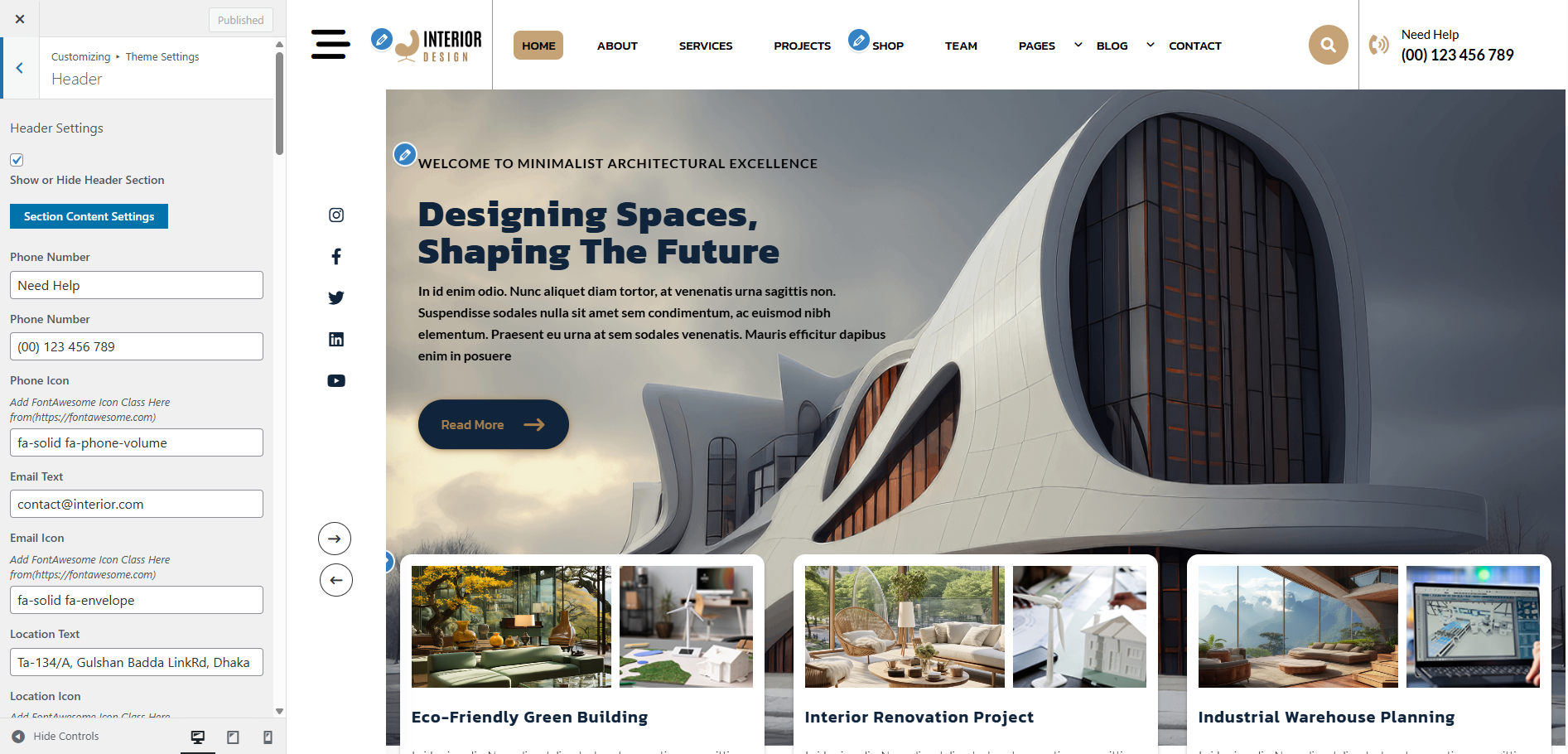
The following sections are also included in the Content Header Section customization:
- Section marked "Enable/Disable"
- Logo Image
- Depending on the content, different font settings.
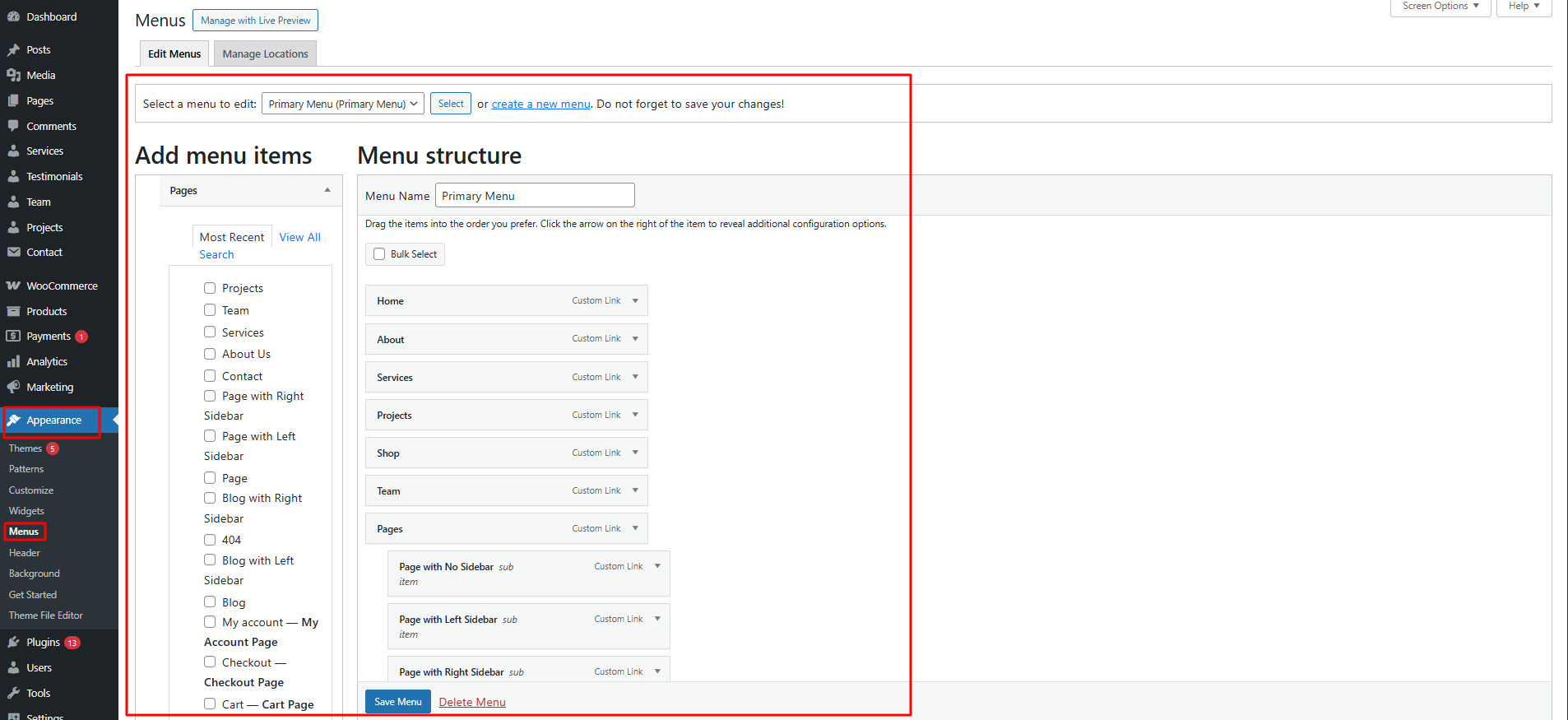
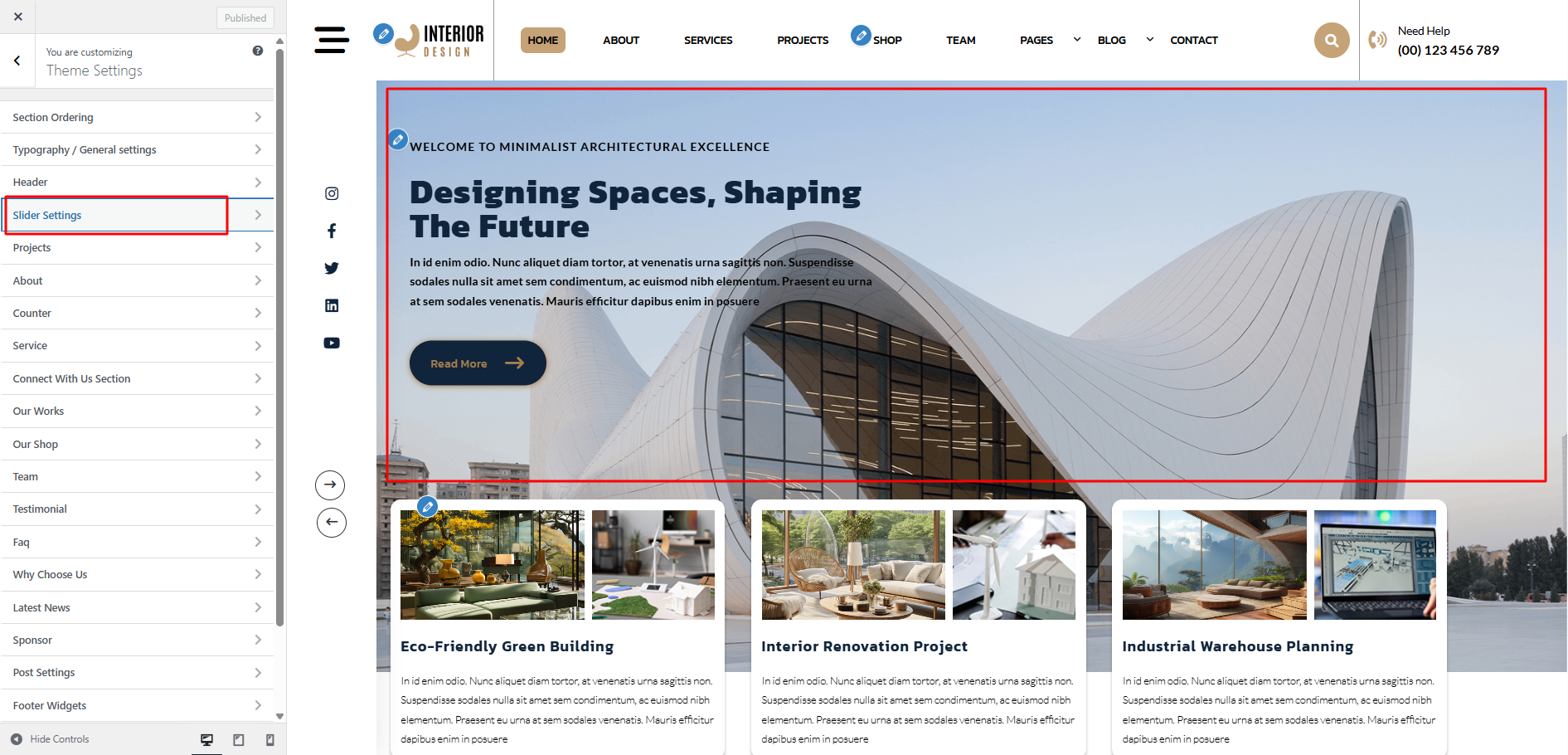
To set up the slider, adhere to the procedures below.
Select slider Section Settings from Appearance >> Customize >> Theme Settings >> Slider Banner Settings .
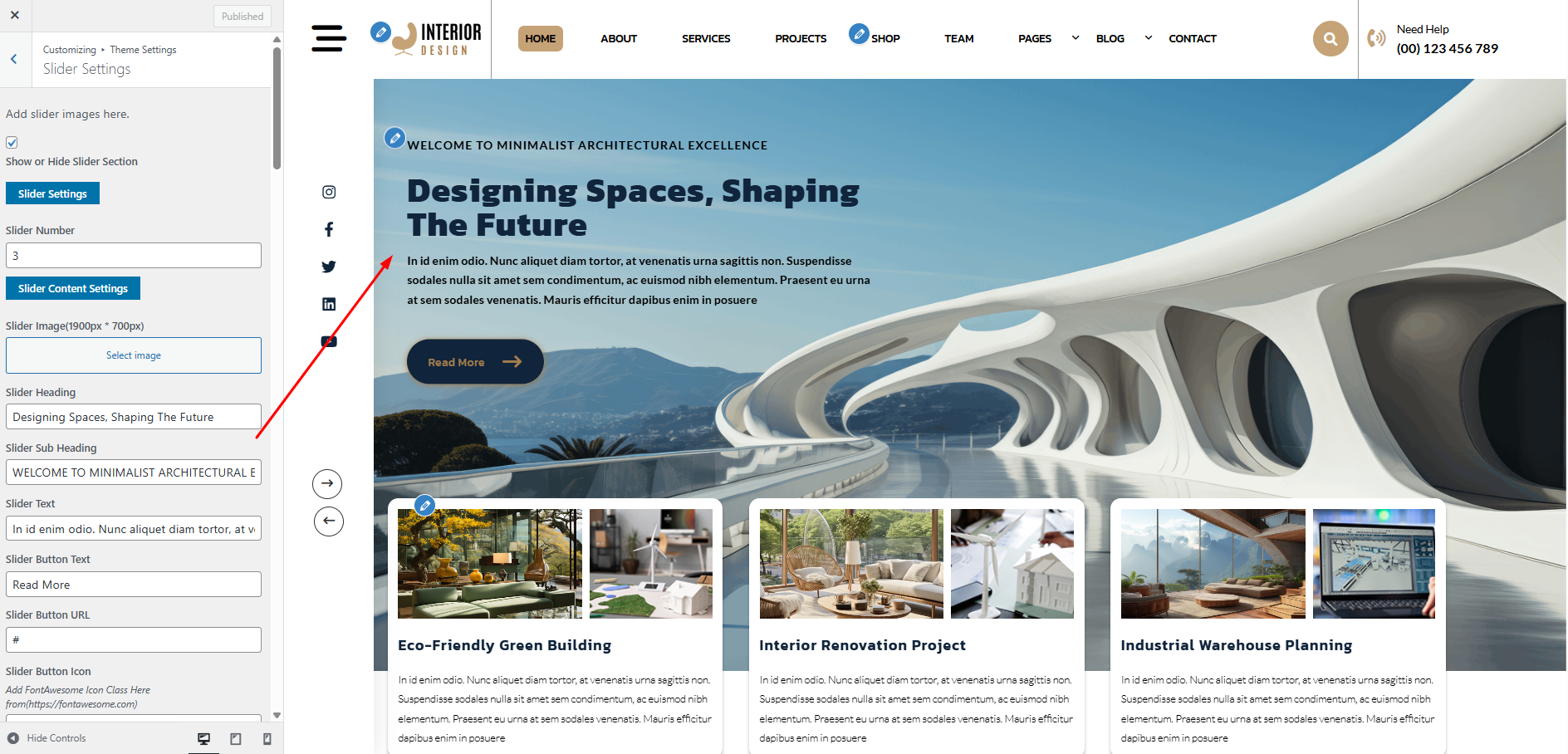
You can customise the slider's picture, title, description section in this area.
You can change how many slides there you want. Additionally, you can change the font family, font
weight, font size, and the colors of the headings and subheadings and also settings are given for
navigation arrows, and you can also select how many slides you want.
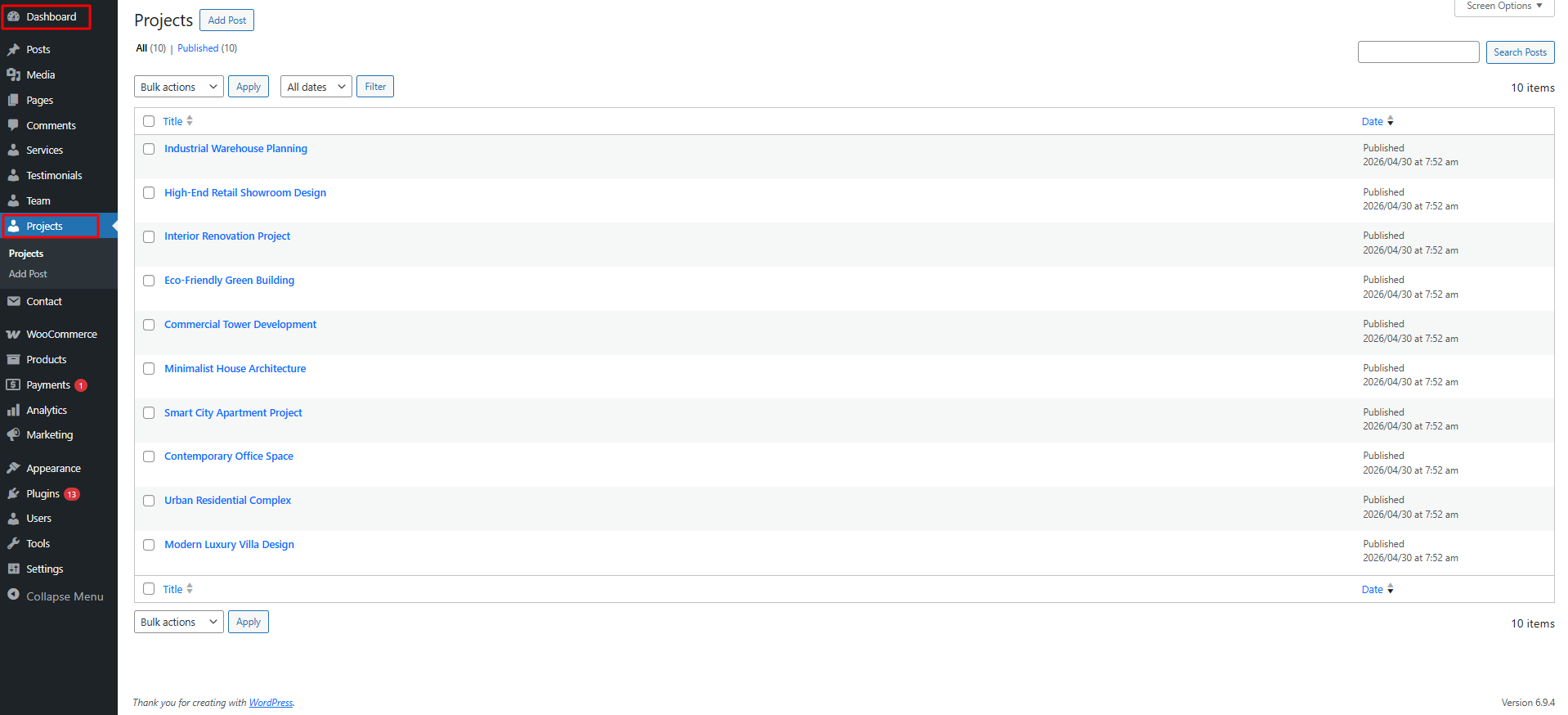
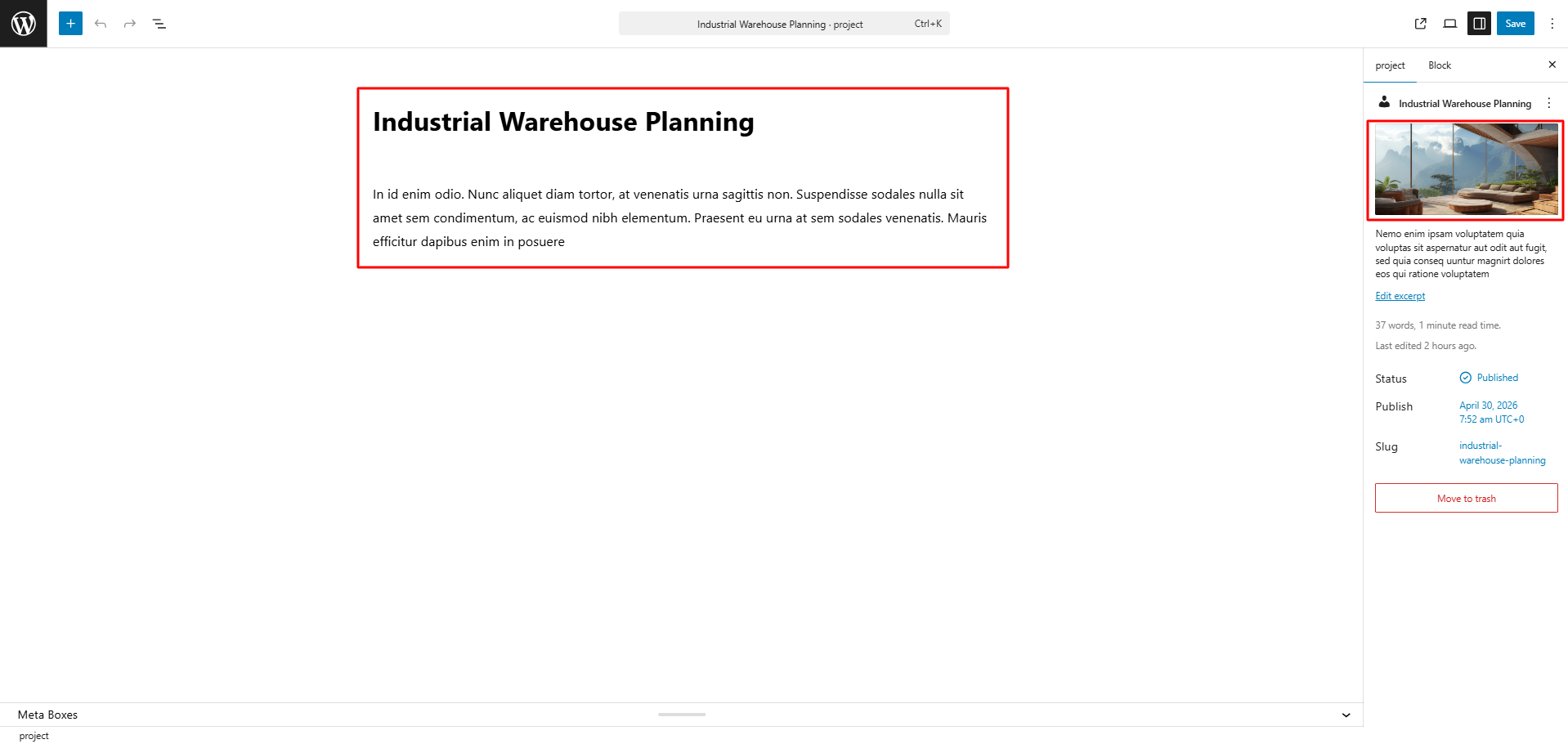
In this section the content is taken by the Post type named as "Projects" for any changes of
content you'll have to do following steps:
-> Go to Dashboard
-> Then Select "Projects" Post Type
-> And there you can edit and add content manually according to your preference and then do
publish
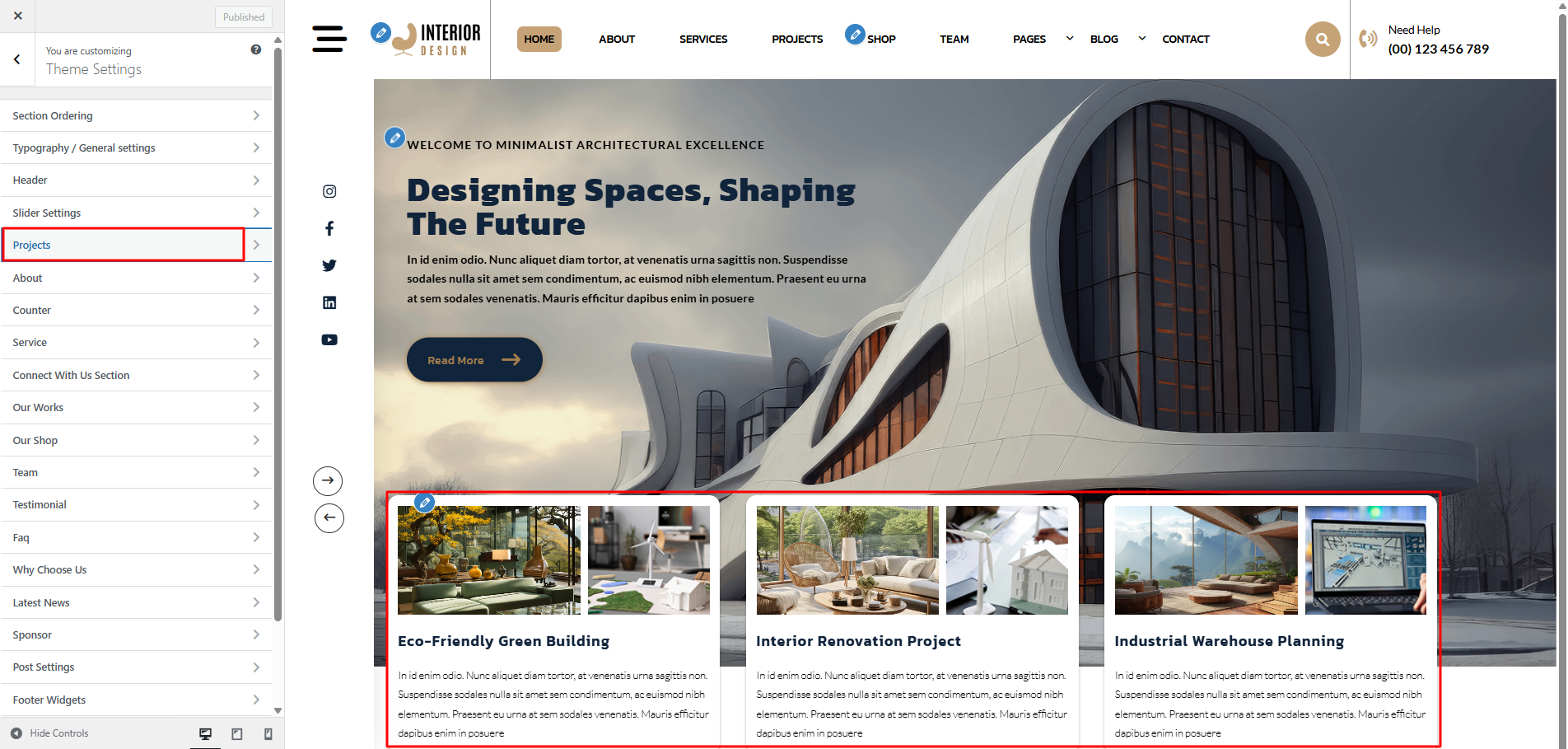
Go to Appearance >> Customize >> Theme Settings >> Projects to access the Projects Section settings.
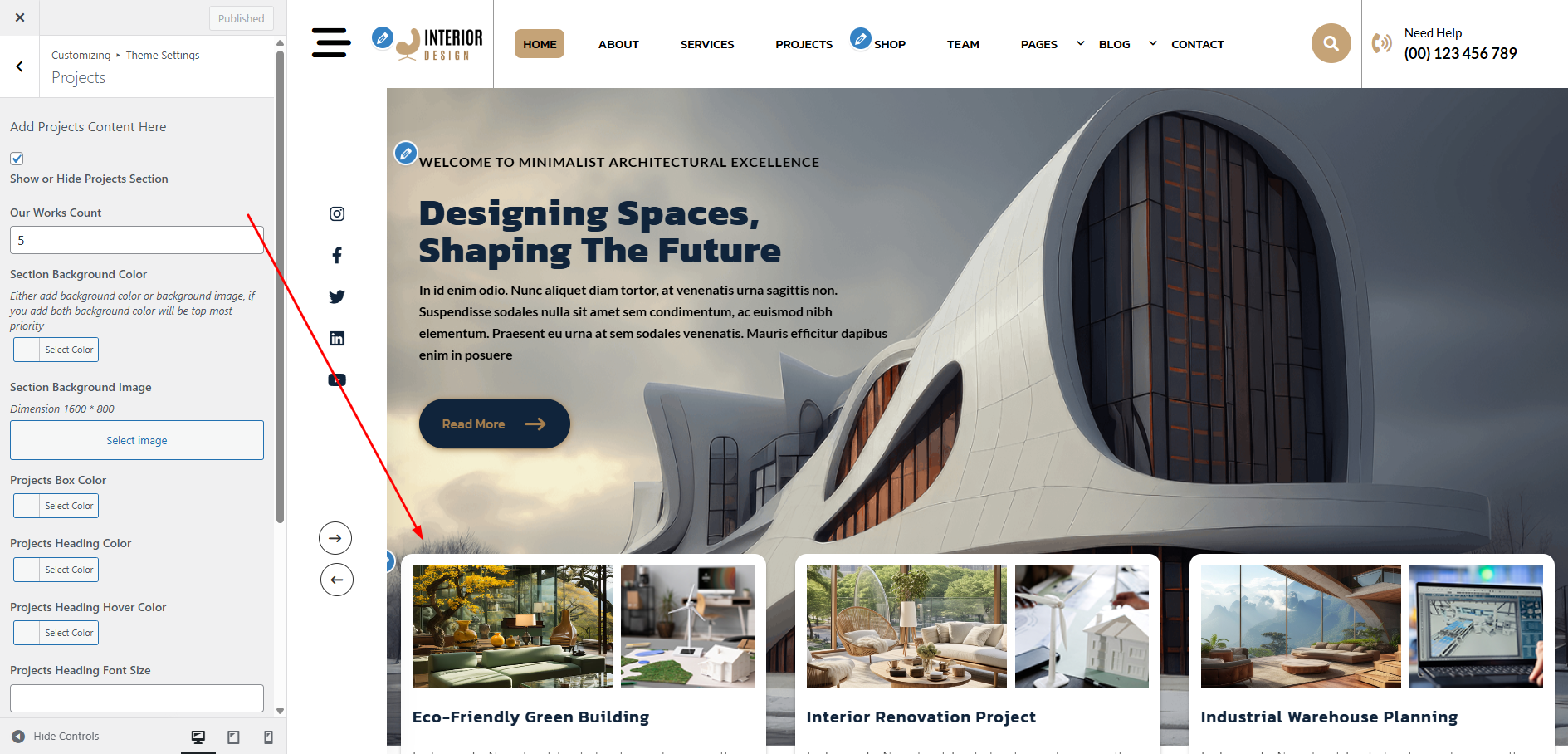
The following sections are included in the Projects Section customization:
- Section marked "Enable/Disable"
- Background Color / Background Image
- Dynamic Images
- Dynamic Content
- Depending on the content, different font settings.
- Also given font settings and color settings for After Active Also.
Go to Appearance >> Customize >> Theme Settings >> About to access the About Section settings.
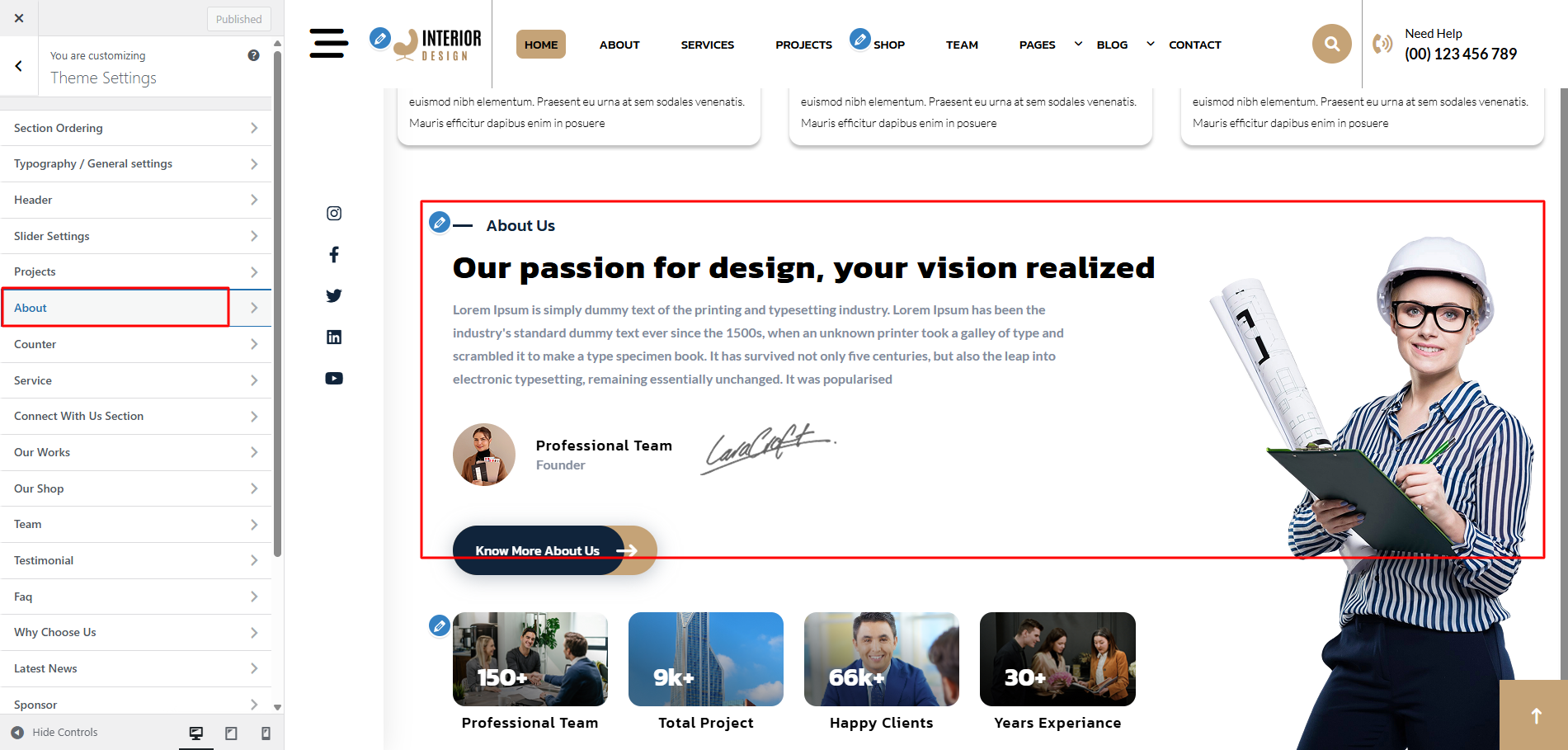
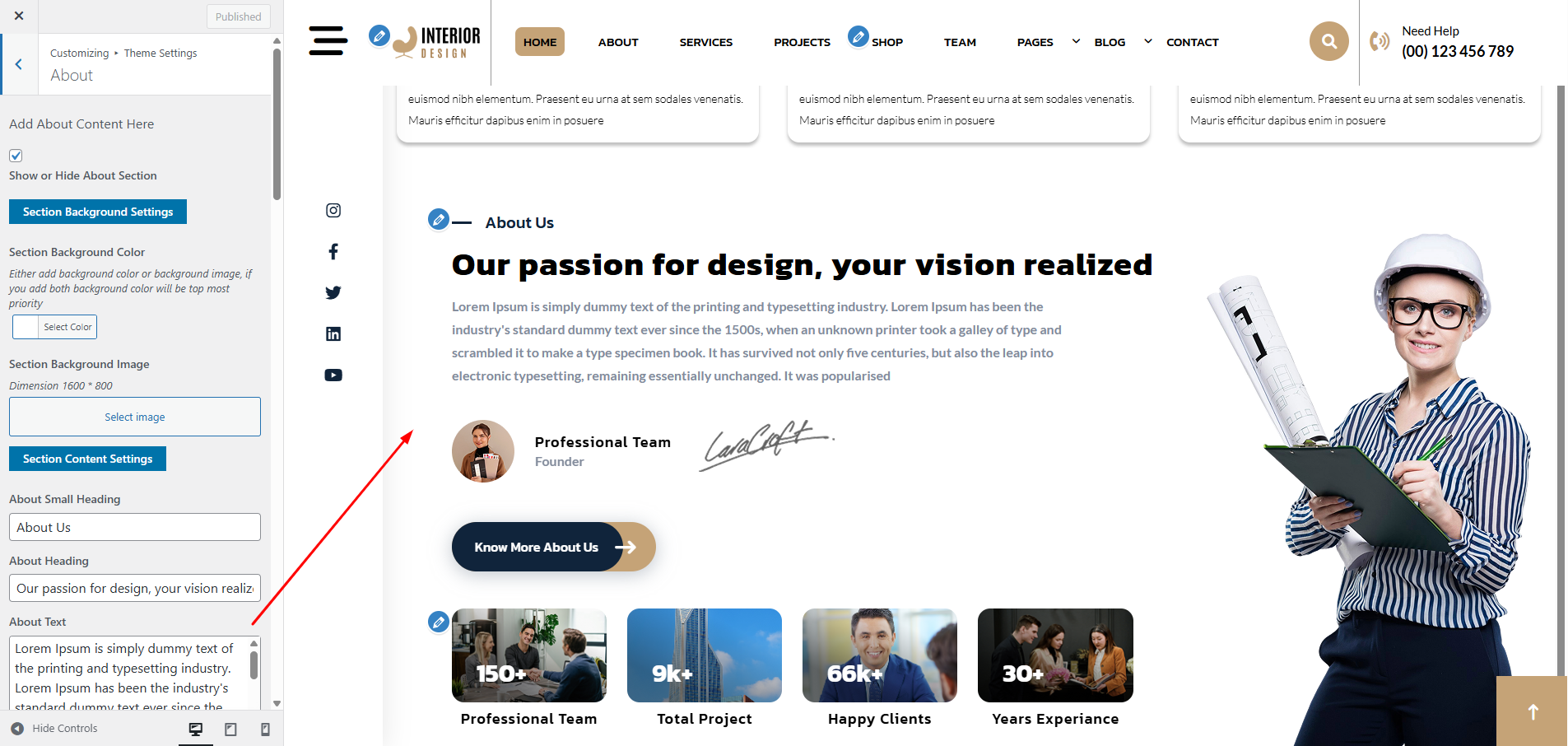
The following sections are included in the About customization:
- Section marked "Enable/Disable"
- Background Color / Background Image
- Dynamic Images
- Dynamic Content
- Depending on the content, different font settings.
Go to Appearance >> Customize >> Theme Settings >> Records Section to access the Records settings.
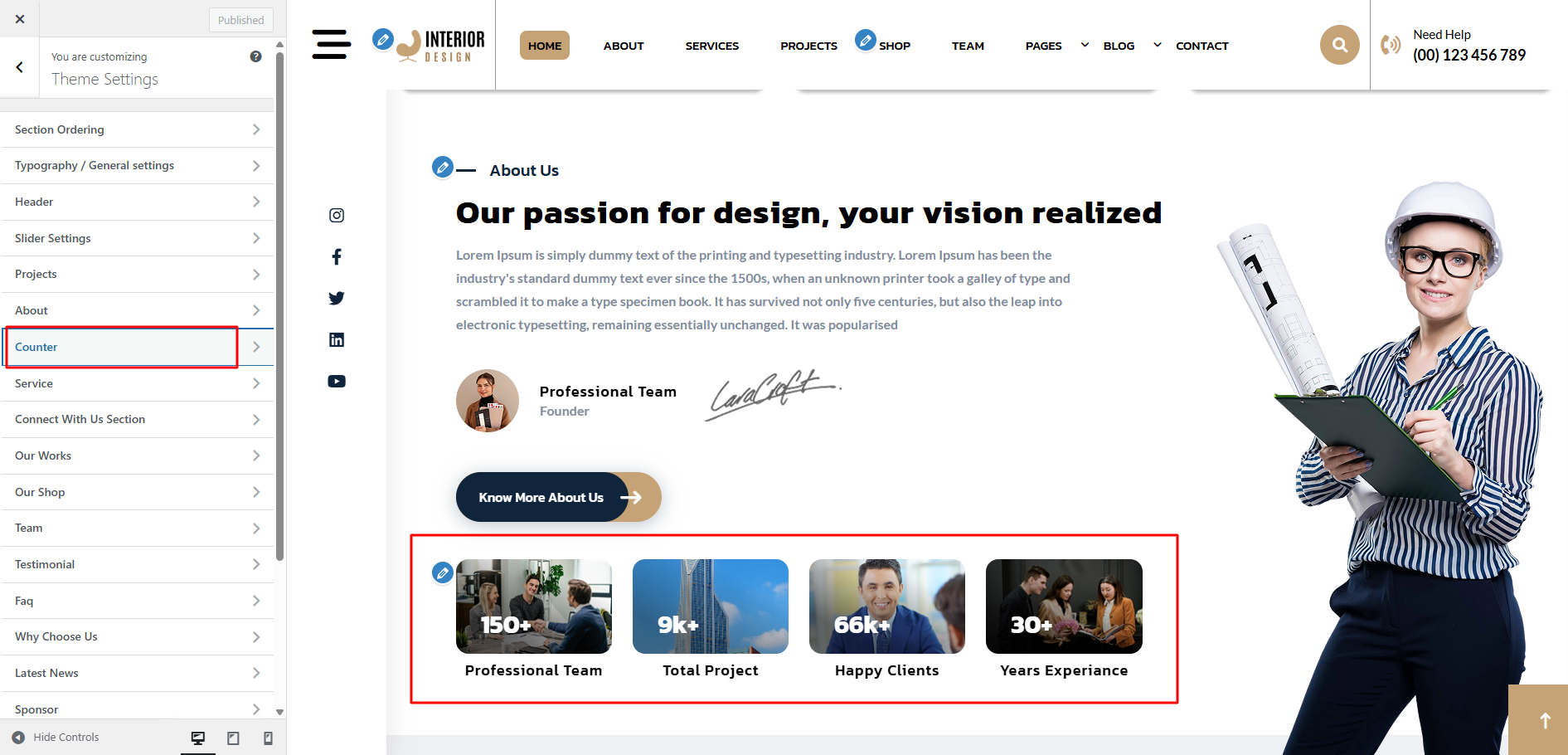
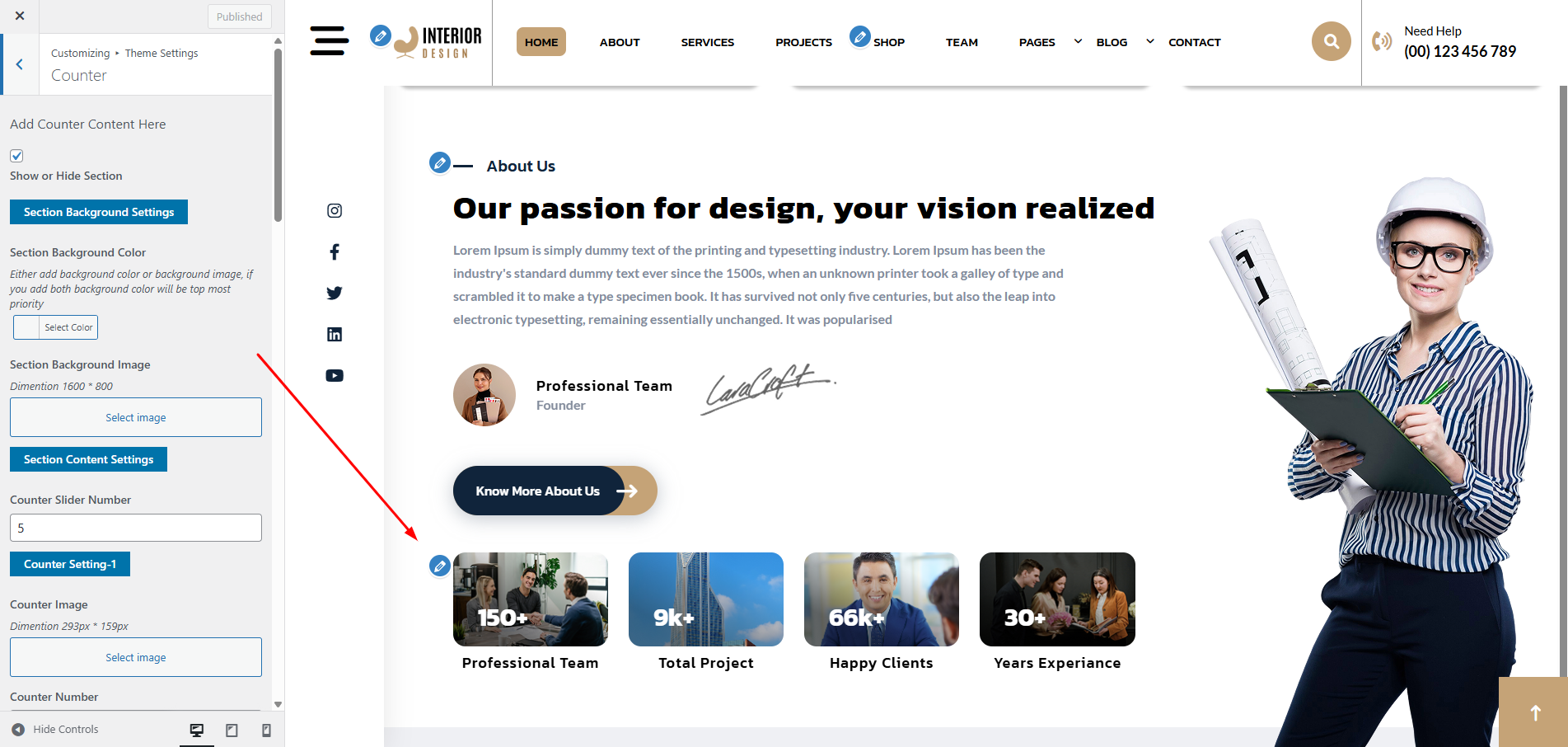
The following sections are included in the Records customization:
- Section marked "Enable/Disable"
- Background Color / Background Image
- Dynamic Images
- Dynamic Content
- Depending on the content, different font settings.
- Also settings are given for navigation arrows.
In this section the content is taken by the Post type named as "Services" for any changes of
content you'll have to do following steps:
-> Go to Dashboard
-> Then Select "Services" Post Type
-> And there you can edit and add content manually according to your preference and then do
publish
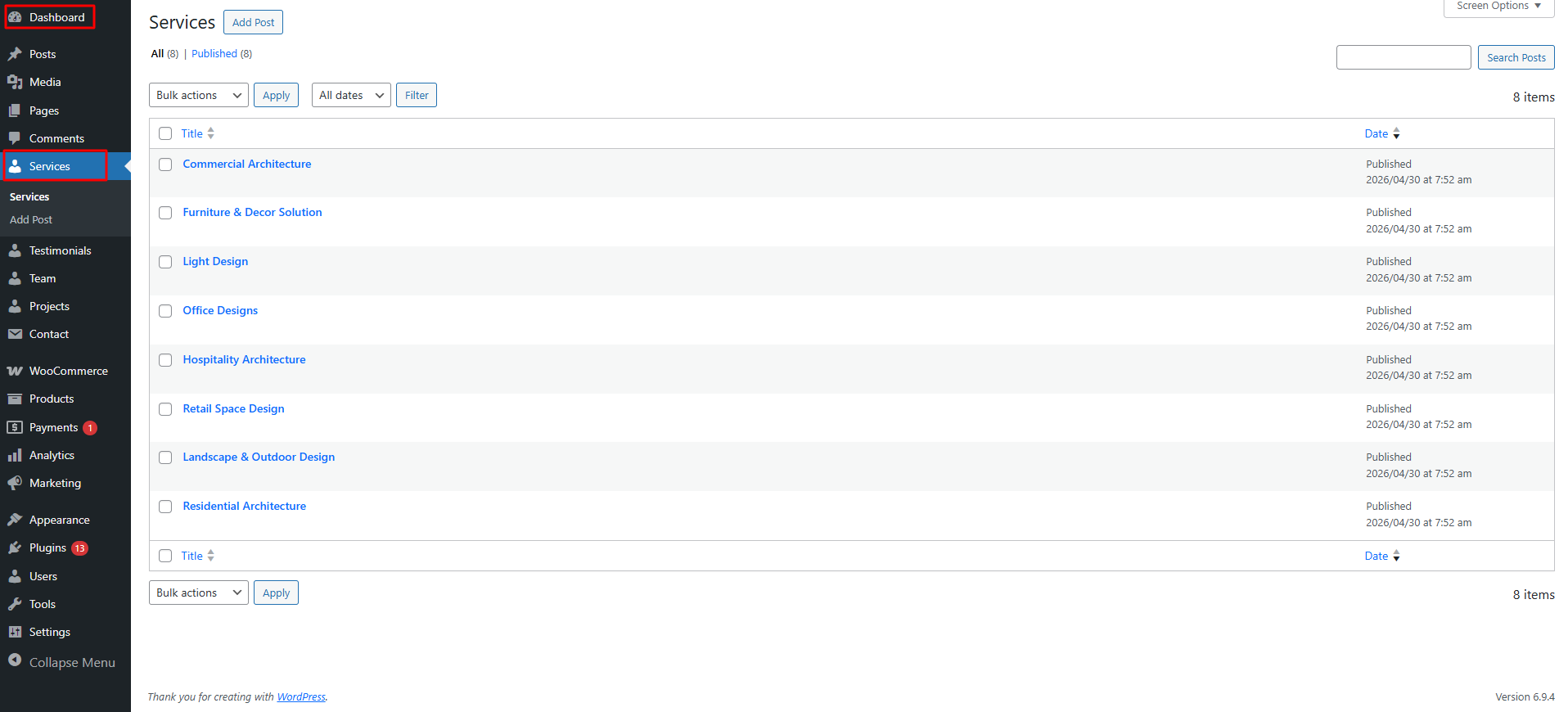
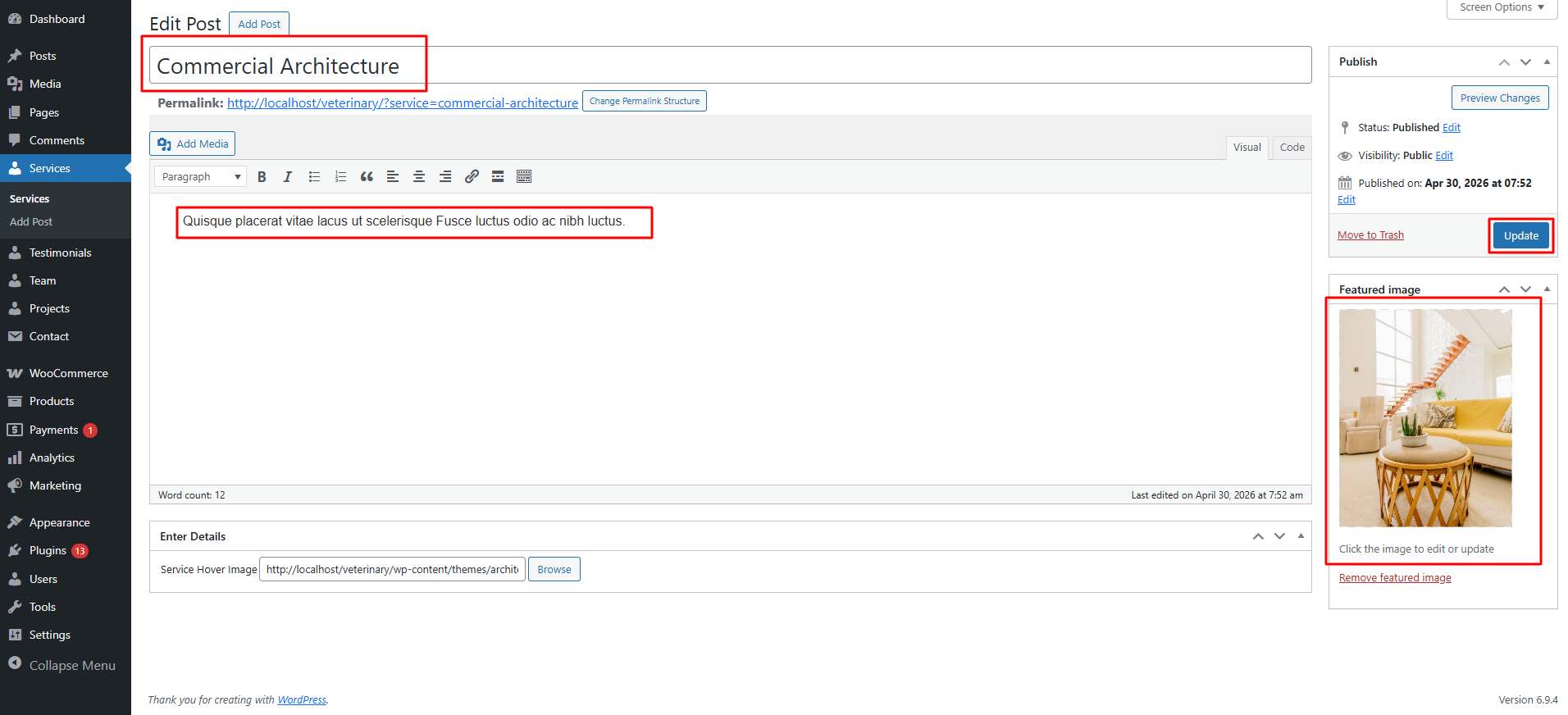
Go to Appearance >> Customize >> Theme Settings >> Service to access the Service Section settings.
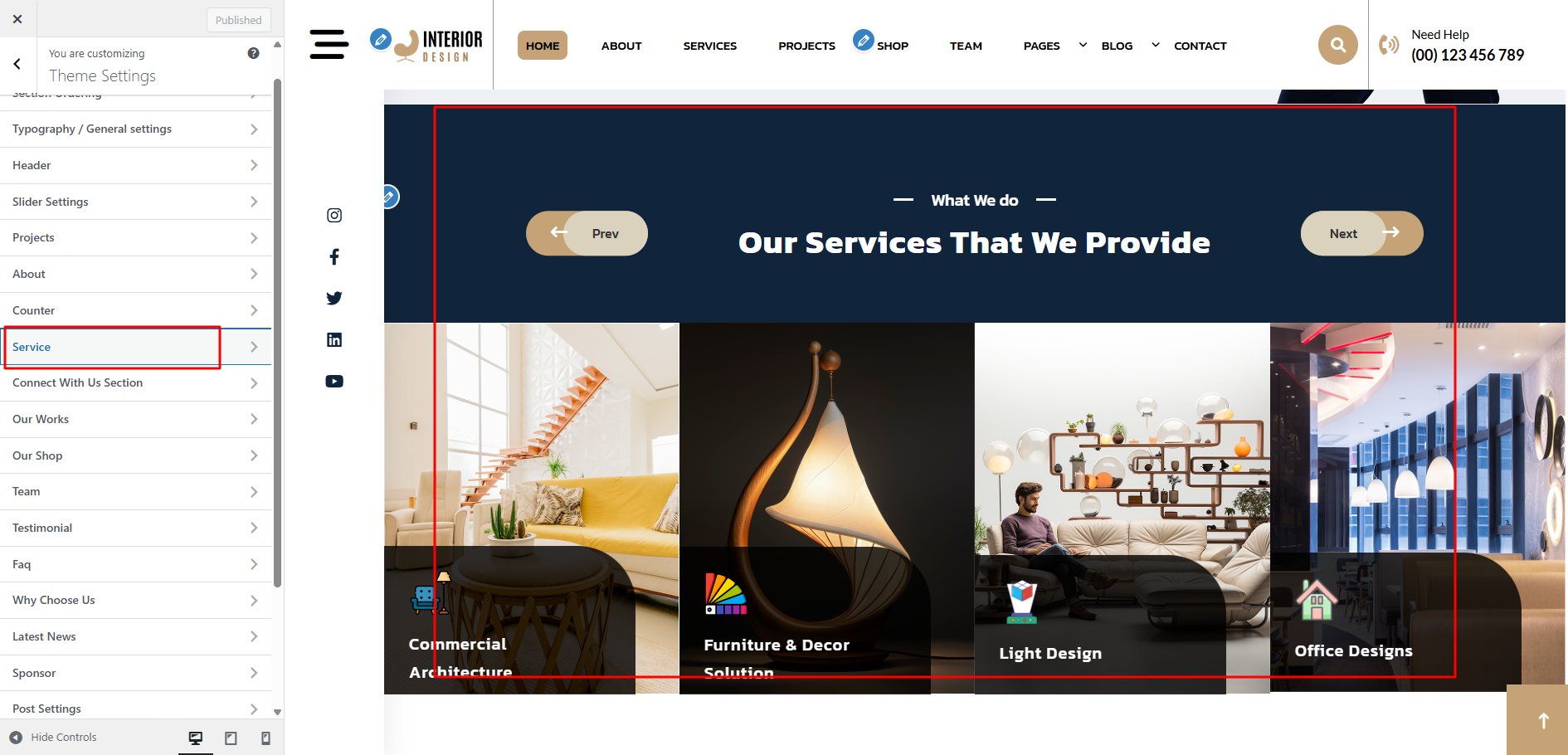
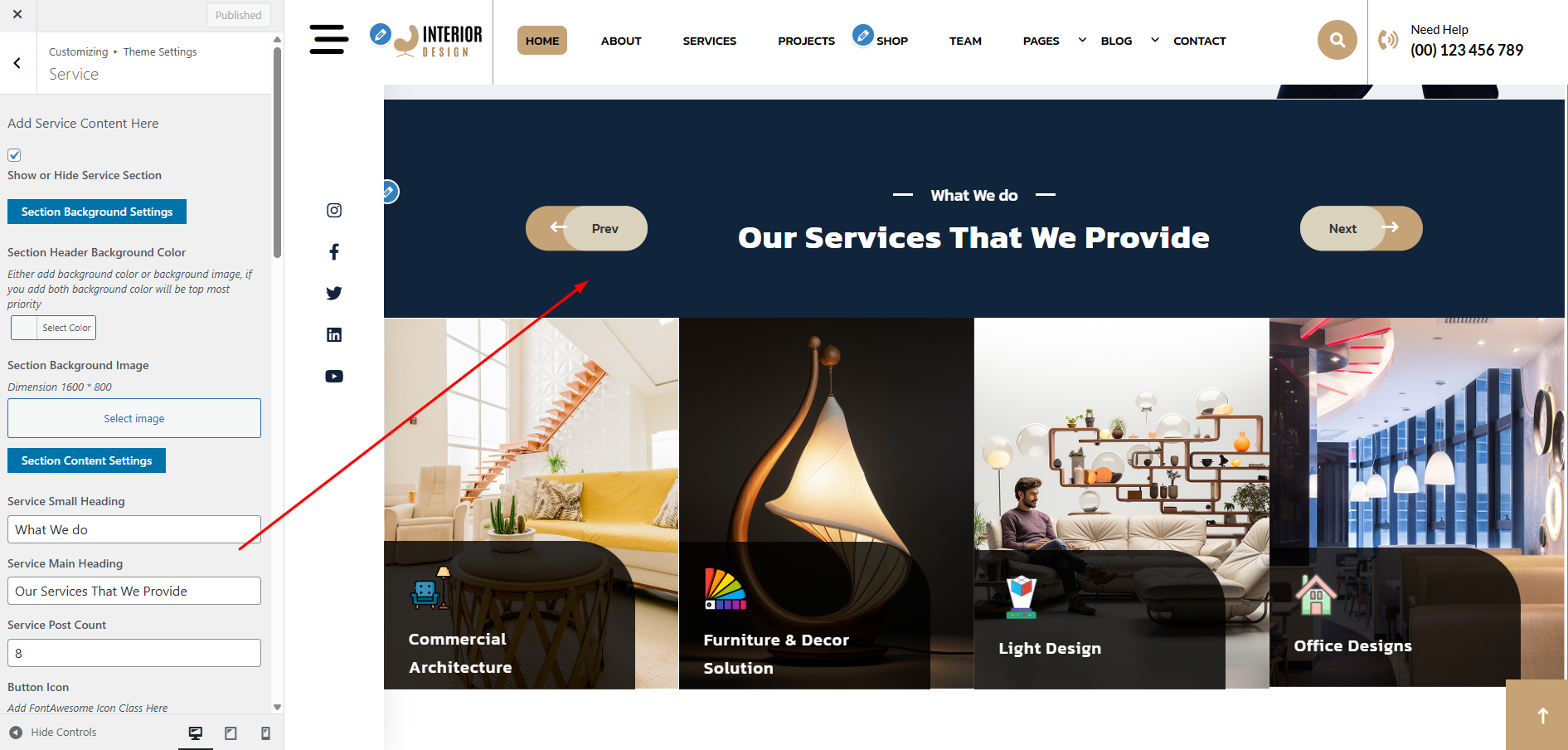
The following sections are included in the Service Section customization:
- Section marked "Enable/Disable"
- Background Color / Background Image
- Dynamic Images
- Dynamic Content
- Depending on the content, different font settings.
- Also given font settings and color settings for After Active Also.
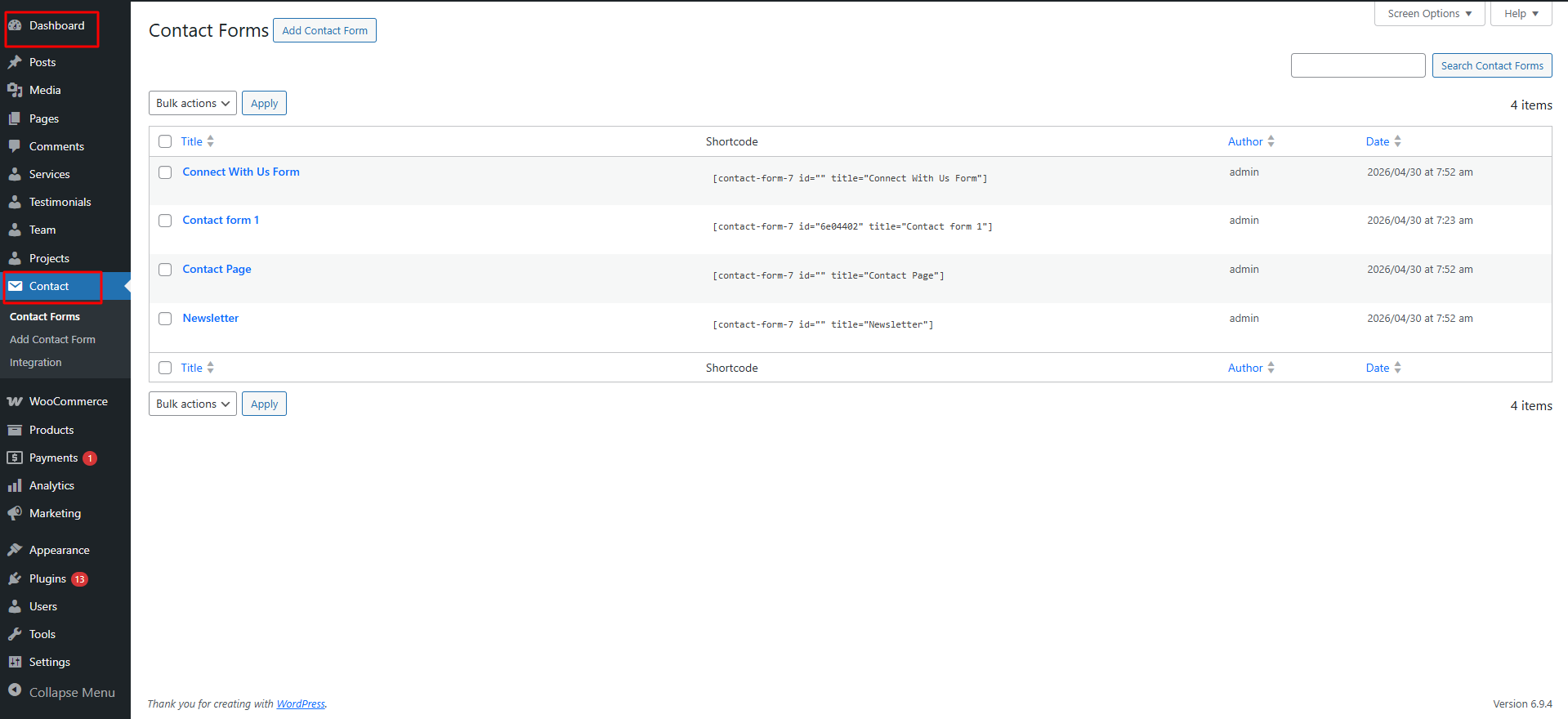
In this section the content is taken by the Post type named as "Contact" for any changes of
content you'll have to do following steps:
-> Go to Dashboard
-> Then Select "Contact" Post Type
-> And there you can edit and add content manually according to your preference and then do
publish
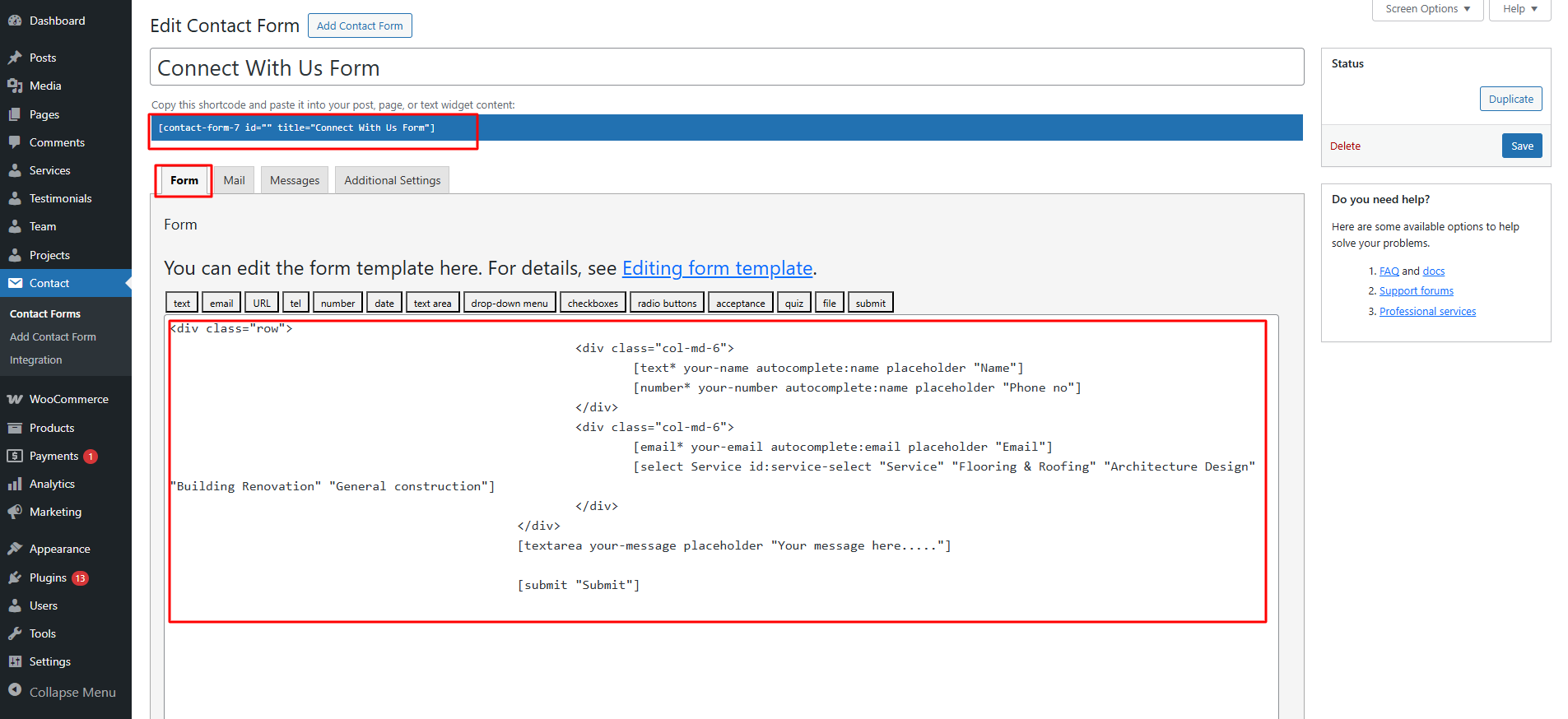
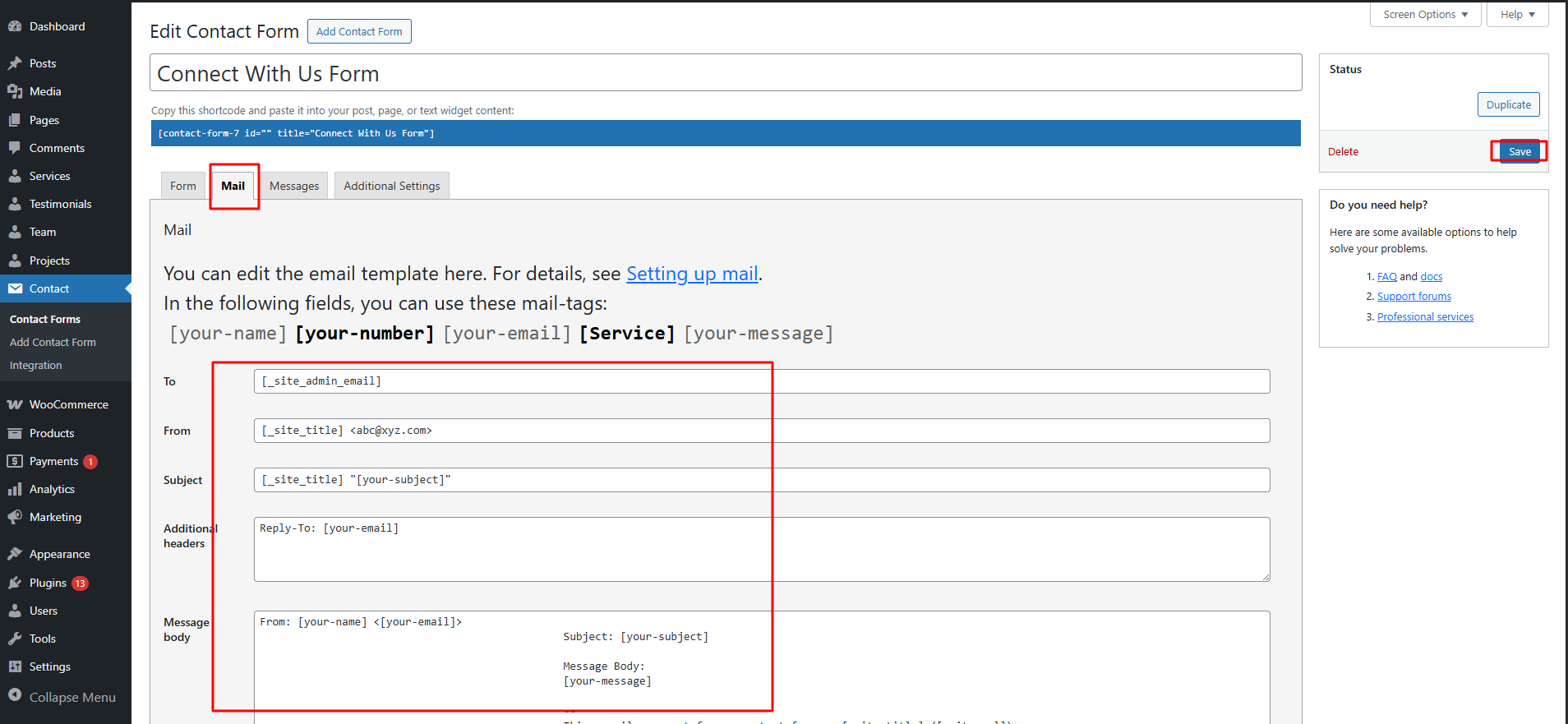
Go to Appearance >> Customize >> Theme Settings >> Connect With Us to access the Connect With Us settings.
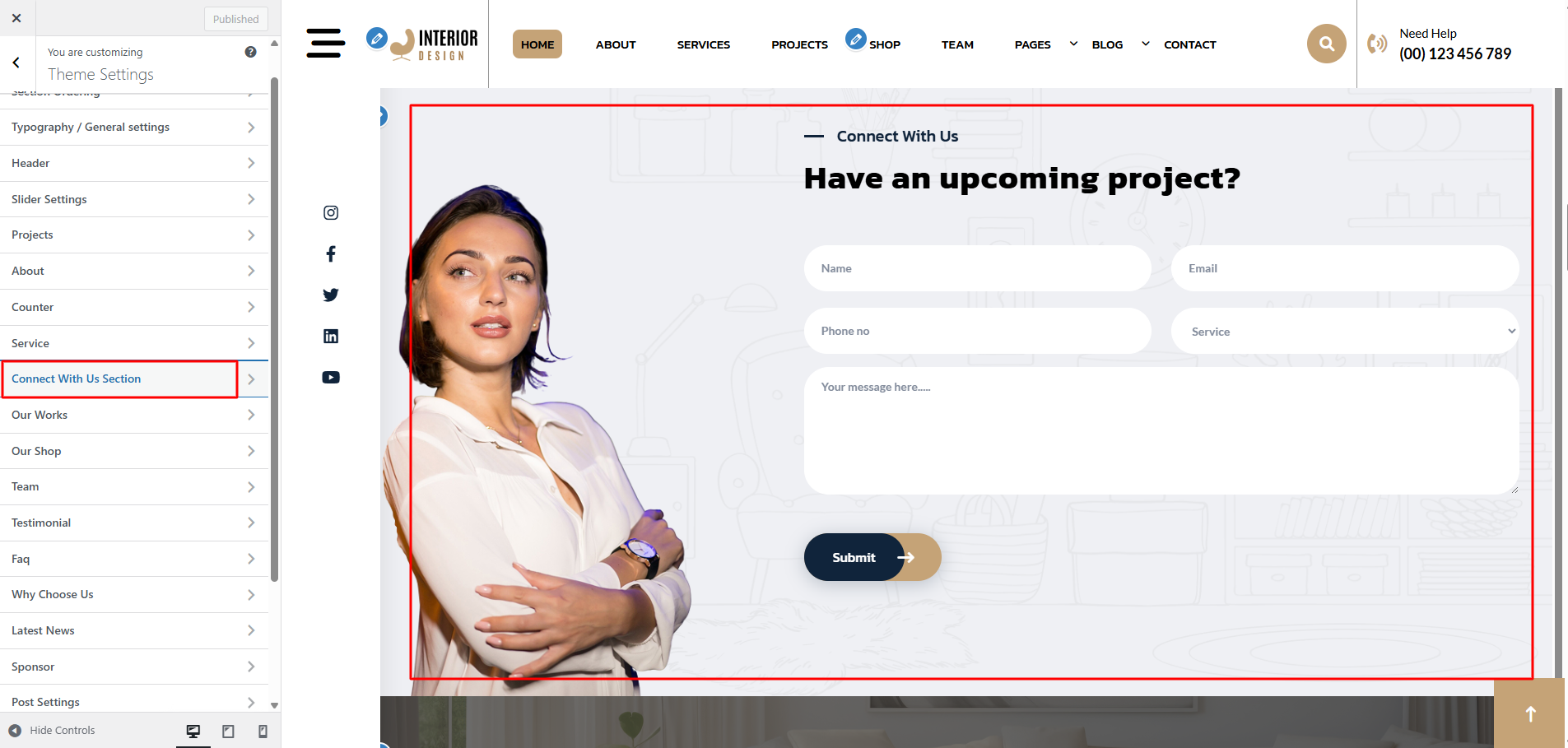
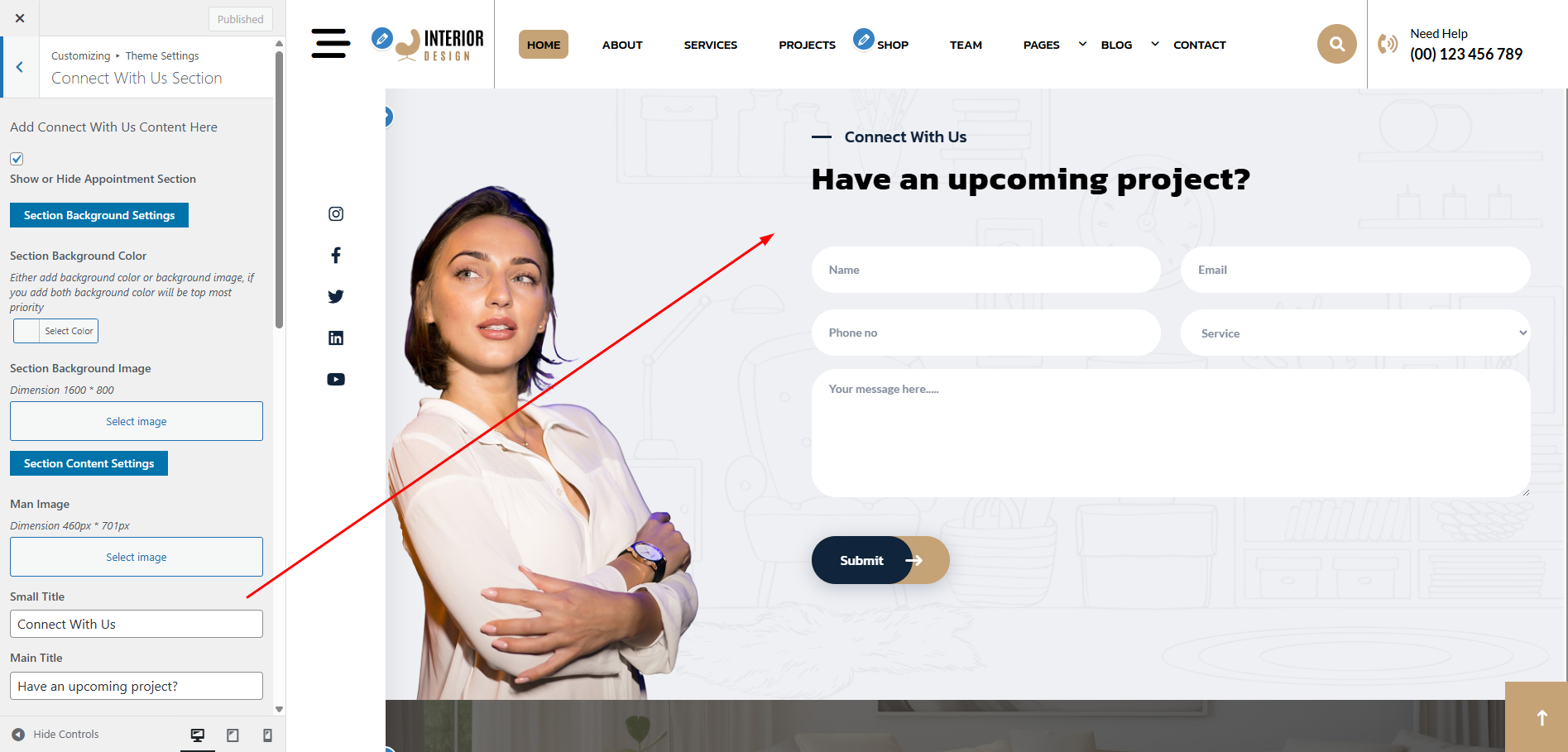
The following sections are included in the Connect With Us customization:
- Section marked "Enable/Disable"
- Background Color / Background Image
- Dynamic Images
- Dynamic Content
- Depending on the content, different font settings.
- Also settings are given for navigation arrows.
In this section the content is taken by the Post type named as "Projects" for any changes of
content you'll have to do following steps:
-> Go to Dashboard
-> Then Select "Projects" Post Type
-> And there you can edit and add content manually according to your preference and then do
publish
Go to Appearance >> Customize >> Theme Settings >> Our Works to access the Our Works Section settings.
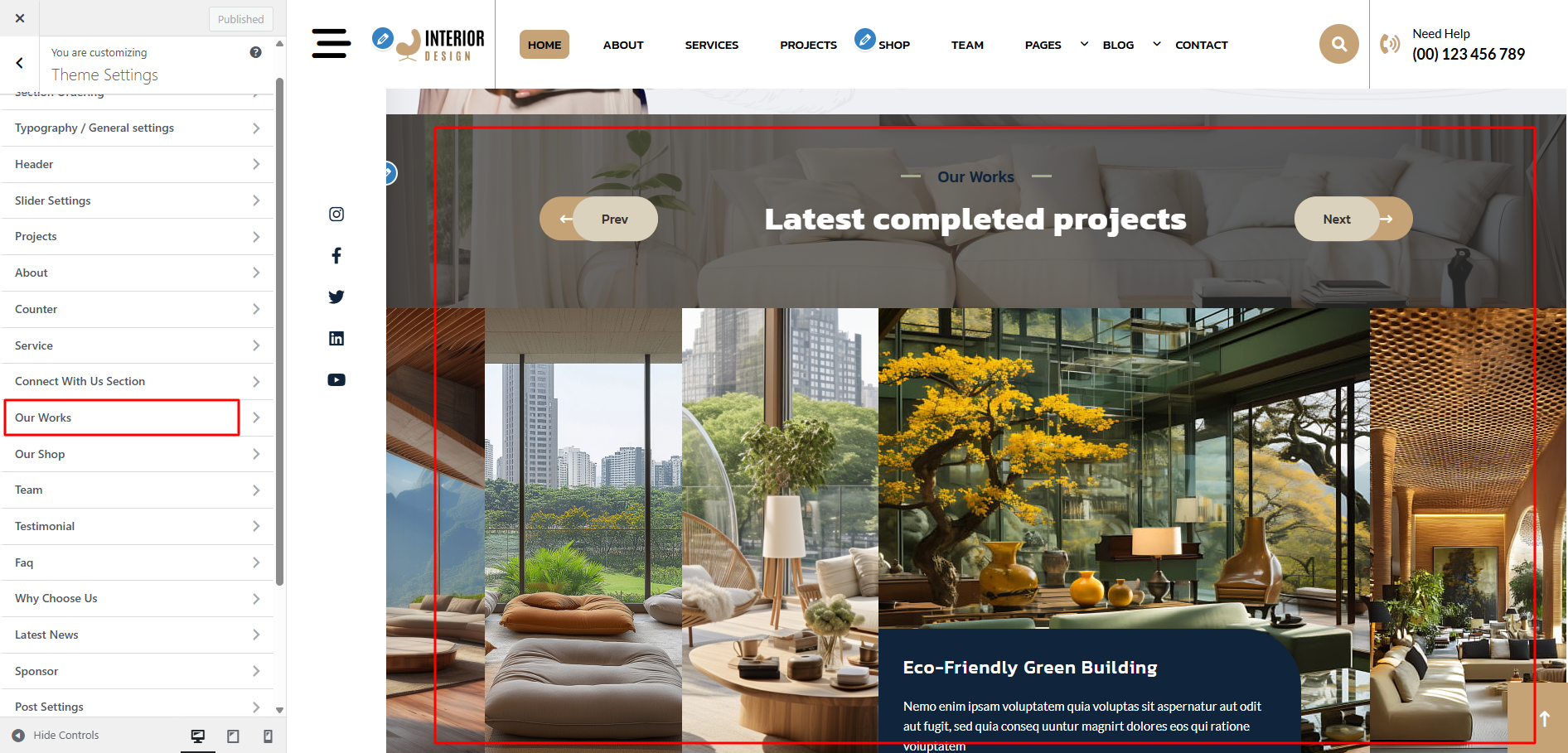
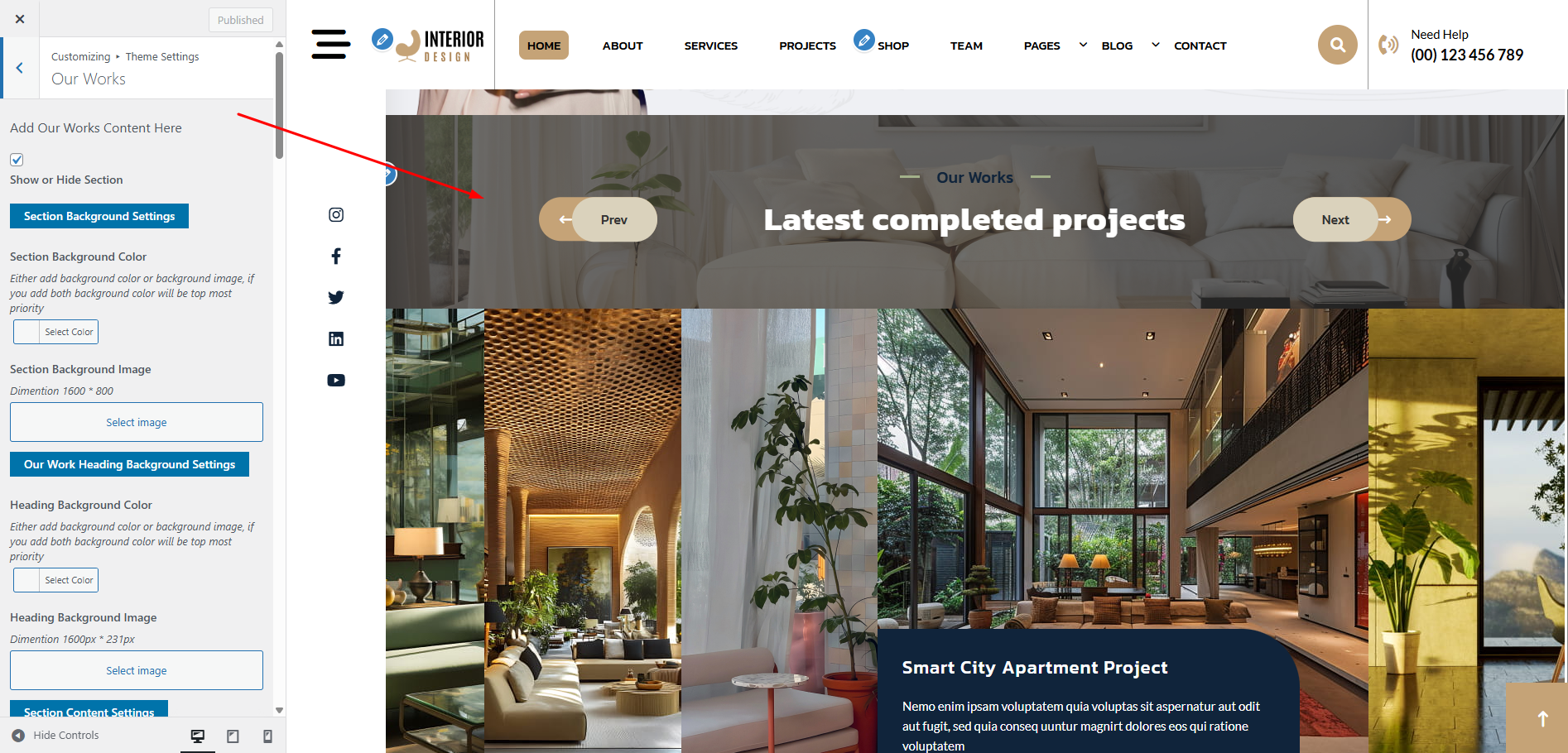
The following sections are included in the Our Works Section customization:
- Section marked "Enable/Disable"
- Background Color / Background Image
- Dynamic Images
- Dynamic Content
- Depending on the content, different font settings.
- Also given font settings and color settings for After Active Also.
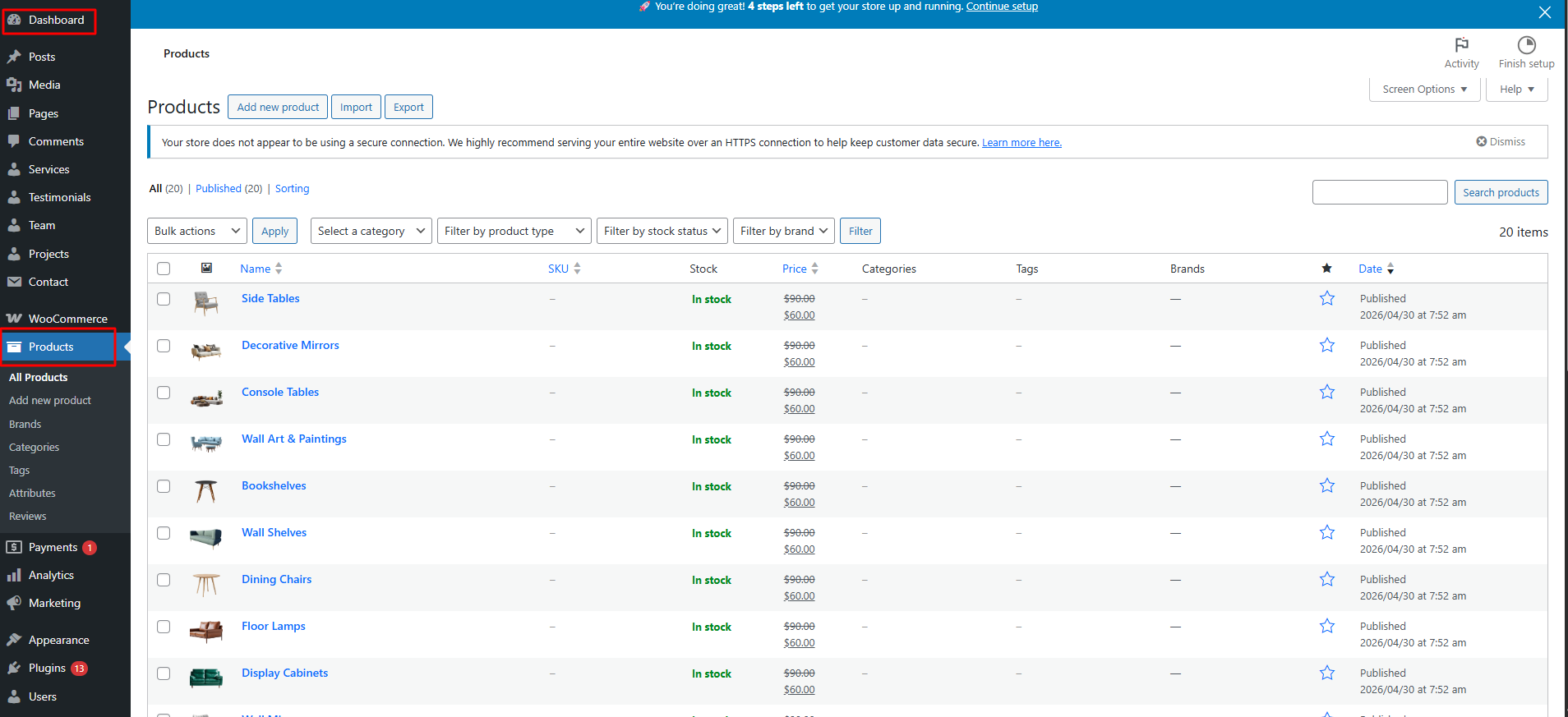
In this section the content is taken by the Post type named as "Products" for any changes of
content you'll have to do following steps:
-> Go to Dashboard
-> Then Select "Products" Post Type
-> And there you can edit and add content manually according to your preference and then do
publish
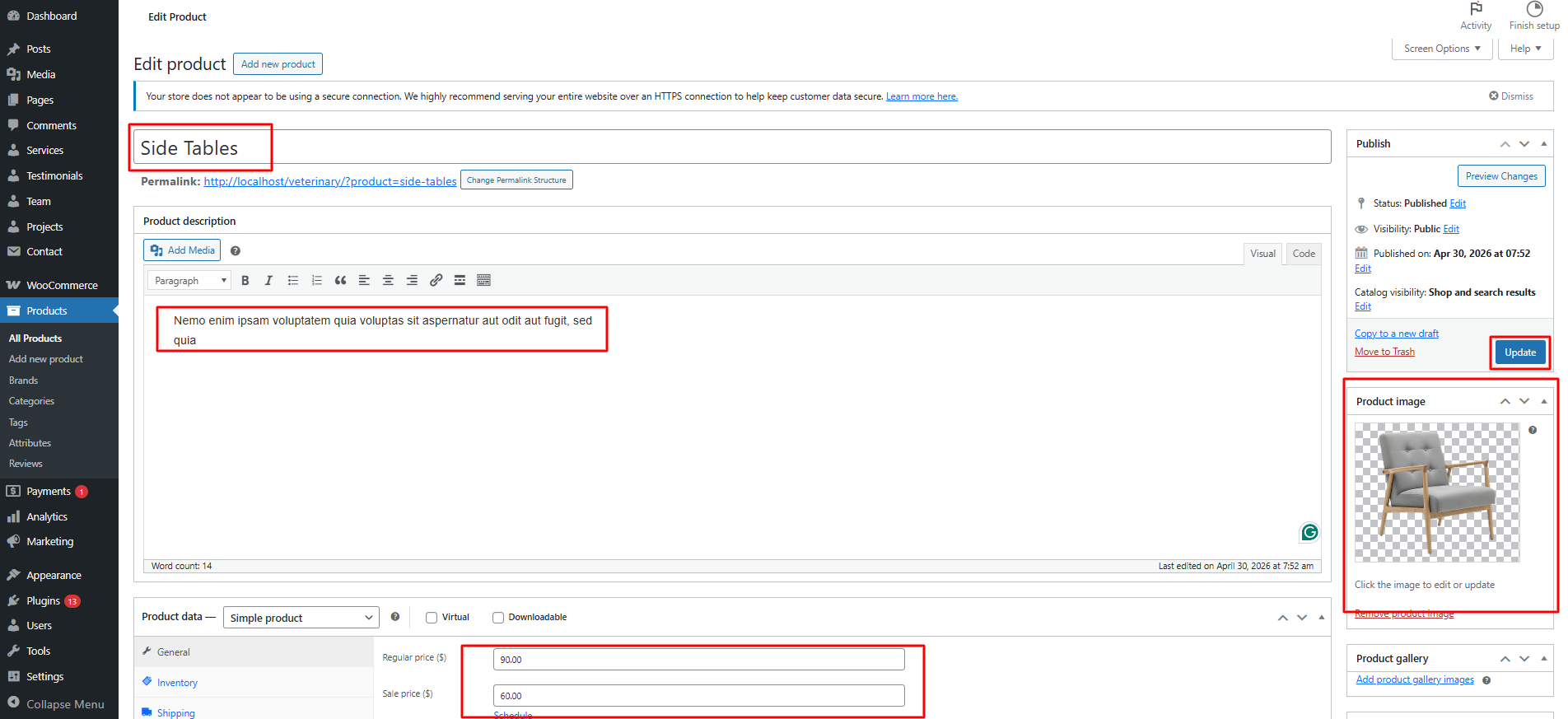
Go to Appearance >> Customize >> Theme Settings >> Our Shop to access the Our Shop Section settings.
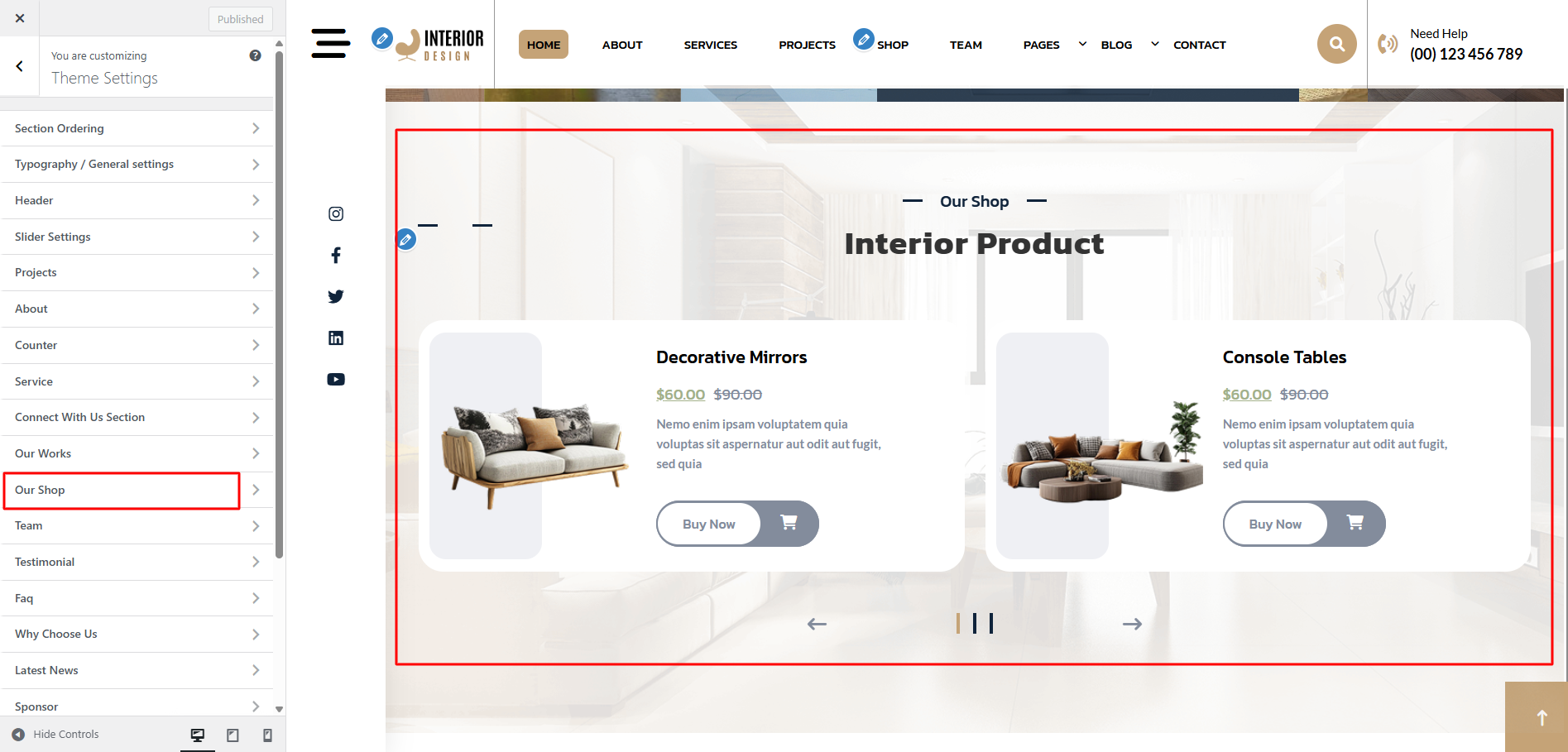
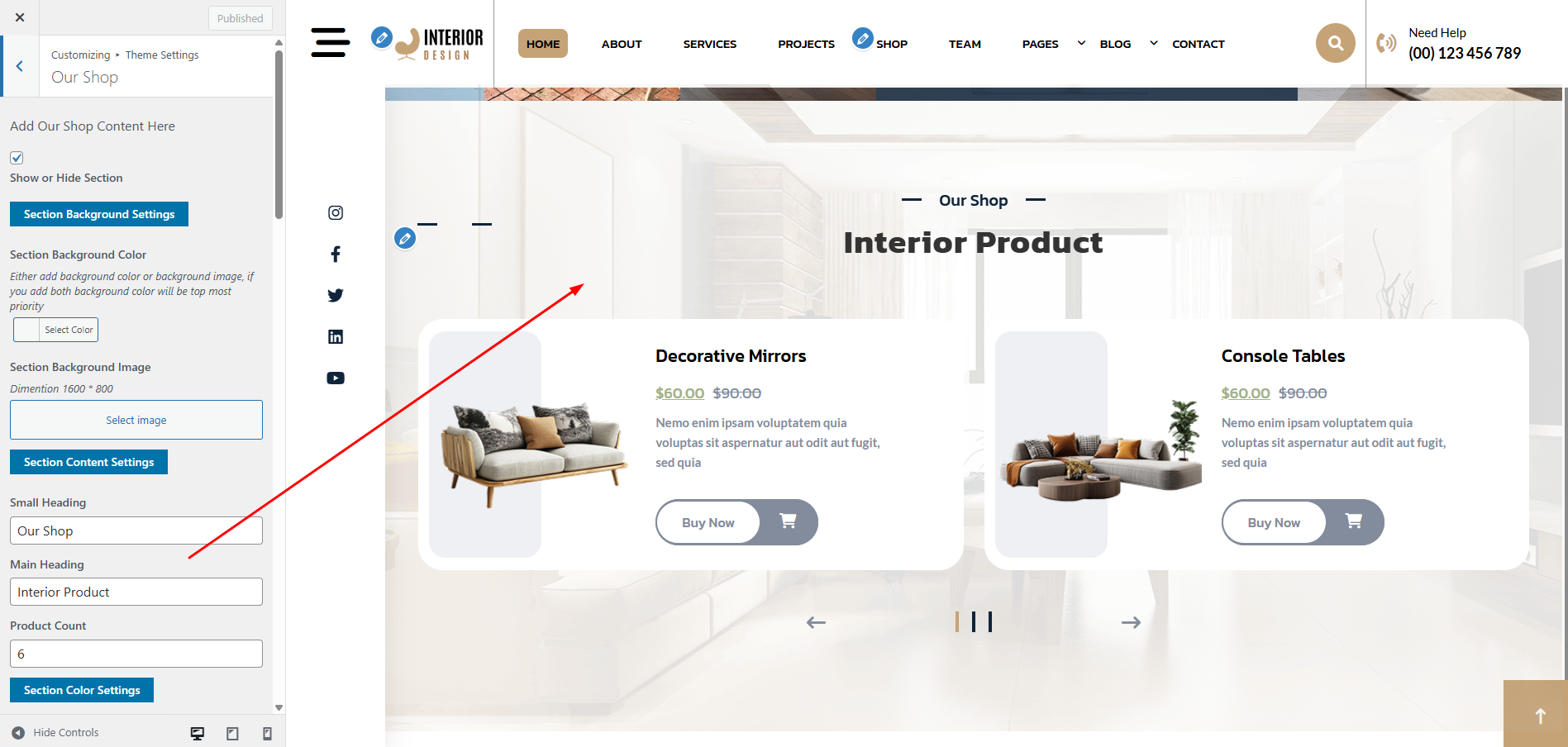
The following sections are included in the Our Shop Section customization:
- Section marked "Enable/Disable"
- Background Color / Background Image
- Dynamic Images
- Dynamic Content
- Depending on the content, different font settings.
- Also given font settings and color settings for After Active Also.
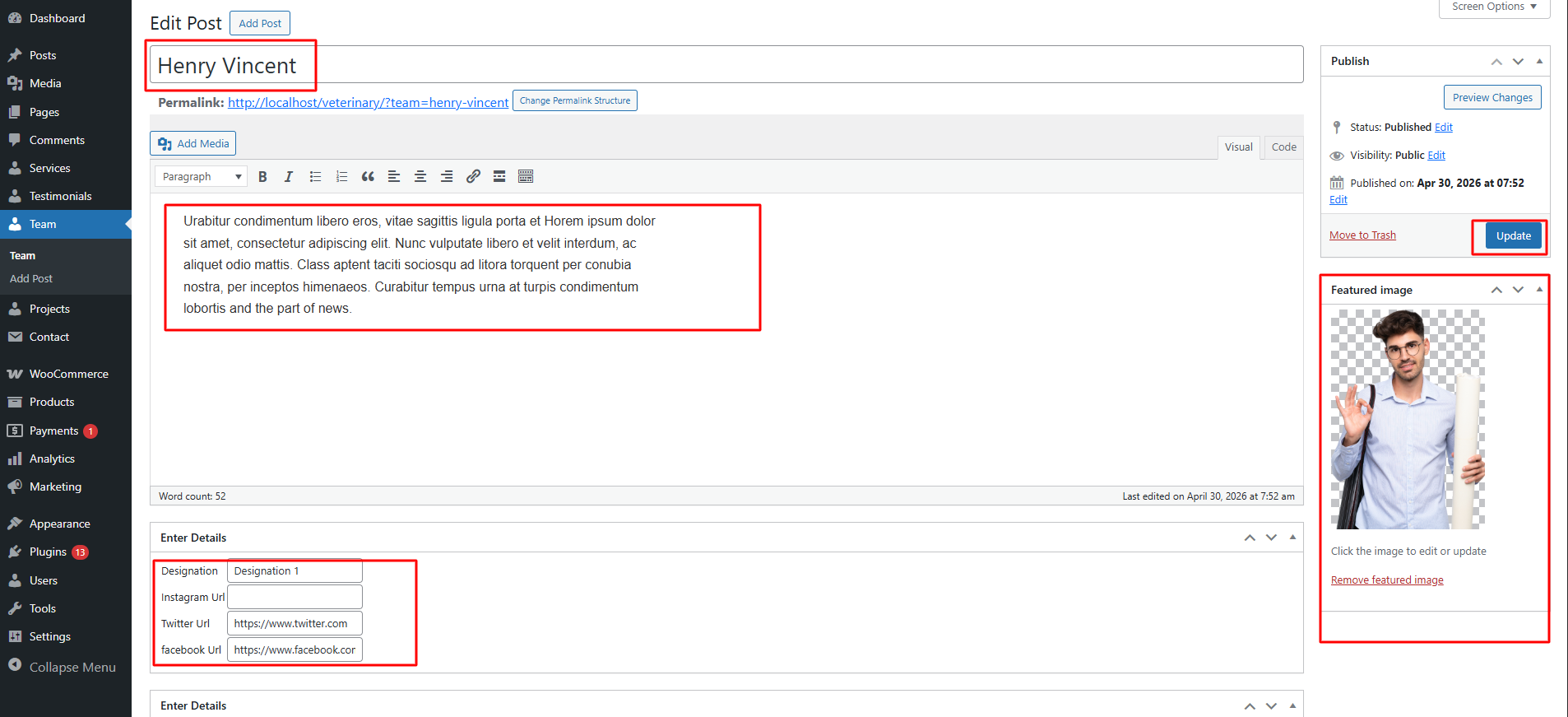
In this section the content is taken by the Post type named as "Team" for any changes of
content you'll have to do following steps:
-> Go to Dashboard
-> Then Select "Team" Post Type
-> And there you can edit and add content manually according to your preference and then do
publish
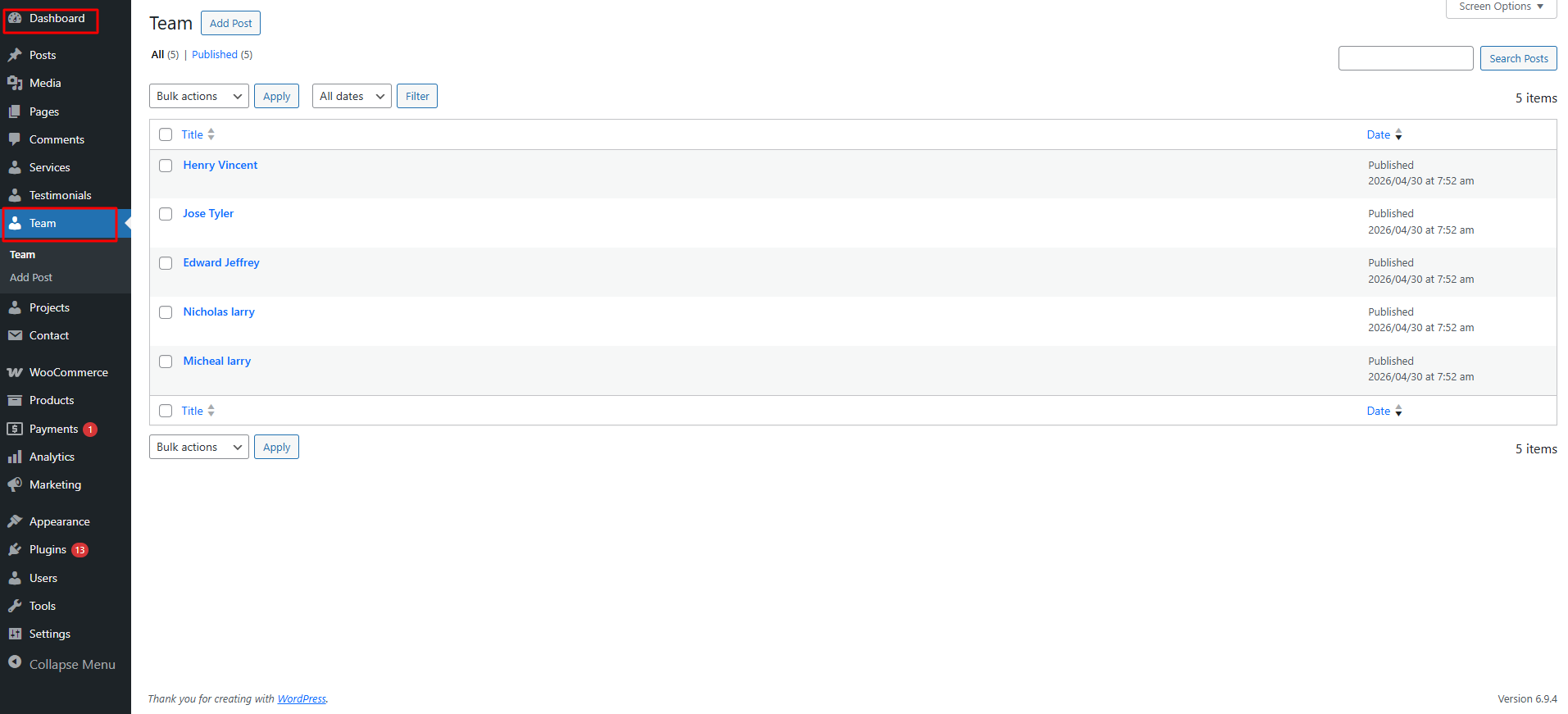
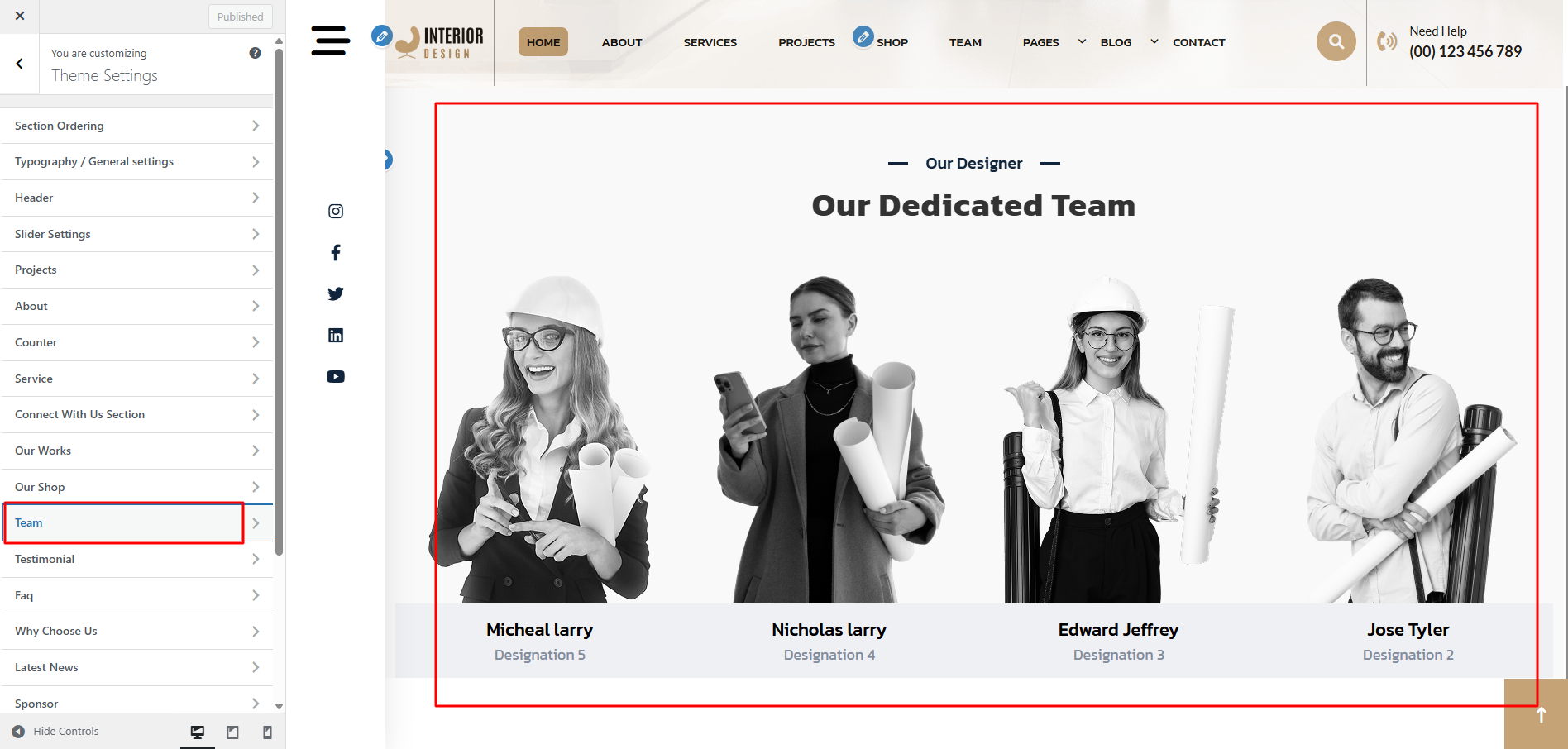
Go to Appearance >> Customize >> Theme Settings >> Team to access the Team Section settings.
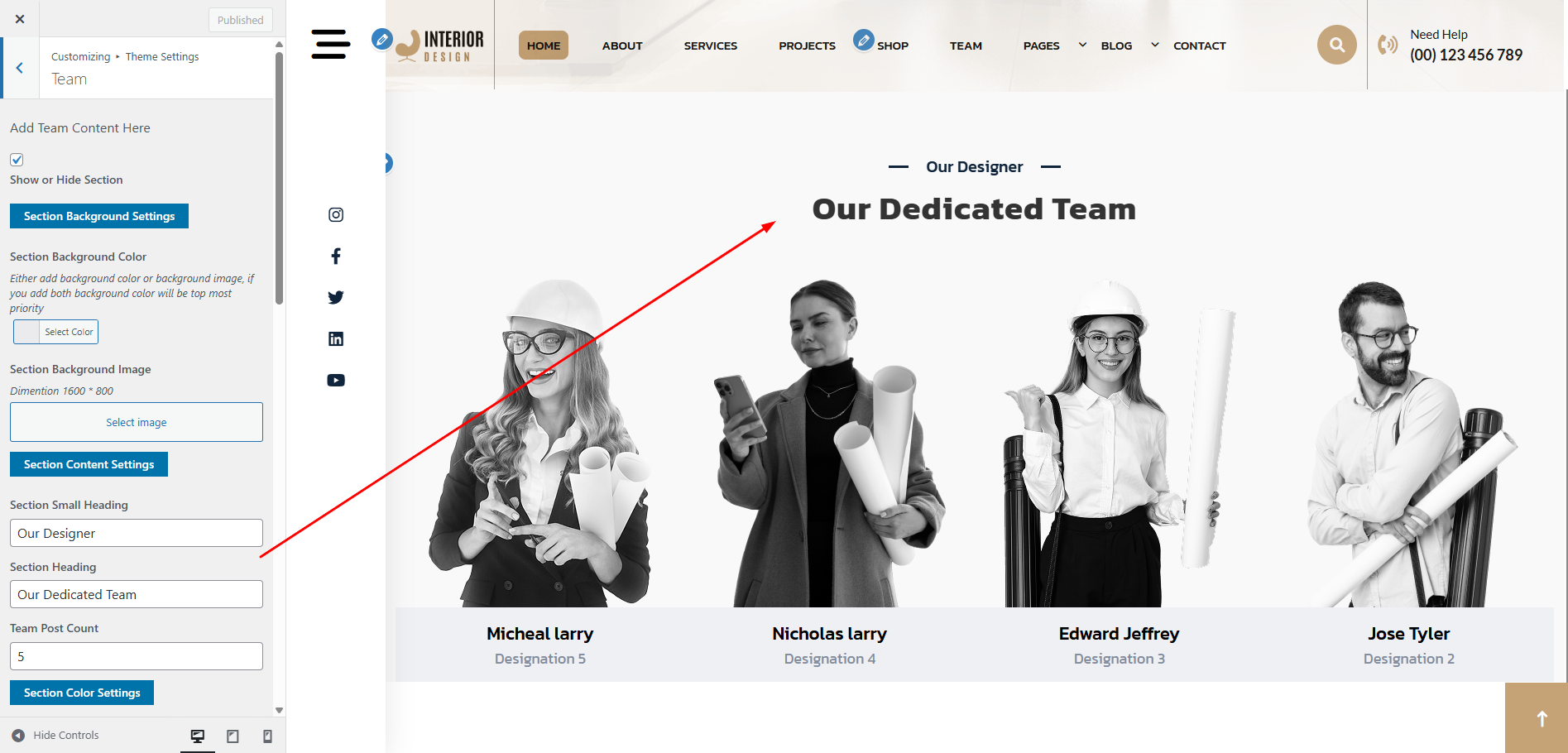
The following sections are included in the Team Section customization:
- Section marked "Enable/Disable"
- Background Color / Background Image
- Dynamic Images
- Dynamic Content
- Depending on the content, different font settings.
- Also given font settings and color settings for After Active Also.
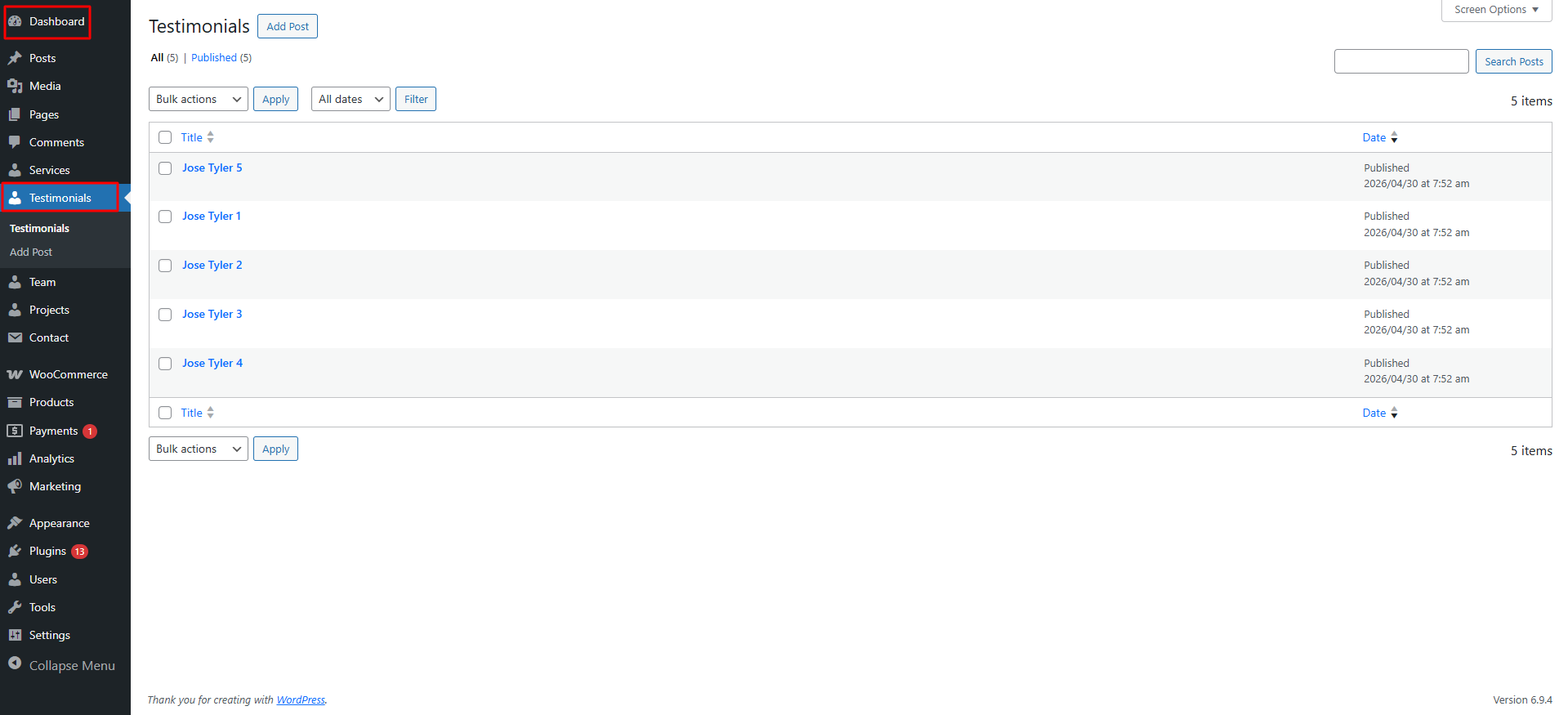
In this section the content is taken by the Post type named as "Testimonials" for any changes
of content you'll have to do following steps:
-> Go to Dashboard
-> Then Select "Testimonials" Post Type
-> And there you can edit and add content manually according to your preference and then do
publish
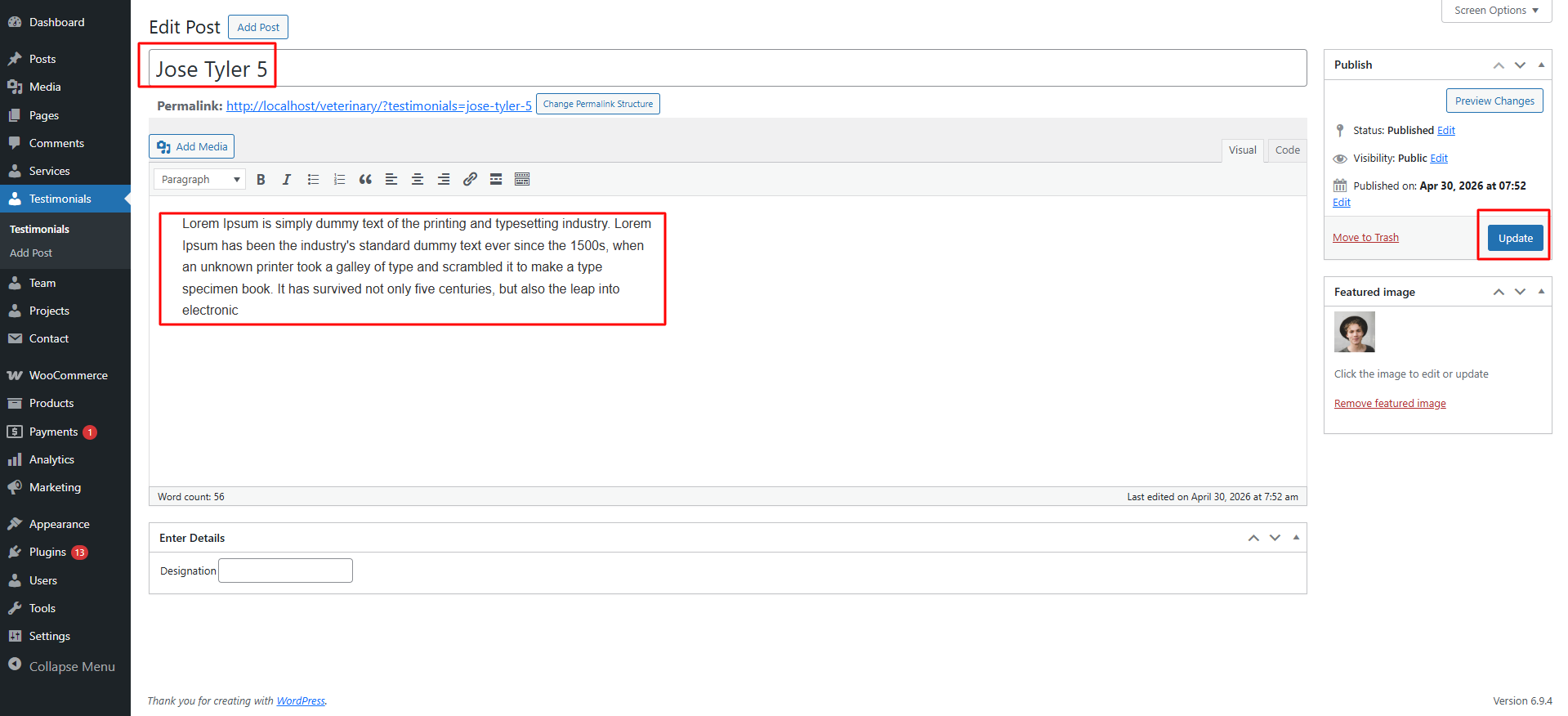
Go to Appearance >> Customize >> Theme Settings >> Testimonial to access the Testimonial settings.
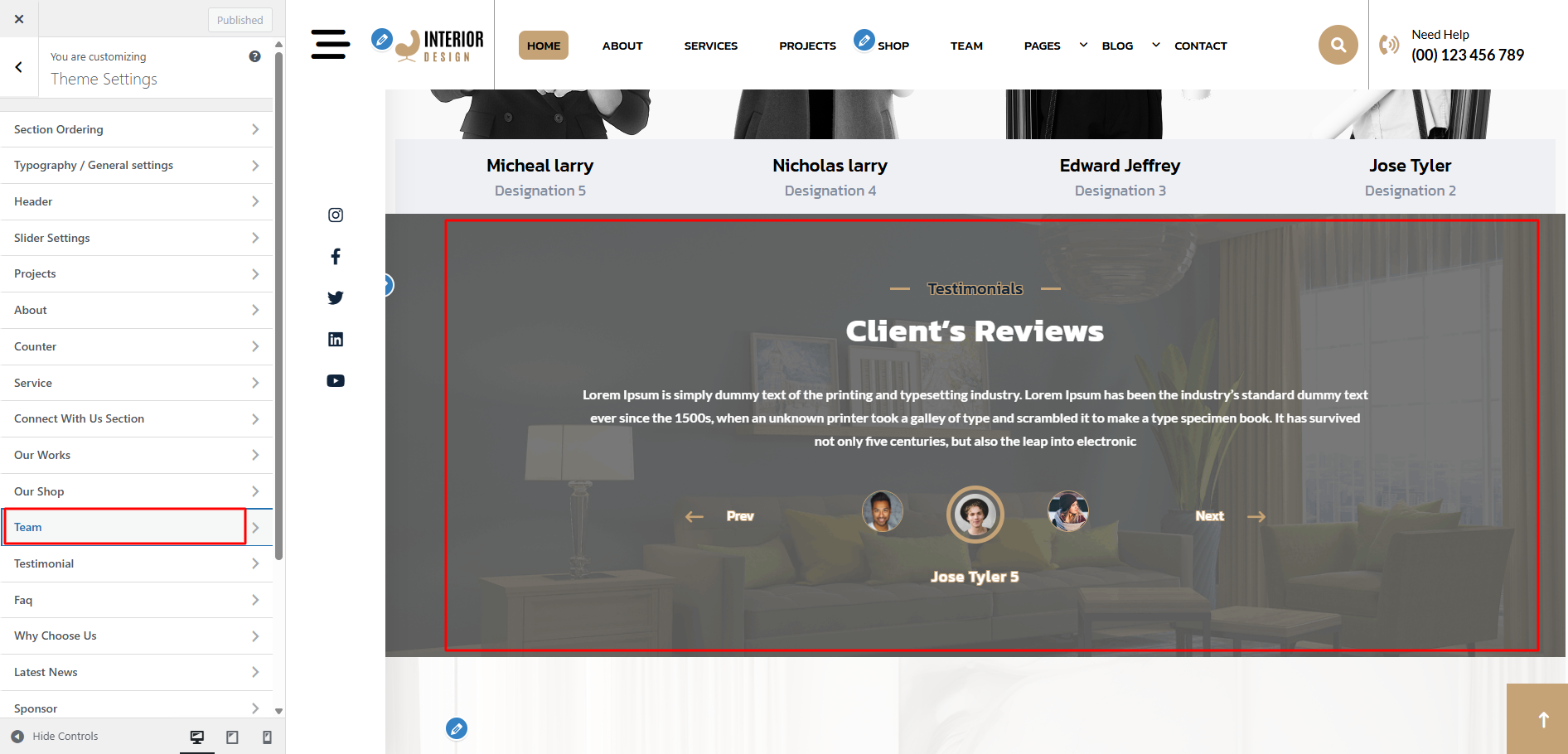
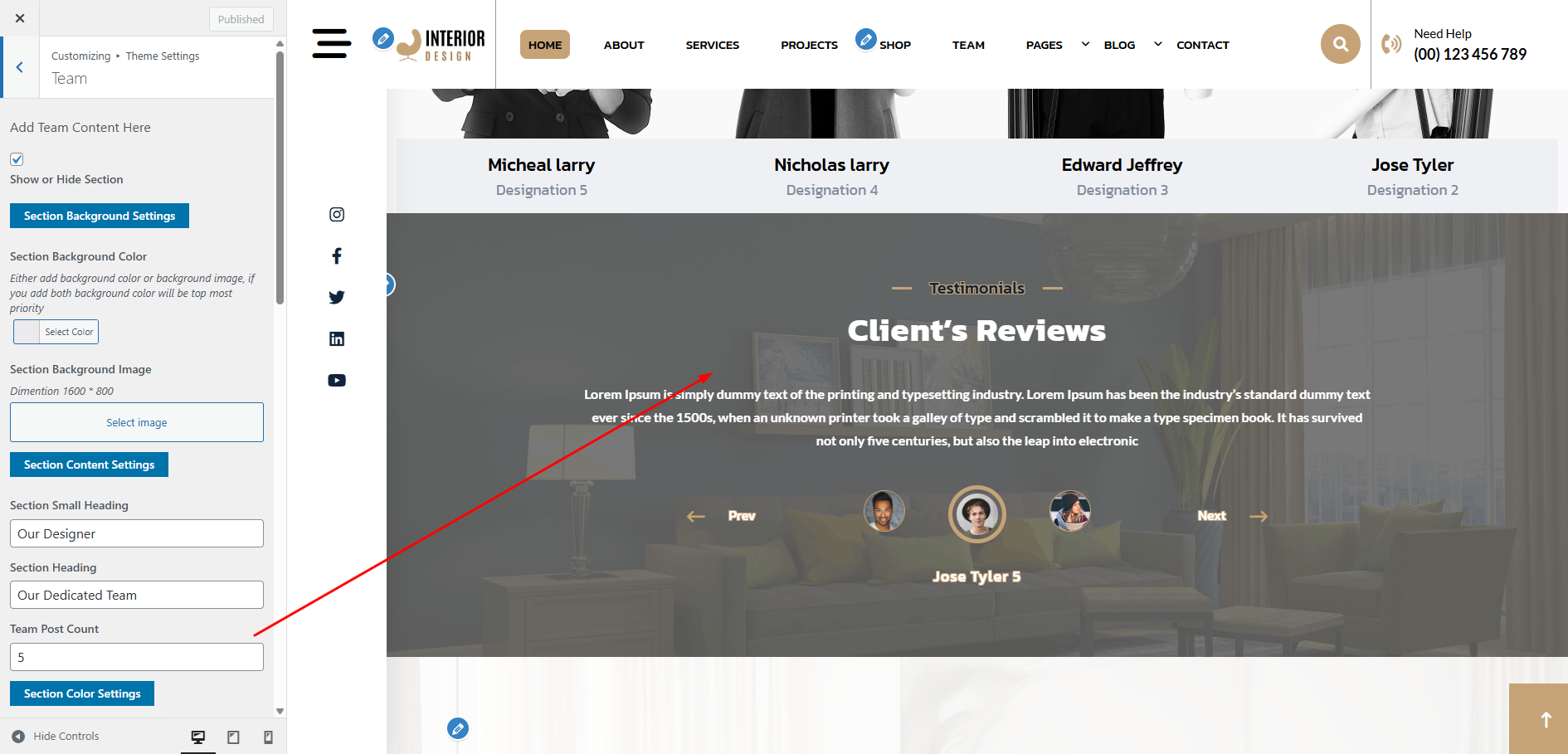
The following sections are included in the Testimonial customization:
- Section marked "Enable/Disable"
- Background Color / Background Image
- Depending on the content, different font settings.
Go to Appearance >> Customize >> Theme Settings >> Faq to access the Faq settings.
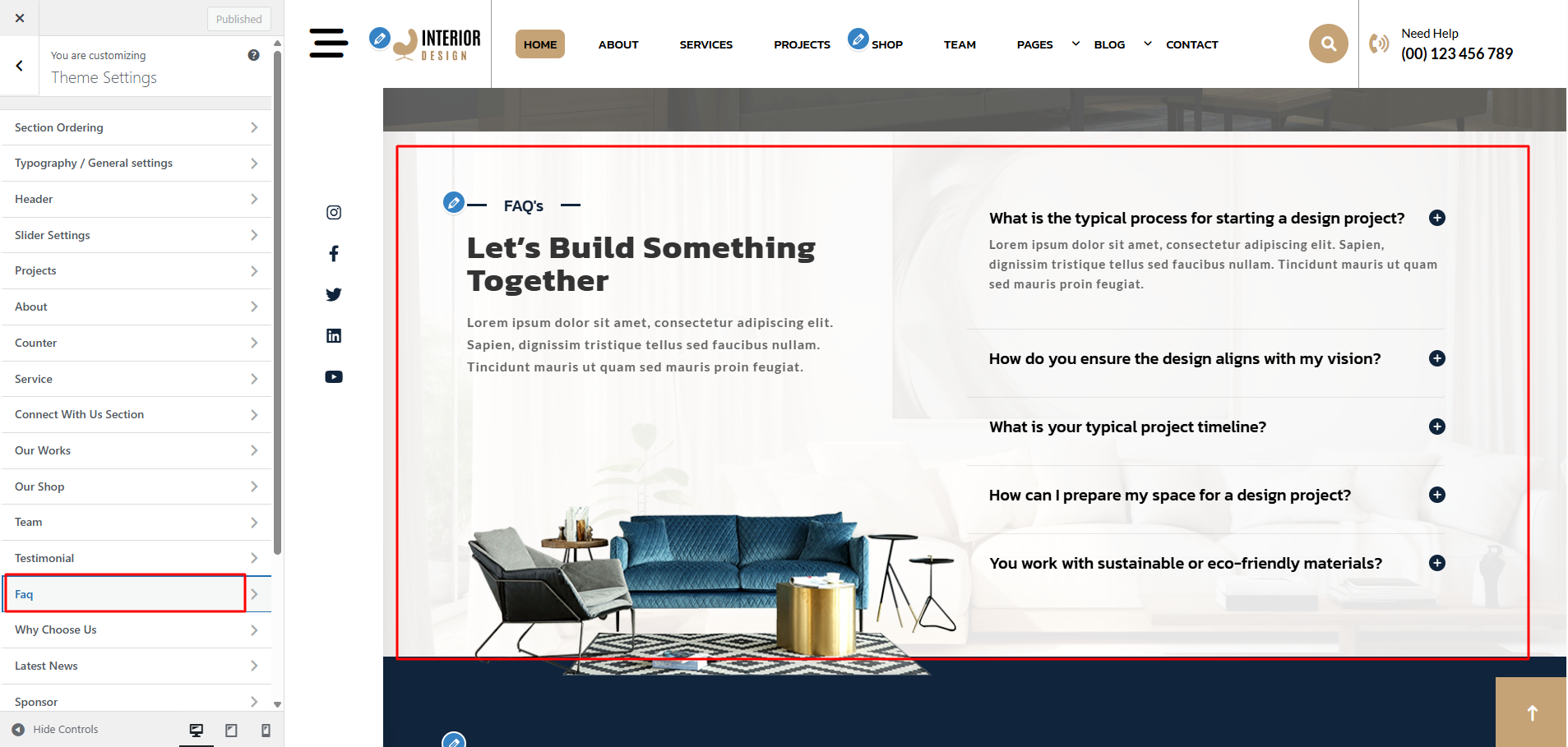
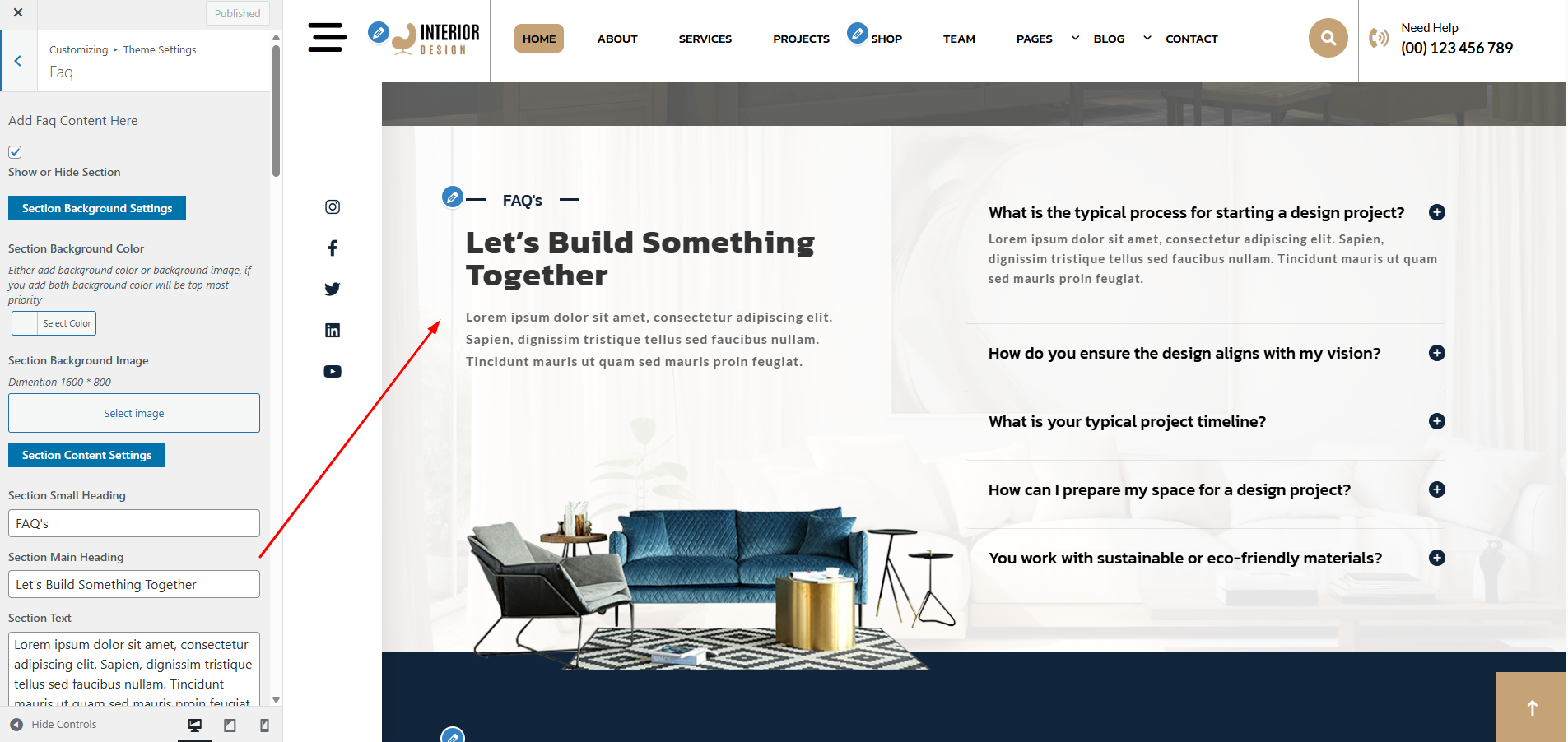
The following sections are included in the Faq customization:
- Section marked "Enable/Disable"
- Background Color / Background Image
- Dynamic Images
- Dynamic Content
- Depending on the content, different font settings.
- Also settings are given for navigation arrows.
Go to Appearance >> Customize >> Theme Settings >> Why Choose Us Section to access the Why Choose Us Section settings.
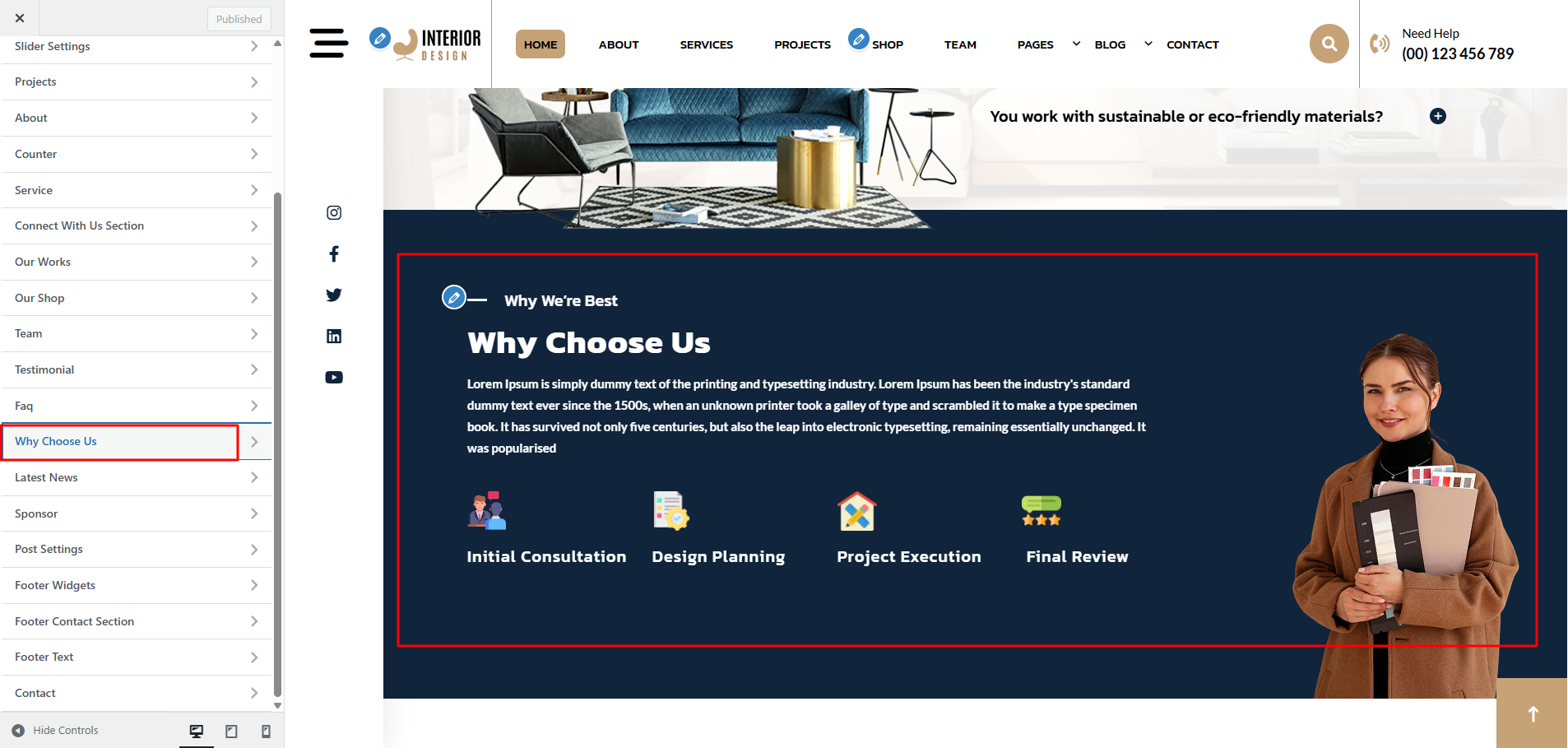
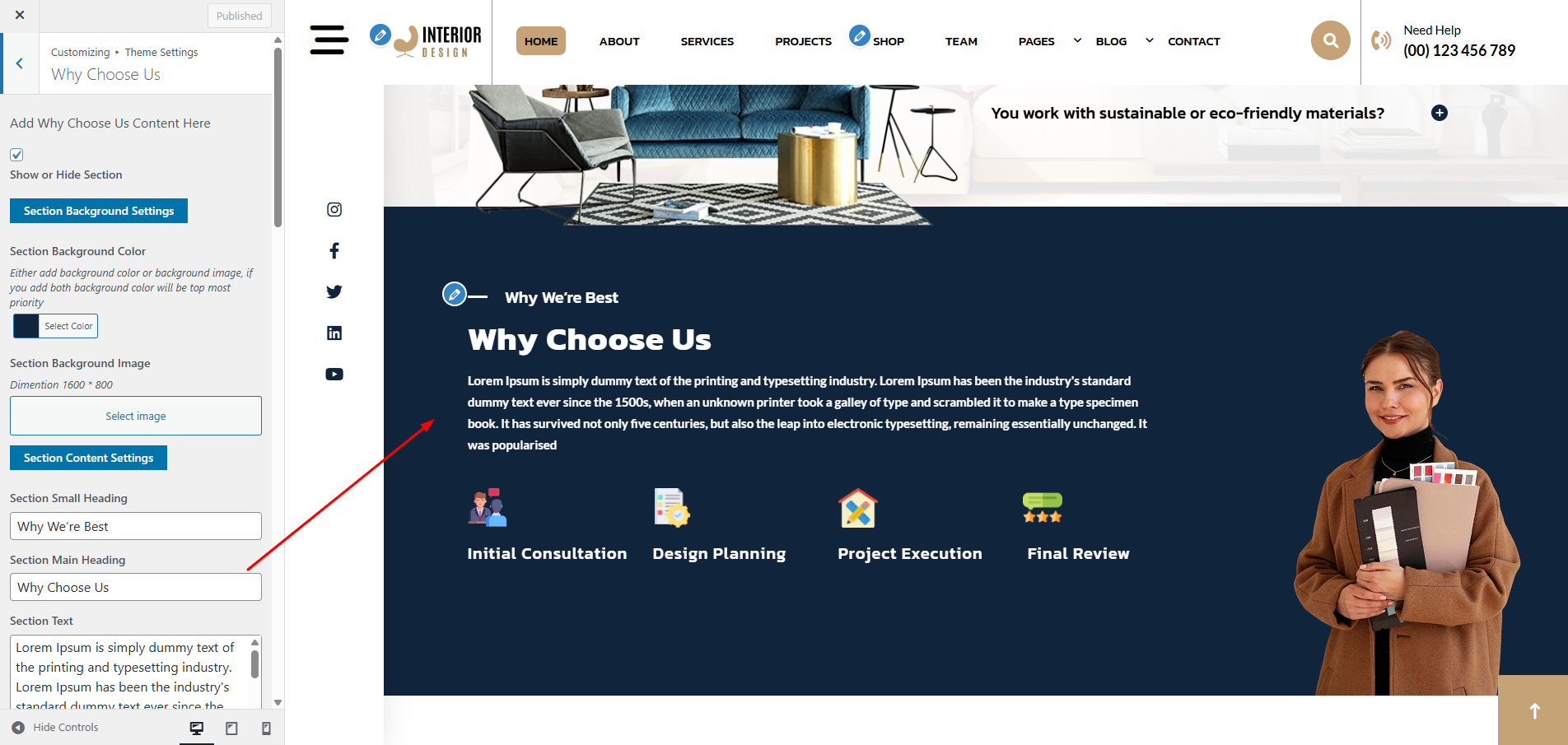
The following sections are included in the Collection Section customization:
- Section marked "Enable/Disable"
- Background Color / Background Image
- Dynamic Images
- Dynamic Content
- Depending on the content, different font settings.
- Also given font settings and color settings for After Active Also.
News And Blogs Section Setup
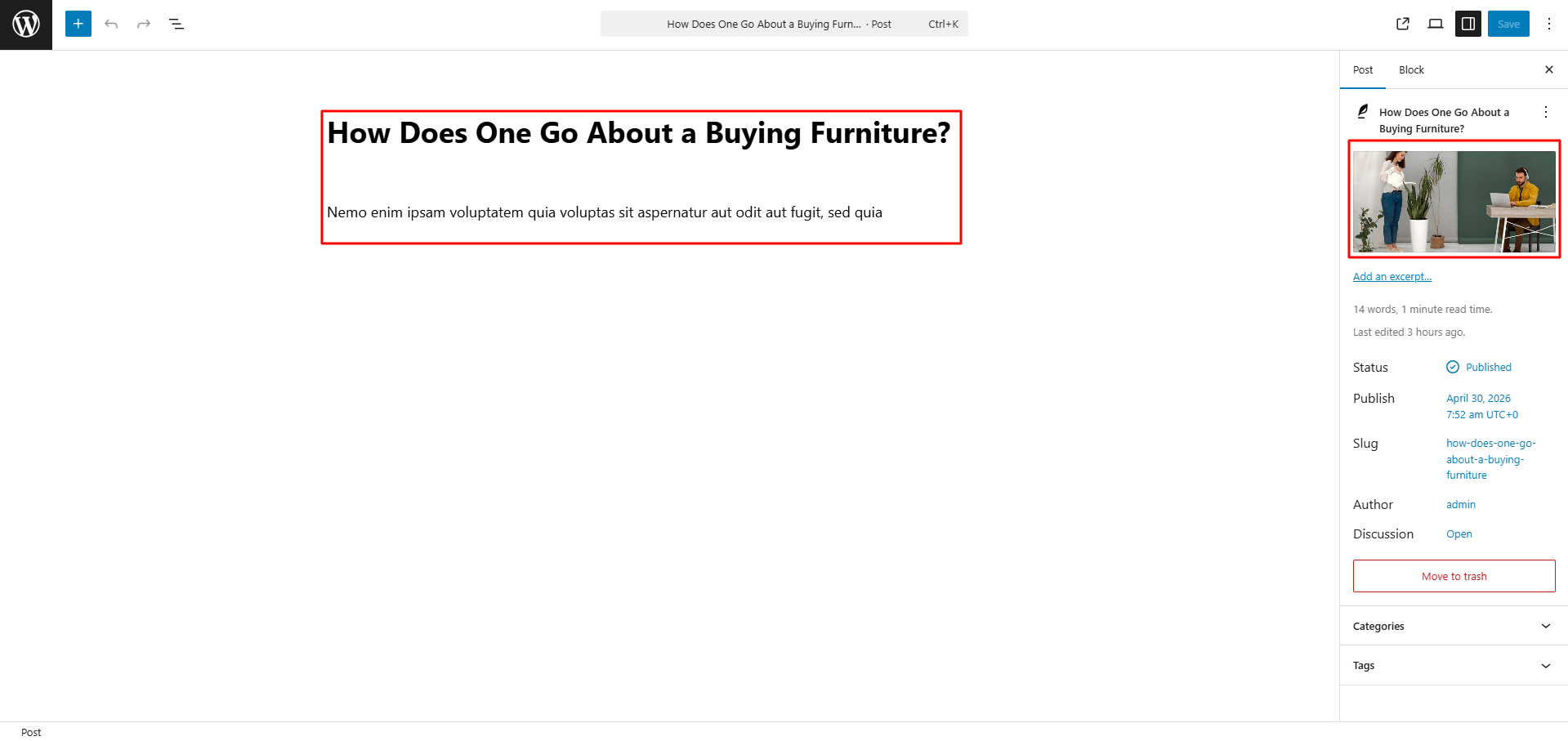
In this section the content is taken by the Post type named as "Posts" for any changes of
content you'll have to do following steps:
-> Go to Dashboard
-> Then Select "Posts" Post Type
-> And there you can edit and add content manually according to your preference and then do
publish
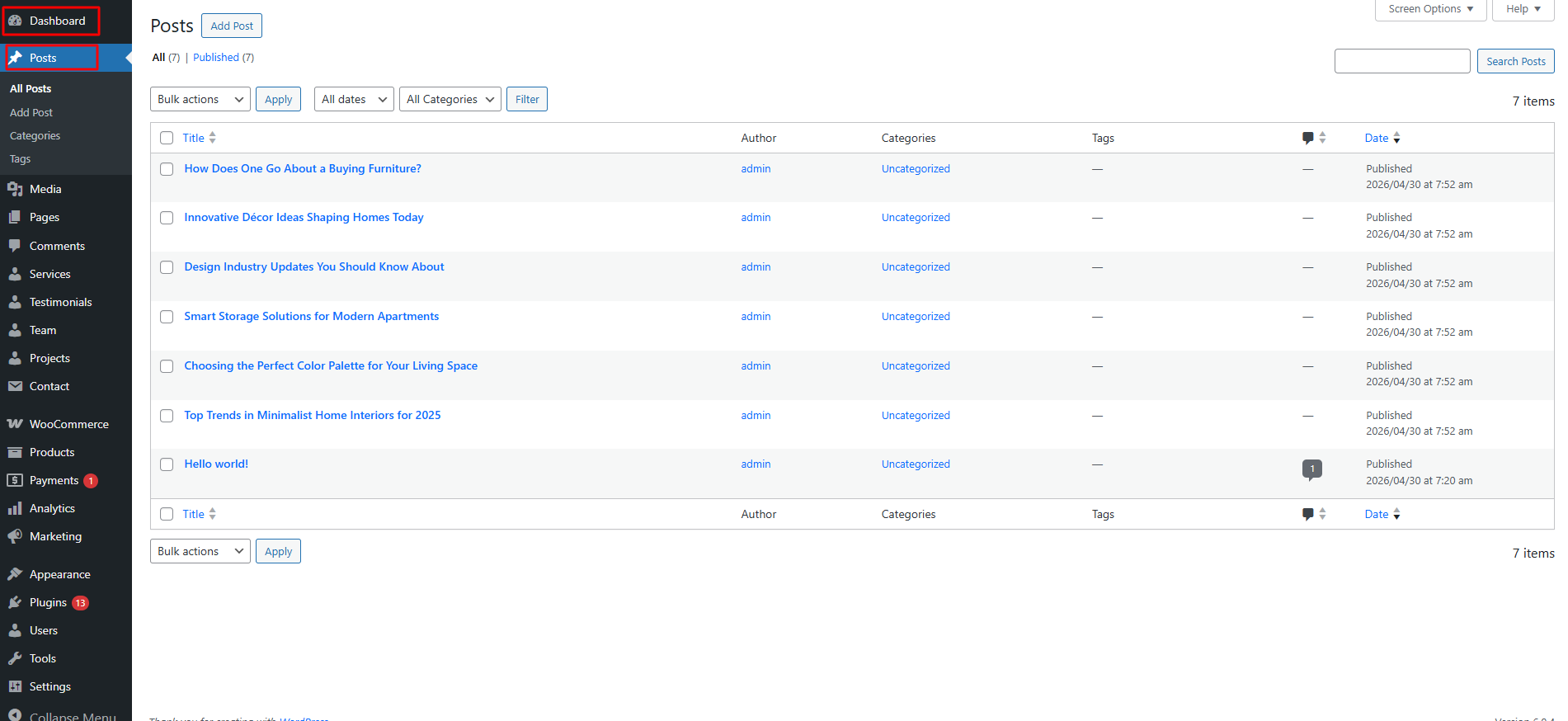
Go to Appearance >> Customize >> Theme Settings >> Our Blog to access the Social Icons settings.
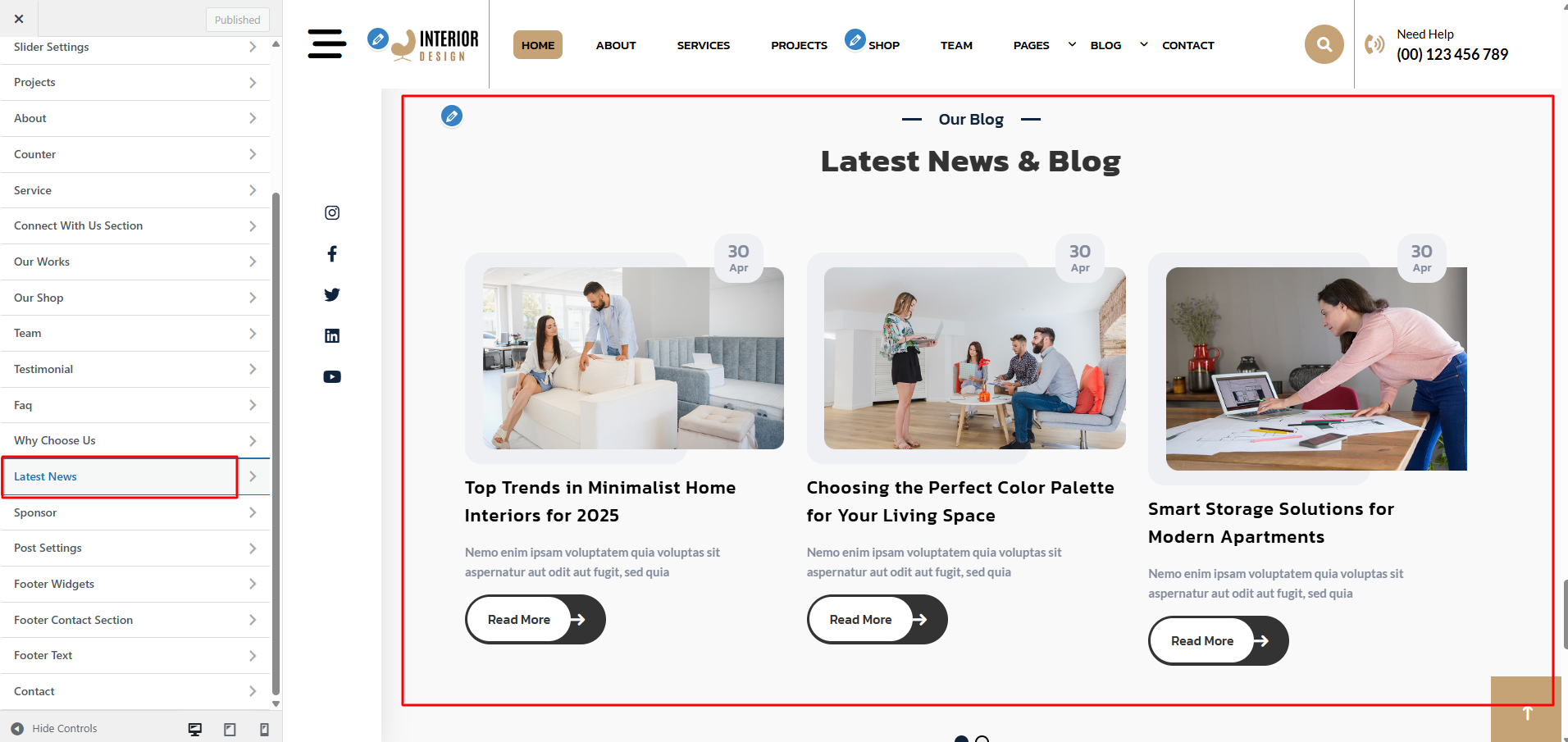
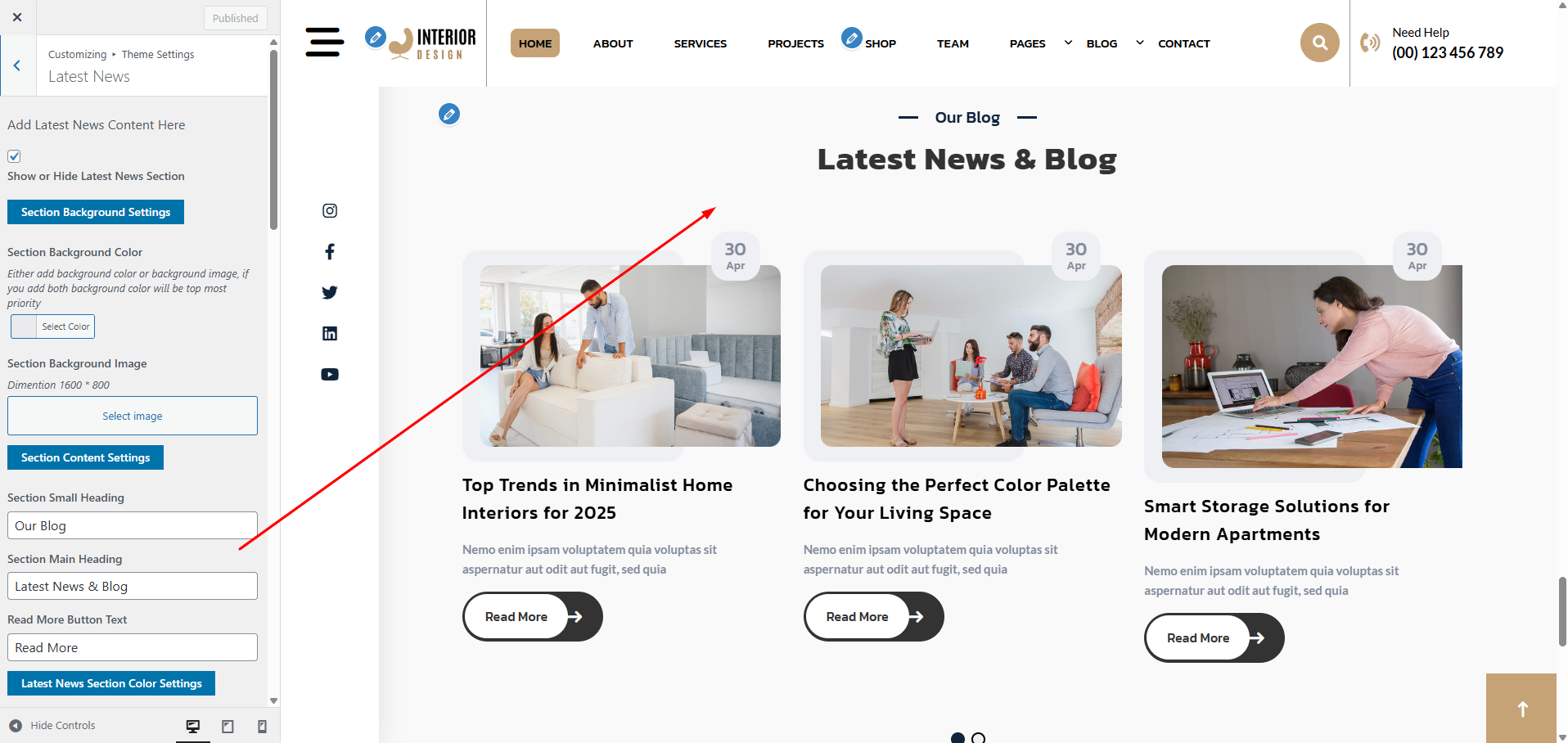
The following sections are included in the Latest News customization:
- Section marked "Enable/Disable"
- Background Color / Background Image
- Dynamic Images
- Dynamic Content
- Depending on the content, different font settings.
Go to Appearance >> Customize >> Theme Settings >> Sponsor to access the Sponsor settings.
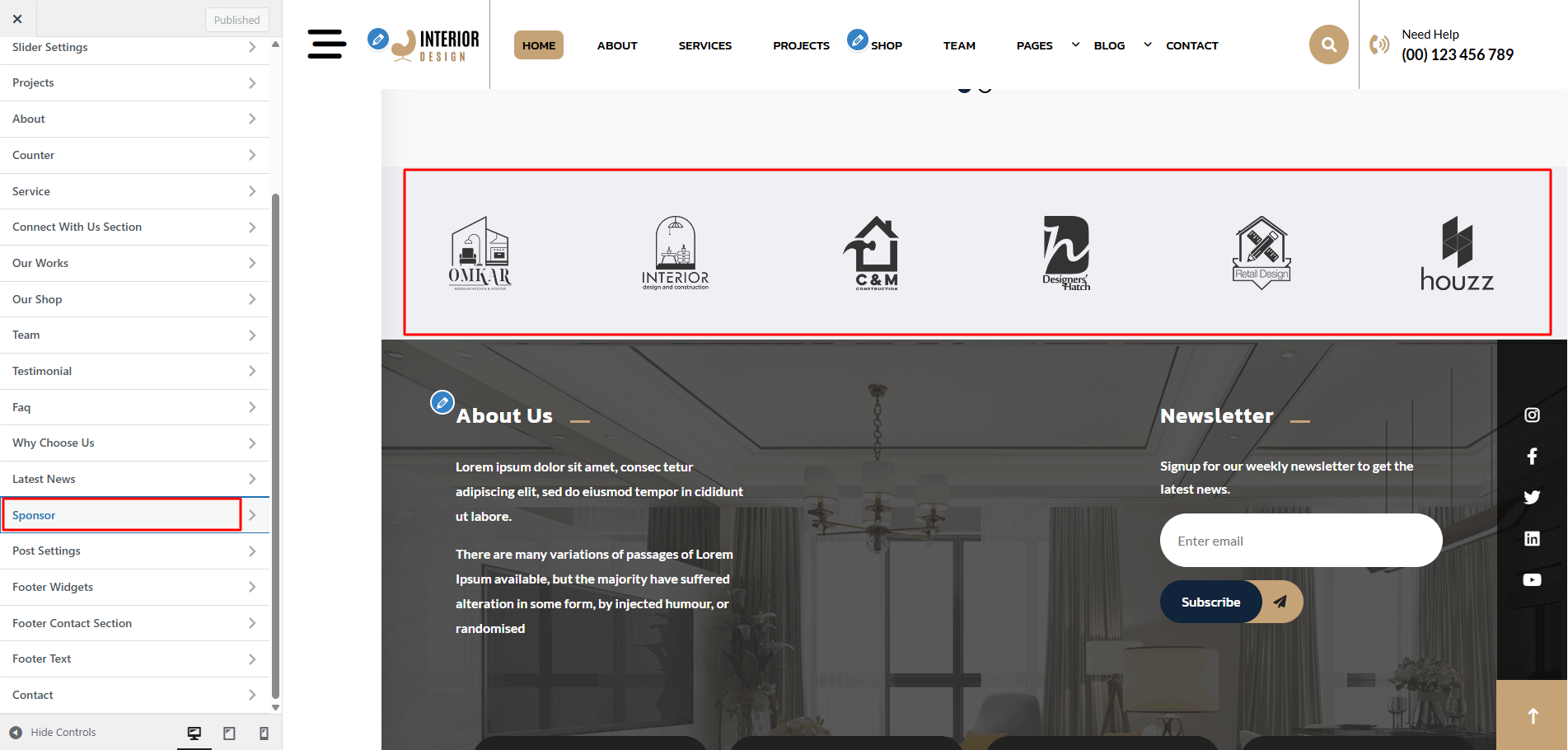
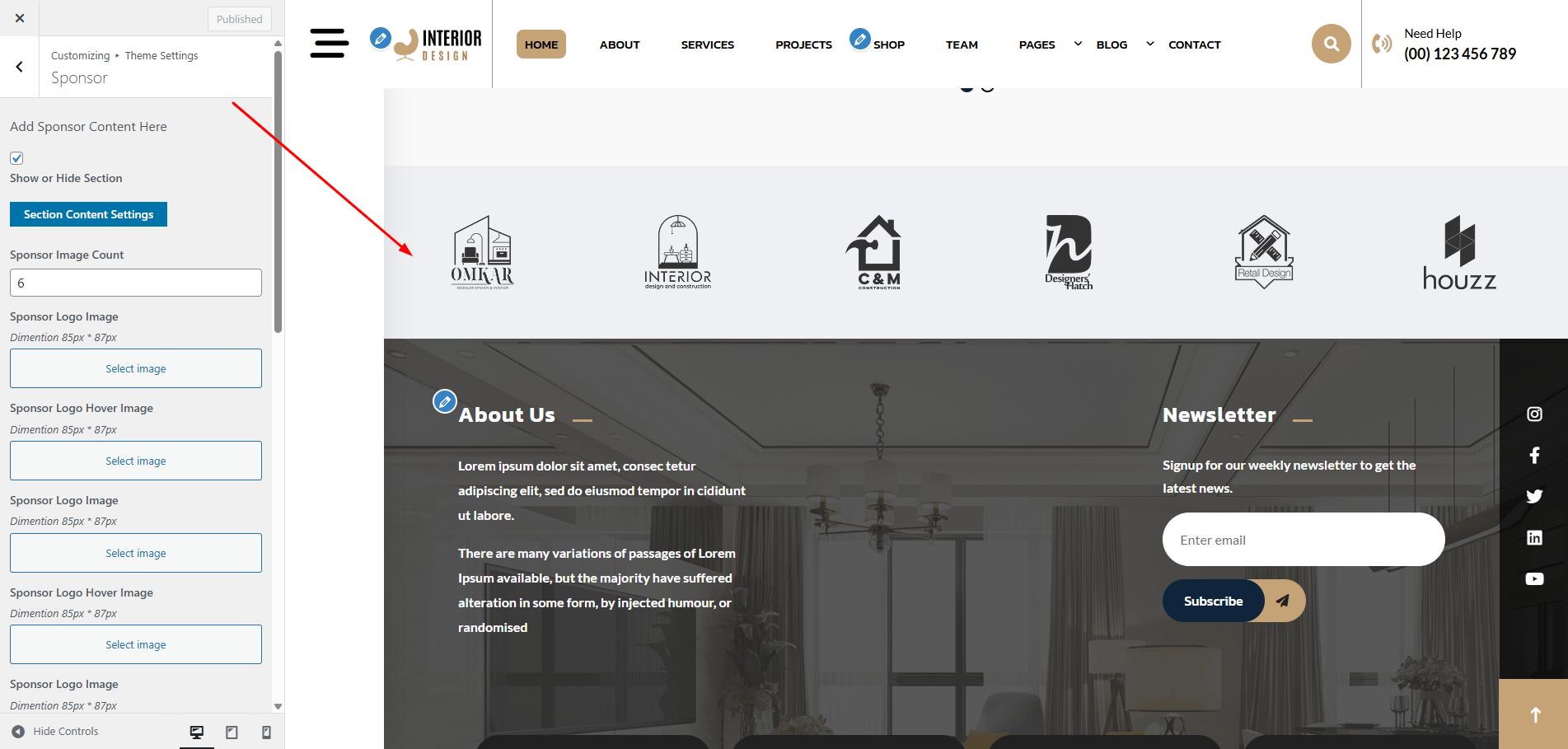
The following sections are included in the Sponsor customization:
- Section marked "Enable/Disable"
- Background Color / Background Image
- Dynamic Images
- Dynamic Content
- Depending on the content, different font settings.
- Also settings are given for navigation arrows.
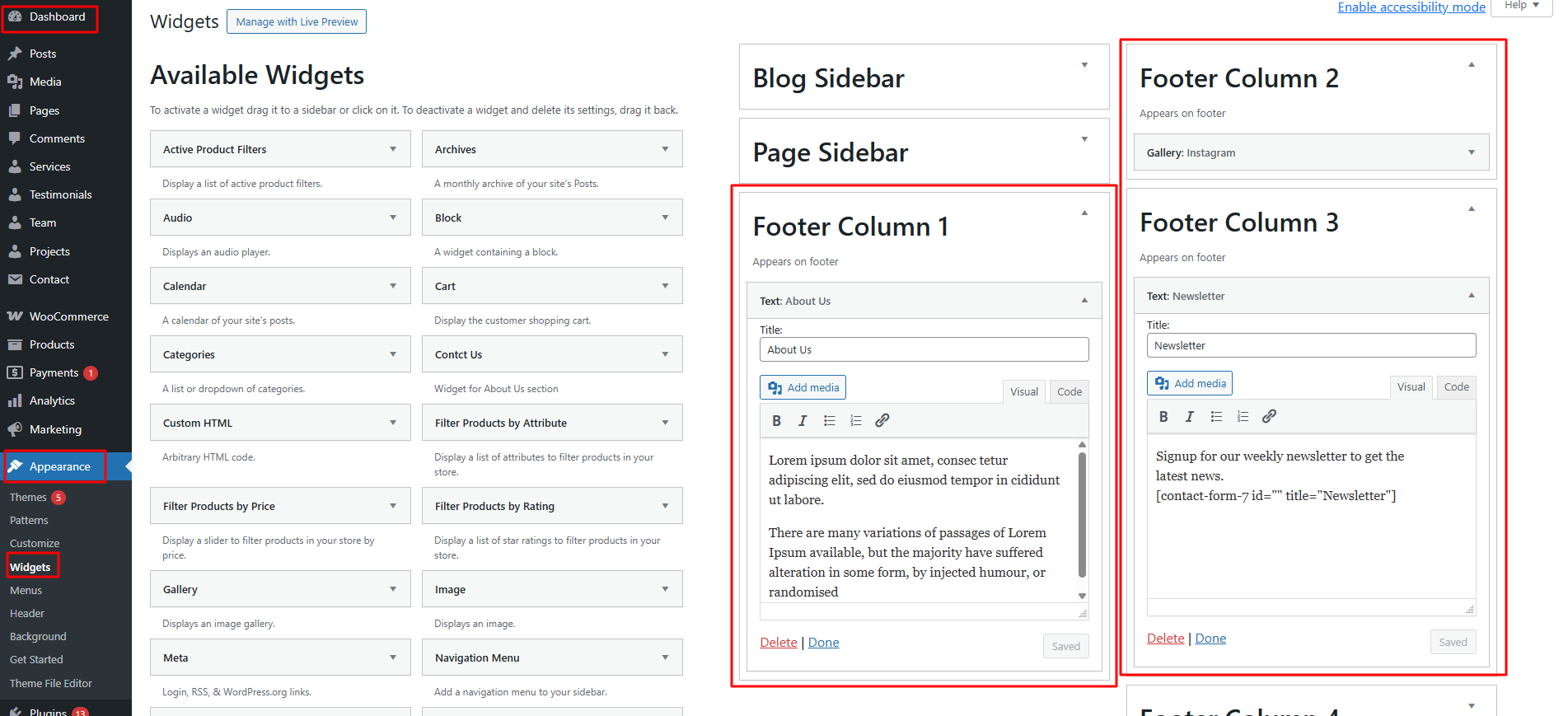
Dashboard Setup:-
Customizer Setup:-
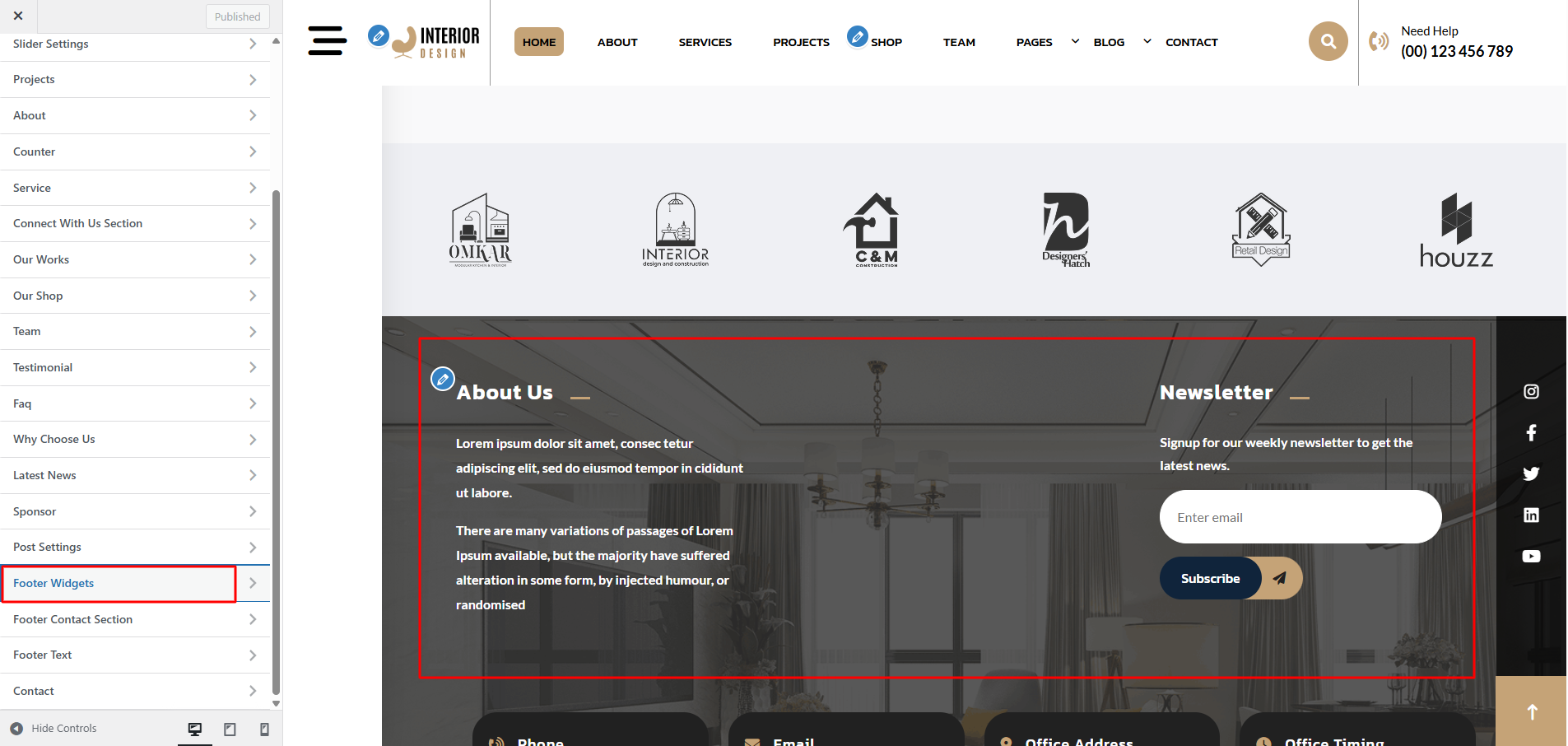
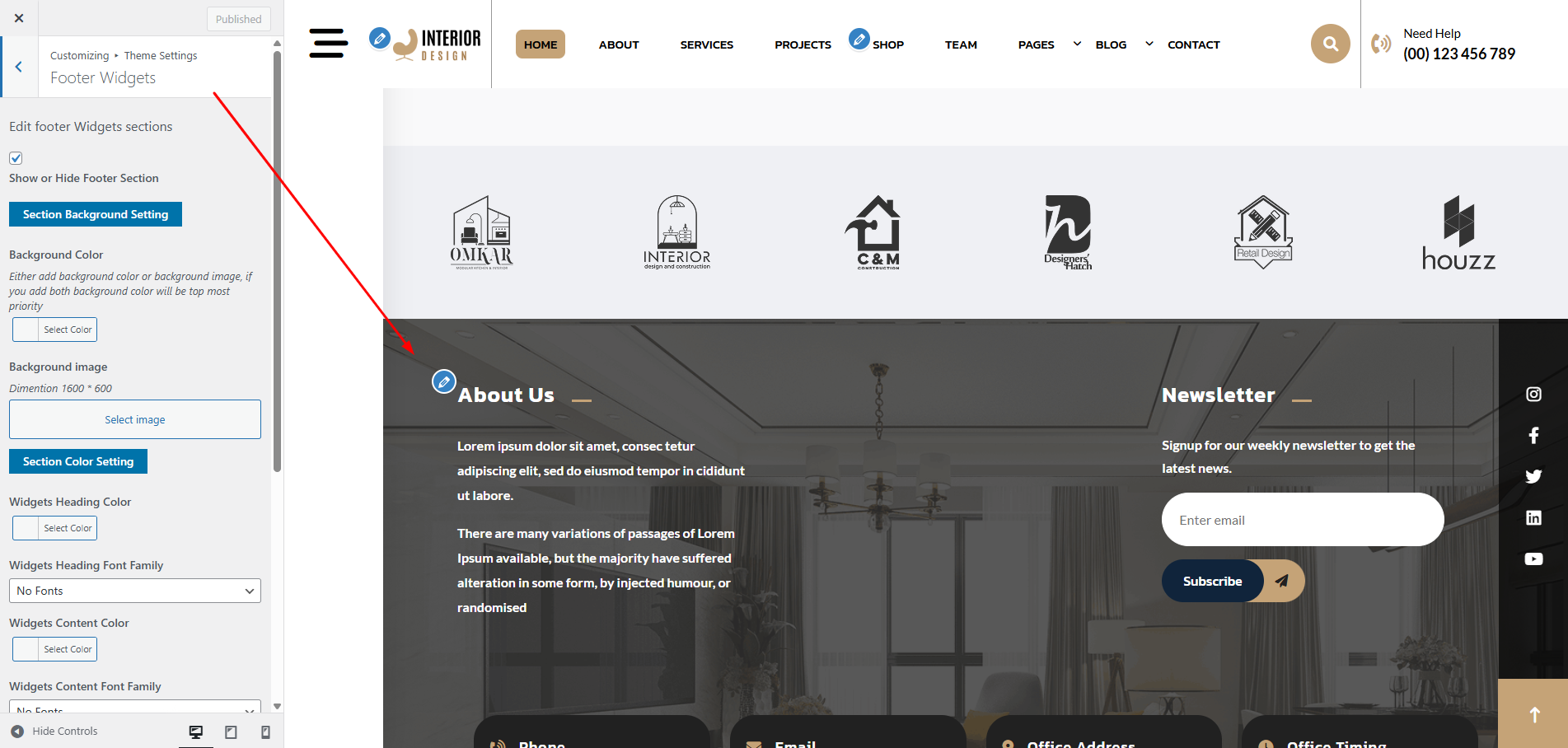
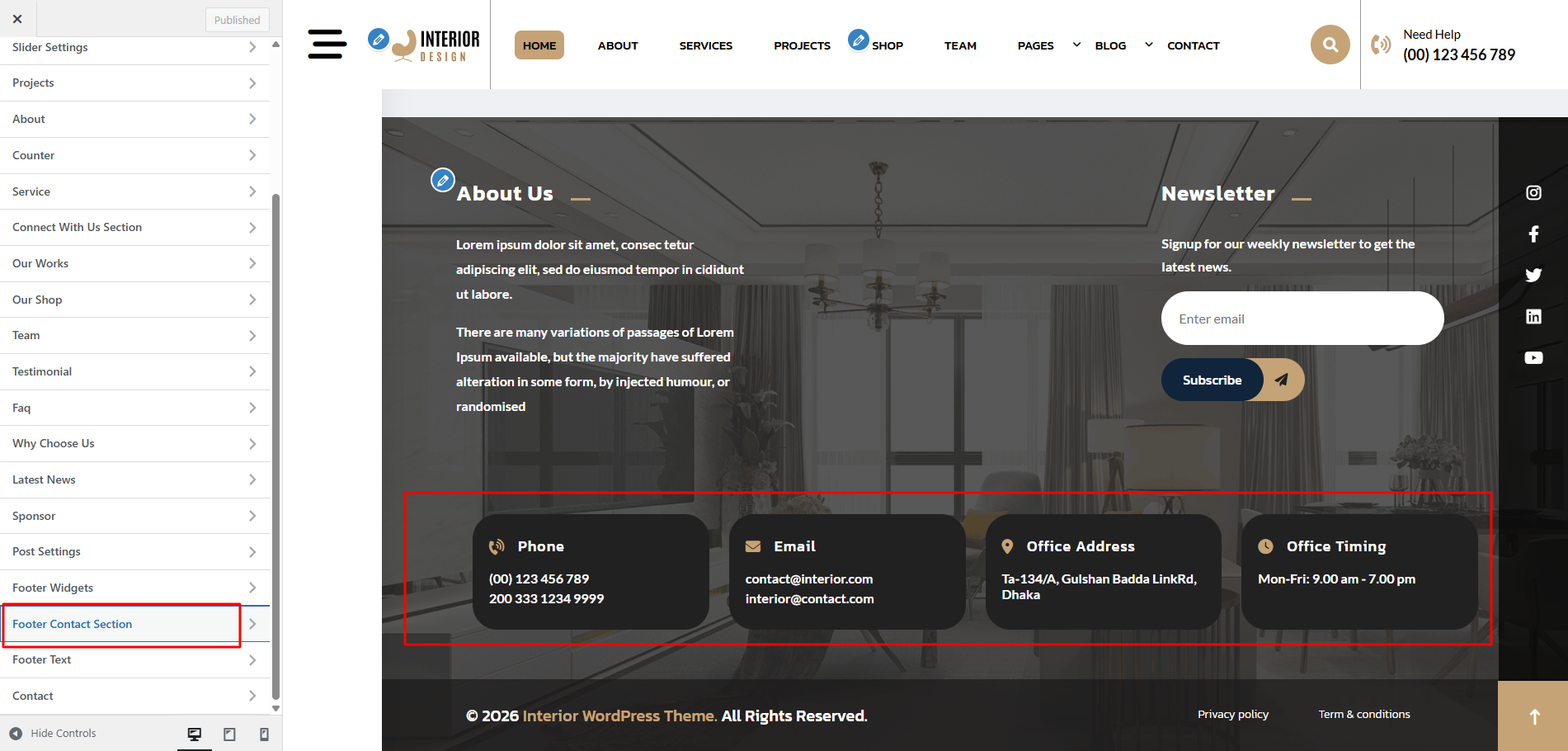
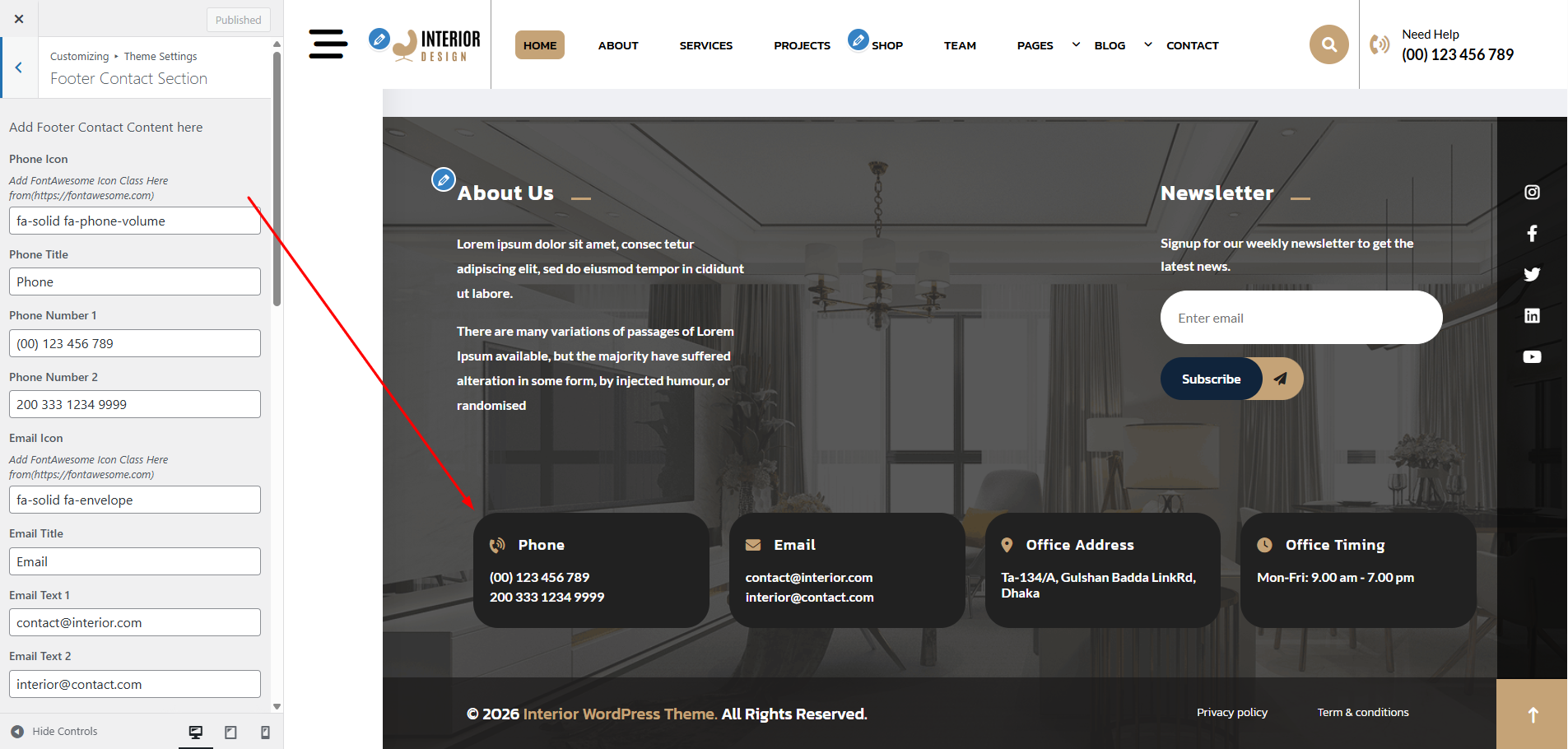
Go to Appearance >> Customize >> Theme Settings >> Footer Contact Section to access the Footer Text Section settings.
Go to Appearance >> Customize >> Theme Settings >> Footer Text Section to access the Footer Text Section settings.
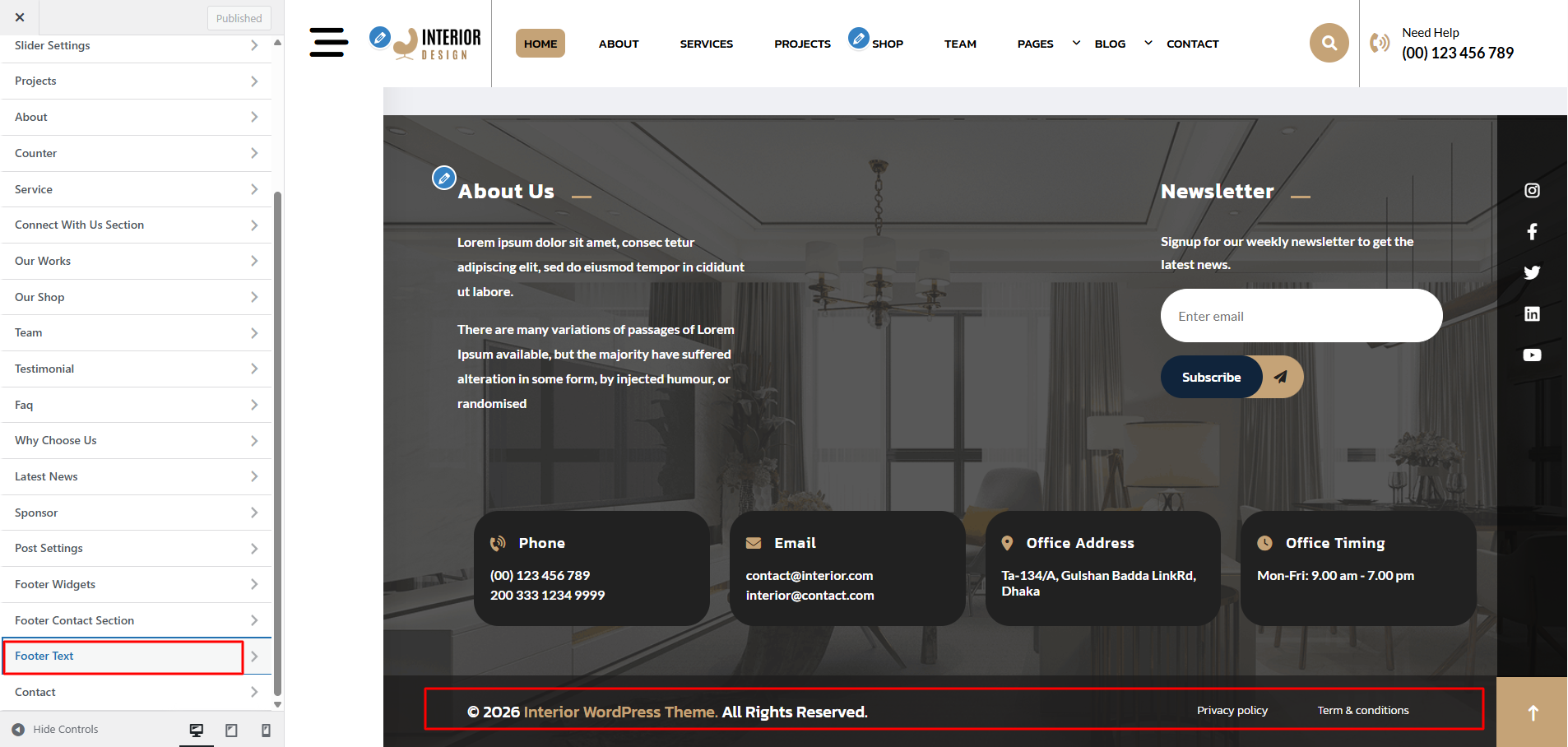
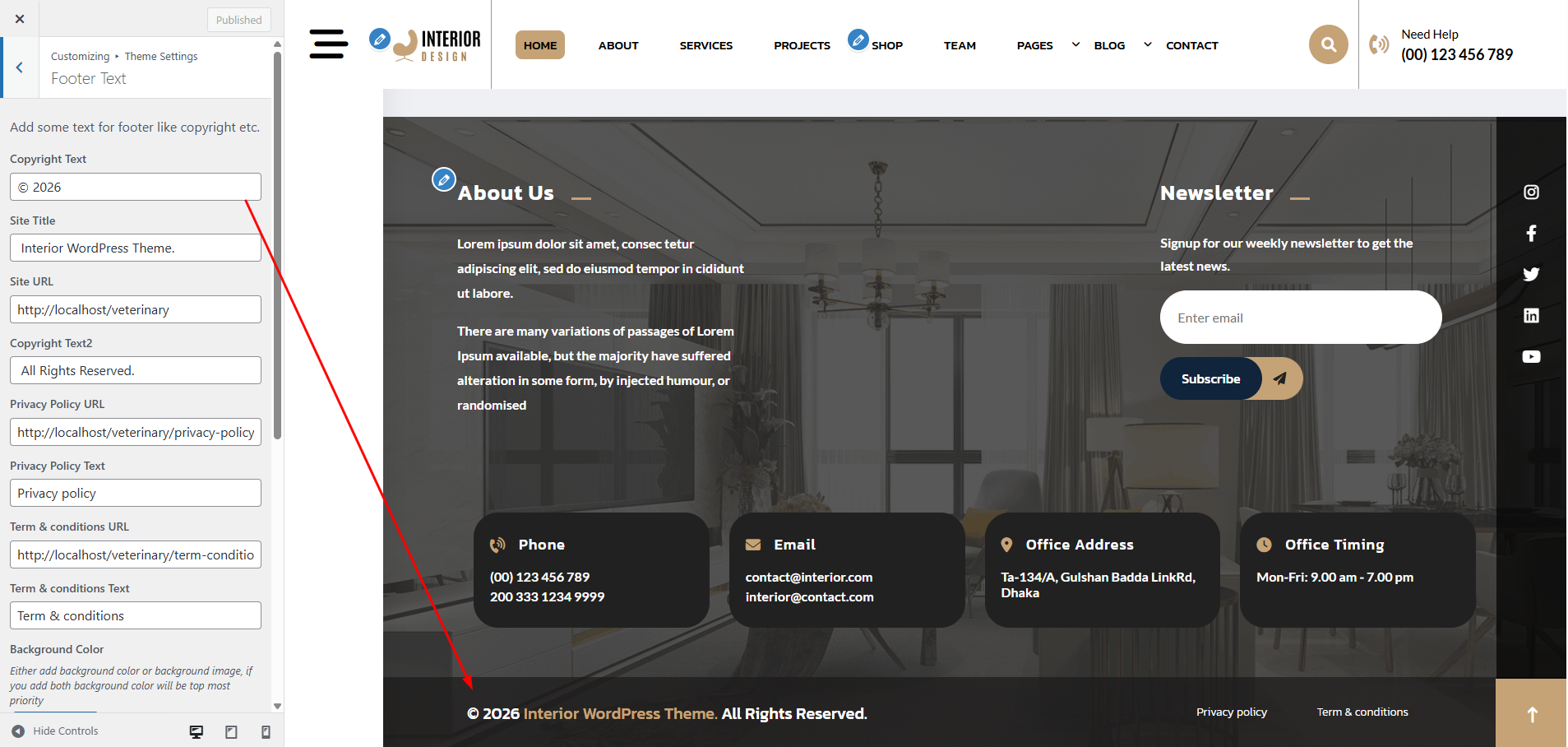
The following sections are included in the Footer Section customization:
- Section marked "Enable/Disable"
- Background Color / Background Image
- Depending on the content, different font settings.
Go to Appearance >> Customize >> Theme Settings >> Contact Page Section to access the Footer Text Section settings.
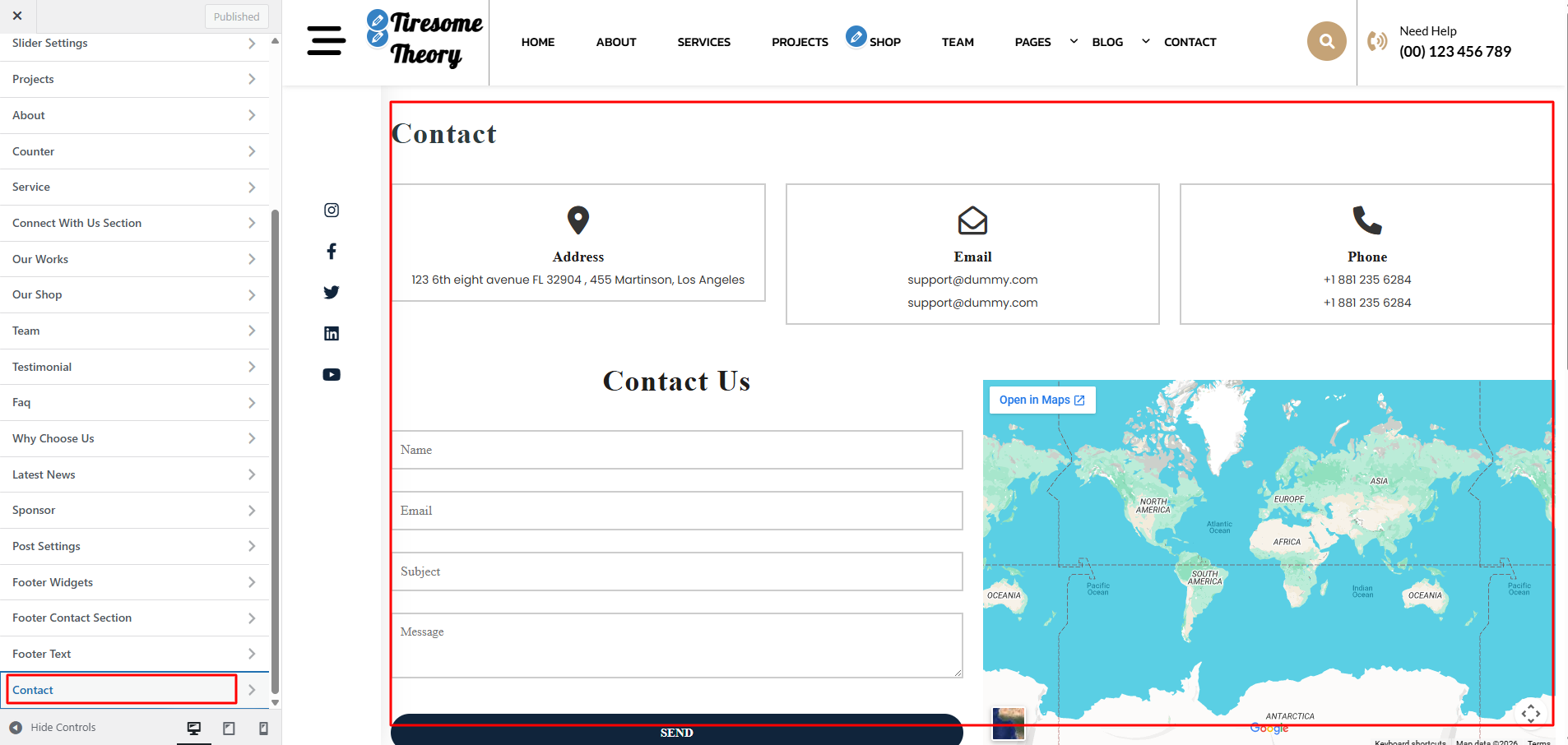
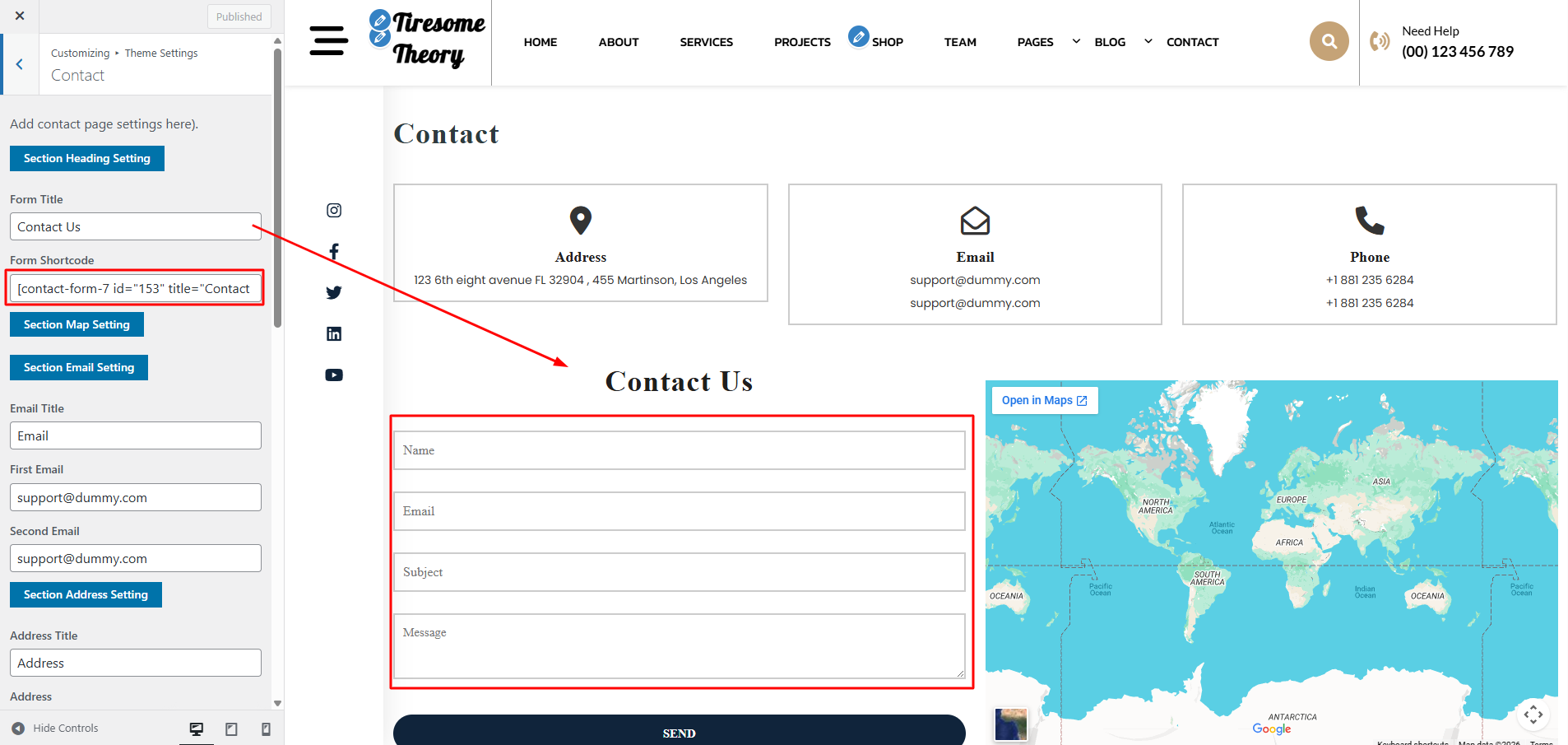
The following sections are included in the Contact Page customization:
- Section marked "Enable/Disable"
- Background Color / Background Image
- Depending on the content, different font settings.
5. Template & Sidebar Information
Page Template Options:
- Standard Template
- Default Page Template with Right Sidebar Position
- Full Width Page
- Page Template with One Column (No Sidebar)
- Left Sidebar on This Page
- Page Template with Left Sidebar Position
- Right Sidebar of the Page
- Page Template with Right Sidebar Position
Blog Options:
- Full-width Blog
- Blog Template with One Column (No Sidebar)
- Blog Template with Left Sidebar
- Blog Template with Left Sidebar Position
- Blog Template with Right Sidebar
- Blog Template with Right Sidebar Position
Contact Template
- Default Contact Template with No Sidebar Position
6.Posts Information
Adding Category
For more information on adding categories, refer to the following article:
click here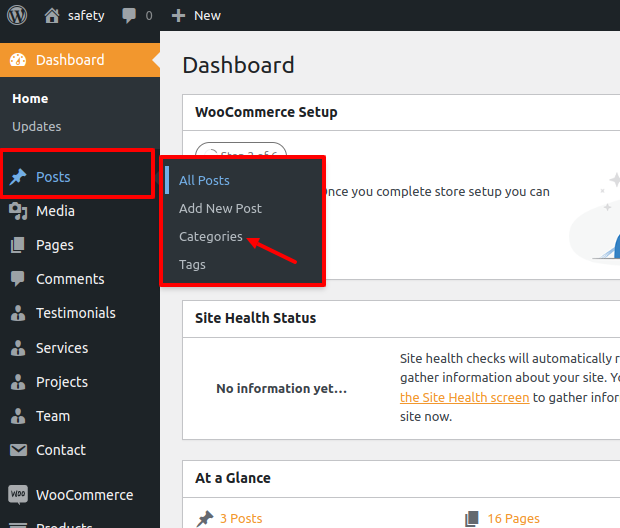
- Access your WordPress Administration Panel (Dashboard).
- Navigate to the Posts tab in your WordPress Dashboard
- After that, go to the Categories for blog entries.
- Enter the name of your new category in the field provided.
- Then, click the Add New Category option.
Select the Publish option.
Create a Blog posts
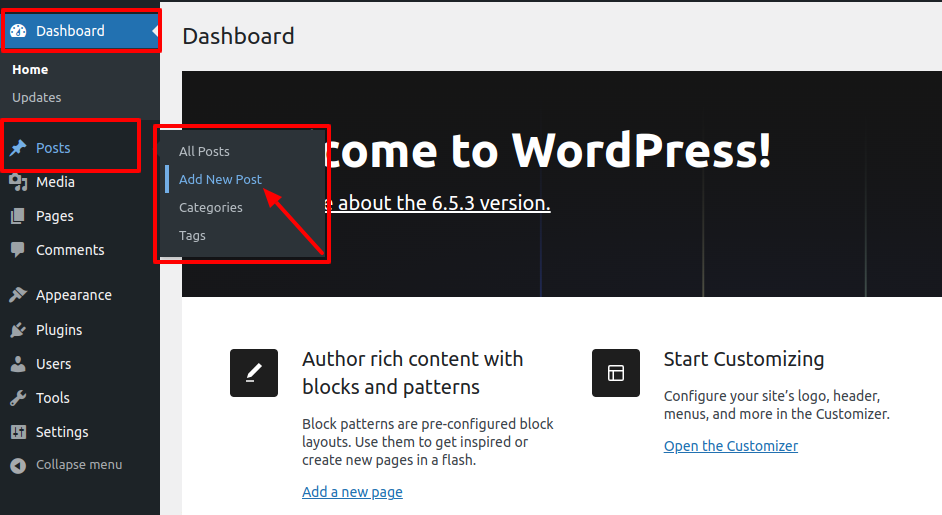
- Access the WordPress Dashboard.
- Select the Posts option.
- Select the Add New tab.
- Write in your post content. For more information on adding posts, please check the
following link
click here
7. Shortcodes
A shortcode is a powerful tool for generating content.
Shortcodes are simple to use.
For more Information refer to this link click here
First and foremost, ensure that the editing mode is ready to Visual.
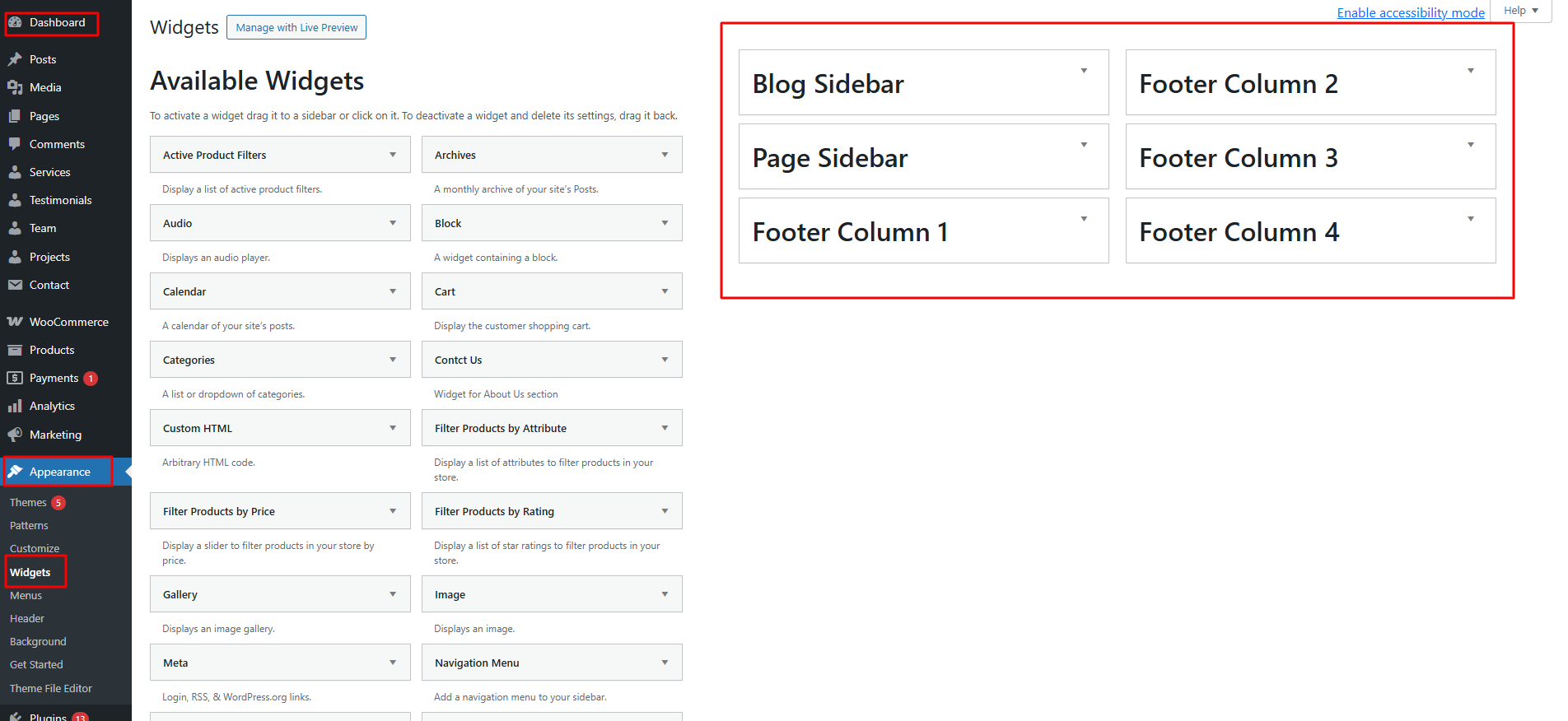
8. Custom Widgets
9. Support
Welcome to the Support Section! We are here to assist you in making the most out of our WordPress theme. Whether you're facing issues, need guidance on customization, or have general questions, we're here to help.
How to Get Support
- Documentation
Before reaching out for support, we recommend consulting our comprehensive documentation. It covers installation instructions, theme features, customization options, and troubleshooting tips. - Support Forum
If you haven't found a solution in the documentation or Knowledge Base, our support forum is the next step. You can post your questions, issues, or feature requests in the forum, and our support team, as well as the community, will assist you. Just click on the link provided below:
For Any Time Assistance / Feel Free To Ask , click here